



You are ready to buy your first 3D printer, but one question is still unresolved: do you also need a computer, or can the phone you already own handle everything?
You do not always need a computer connected while a 3D printer runs. Preparing the job is a separate question. A compatible phone or tablet workflow can cover some projects, including cloud slicing, while a desktop slicer generally gives you more control over custom files and detailed settings.
The right answer depends on three things: the printer, the software and what you want to print. Before buying a laptop—or assuming an app will do everything—separate the process into three tasks.
One print involves three different tasks
1. Get or create a model
You can browse model websites and download files on a phone, tablet or computer. Designing your own object is optional: many beginners start with an existing model. If you do want to design, choose a modeling tool that supports your device and exports a suitable format.
2. Prepare the printer instructions
A slicer turns geometry into a job for a particular printer. It plans layers, paths, temperatures and other instructions using your chosen profiles. That preparation may happen in desktop software or on a supported cloud service.
3. Transfer and run the job
The prepared job reaches the printer through a supported method, such as a network upload or removable storage. Starting it from a phone does not tell you where slicing happened, or which device must remain powered during the print.

What can you actually do with a phone?
On a compatible system, a phone can be a convenient way to browse models, select a prepared profile, submit a cloud-slicing job, start a print or check a camera. The exact combination varies.
For example, MakerWorld and Bambu Handy provide an integrated workflow for compatible Bambu Lab printers. Their official explanation describes cloud slicing that combines a model and print profile with selected printer and filament settings. This is an ecosystem-specific example, not a feature every Wi-Fi printer inherits.
Prusa EasyPrint is another example: it provides cloud slicing through a mobile-friendly interface. Its documentation distinguishes between preparing files and the available transfer methods. Direct LAN sending to non-Prusa printers is described for desktop browsers, while supported offline profiles provide a different route. Always check your exact model and device.
These options mean a phone-only workflow can be real. They do not mean that every downloaded STL, every printer and every editing task will fit the same app.
When is a computer the easier choice?
A laptop or desktop is useful when you want to do more than select a model and accept a suitable profile. The larger screen and detailed controls make it easier to understand what the printer will do.
- Arrange several parts on one build plate.
- Change orientation and inspect support placement.
- Paint color regions or assign parts to tools where supported.
- Adjust material and printer profiles.
- Compare alternative settings and inspect individual layers.
- Prepare files locally when you do not want to use cloud slicing.
You can still use your phone for supported monitoring or controls afterward. Preparing a job on a computer does not mean you must manage every stage from that computer.

Do you need an expensive gaming laptop?
Do not buy one simply because 3D printing involves a 3D model. Start by checking the current requirements for the slicer you plan to use, including operating system, processor architecture, memory and graphics support.
Then try it on the computer you already have. Open a typical model, move it around, slice it with the correct profile and inspect the preview. That simple test is more informative than a generic claim that any laptop is sufficient.
Large meshes, detailed scans and densely packed plates can demand more memory and processing time. CAD, sculpting and rendering are also separate workloads: a machine that handles ordinary slicing may not be comfortable for a large design project.
For shared family use, check whether software installation is allowed. A school-managed laptop can have adequate hardware and still block the program you need.
Windows, Mac, Chromebook or iPad?
| Device | Practical starting point | Check first |
|---|---|---|
| Windows / Mac / Linux computer | A compatible desktop slicer offers detailed preparation and preview tools. | Current version, architecture, hardware and printer profiles. |
| Chromebook | A supported browser service may be convenient; some devices also support Linux applications. | Device policy, Linux support, processor compatibility and file transfer. |
| iPad / Android tablet | Compatible apps or browser-based tools can cover selected workflows. | Model import, cloud slicing, export and printer connection support. |
| Phone | Convenient browsing, compatible print preparation and supported monitoring. | The exact app’s capabilities, not just the presence of Wi-Fi. |
A Windows installer will not run on an iPad merely because both devices can open the same model website. Check software compatibility before choosing the device.
Can you close the laptop once printing starts?
Usually, yes—if the entire job has been transferred and is running from storage on the printer or its dedicated controller. In that arrangement, your personal computer is no longer supplying the print instructions continuously.
But an external host can work differently. If a computer is streaming the job to the printer, that host must remain on and connected. Sleep mode, an interrupted connection or shutting it down can disrupt the print.
With Klipper, distinguish your personal laptop from the computer running Klipper itself. That controller may be built into the printer or provided as a dedicated host. Closing a browser on your laptop is not the same as switching off the active Klipper host. Its virtual-SD workflow reads the job from storage on that host.

Before closing anything, confirm how your specific setup works in its manual. Complete the upload, check that the job is actually running locally, and keep the printer and active controller powered. Do not disconnect hardware mid-print merely to test the theory.
Do you need the internet for every print?
Internet access and a local network are different things. A printer and computer may communicate over the same router without using a vendor’s cloud, if that printer and software support local operation.
Cloud slicing, online model libraries, account services and remote notifications may require internet access. A job prepared locally and transferred through a supported offline route may not.
Check the complete workflow. Being able to slice without the internet does not prove that your chosen transfer method works offline; being able to start a job offline does not guarantee that camera access and notifications will remain available.
Four questions to ask before buying
- Can my device prepare my own model files? Ask about STL or 3MF import, not only browsing a curated library.
- Does the software support this exact printer and nozzle? A brand name on a compatibility page is not enough.
- How will the prepared file reach the printer? Check network, storage and adapter requirements.
- What must stay on during printing? Identify the active controller and any external host.
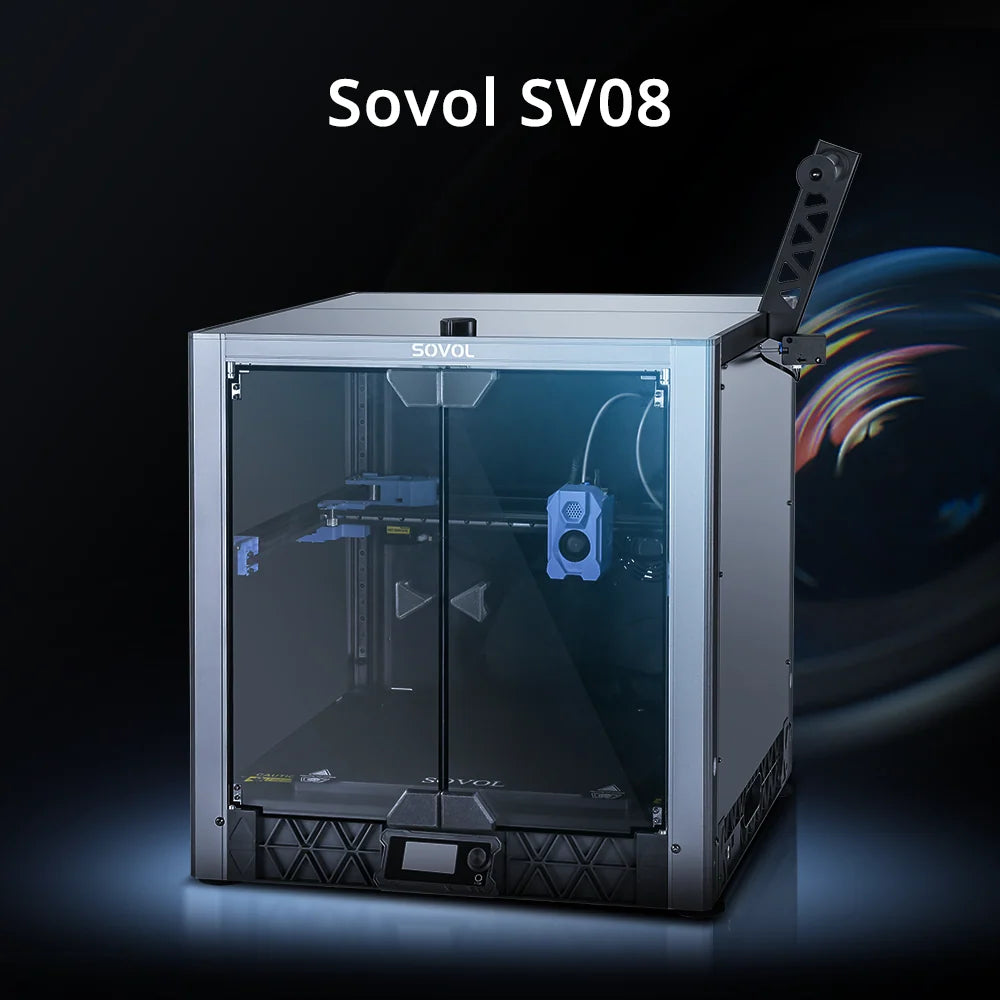
If you already know which printer you want, follow its documented setup before buying extra computing hardware. Sovol owners can start with the official SV08 documentation for that model, or find the guide for their exact printer. Do not assume an app for another brand can control a Sovol printer.
A sensible setup for a first-time user
If you already have a supported laptop, try the manufacturer-recommended slicer on it first. Prepare one simple model, inspect the layers and use the documented transfer method. Once that works, add phone controls or cloud services only where they make the process easier.
If you own only a phone or tablet, verify a complete route from model import to a prepared job and then to the exact printer. A demonstration that ends at “model downloaded” has not proved the printing workflow.
For desktop software, use the developer’s official download channel. The OrcaSlicer releases page is one such channel; use a compatible, documented printer profile rather than assuming a generic one will match.
Frequently asked questions
Can I print straight from an STL on my phone?
Only if your chosen workflow can import and slice it for your printer, then transfer the resulting job. Downloading an STL is not the same as preparing printer instructions.
Does Wi-Fi mean a printer works with any phone?
No. Wi-Fi provides a connection. App compatibility, file preparation and supported controls are separate requirements.
Can I use a Mac instead of Windows?
Yes, when your chosen slicer provides a compatible Mac build and supports your printer’s workflow. Check the requirements for the actual version you will install.
Do I need to learn CAD first?
No. You can begin with an existing model. Learning slicing and checking the print preview will help even if you never design a model yourself.
Can I turn off my computer during a print?
If it is only the device that prepared and uploaded a locally running job, usually yes. If it is the active host or controller, keep it on. Confirm the arrangement before shutting it down.
Choose a workflow before choosing another device
You do not automatically need a new computer to start 3D printing, and you do not automatically need to leave a laptop connected for hours. The useful question is which device prepares the job, how the file reaches the printer and which controller runs it.
A compatible phone workflow can make simple projects convenient. Access to a desktop slicer gives you more room to inspect and adjust custom jobs. Check the exact combination you intend to use, then start with the equipment you already own.
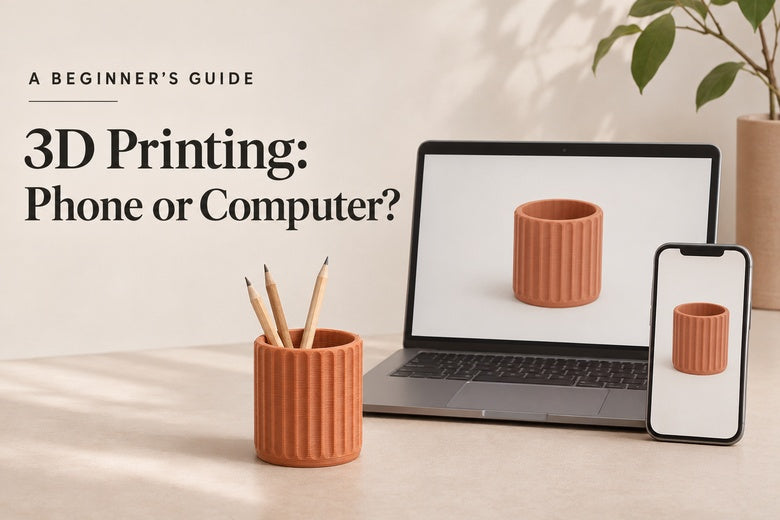
Illustrations are conceptual explanations, not screenshots of a specific app or verified device pairing.
