






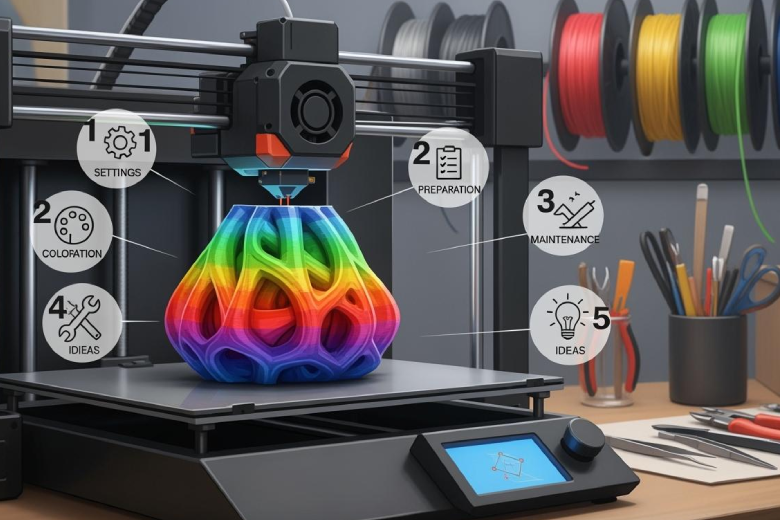
Multi-color 3D printing often brings excitement and frustration in equal measure. Many users encounter issues with color transitions, inconsistent print quality, or unexpected printer errors during multicolor projects. These challenges can feel overwhelming, especially when working with multicolor 3D printing or advanced multicolor setups. This guide offers practical tips that help achieve stable results. By following the top tips for better multi-color 3d printing, anyone can improve their multicolor 3d printing experience and produce vibrant, precise models.
Key Takeaways
- Choose the right printing method based on your experience and project needs. Single-extruder printers are simpler, while dual-extruder models offer more color options.
- Prepare your filament properly by drying it and storing it in airtight containers. This prevents moisture-related issues that can affect print quality.
- Calibrate your printer settings, including bed leveling and temperature adjustments, to ensure precise color transitions and prevent print failures.
- Utilize advanced slicing techniques to control color placement and minimize bleeding. This enhances the visual quality of your multicolor prints.
- Regularly clean your nozzle and adjust purge settings to maintain sharp color boundaries and avoid unwanted mixing during color changes.
Multi-Color Printing Methods and Tools
Choosing the right approach for multi-color 3d printing depends on the printer, project goals, and user experience. Each method offers unique advantages and challenges. Understanding these options helps users select the best fit for their workflow.
Single vs. Multi-Extruder
Single-extruder printers use one nozzle to print with multi-color filaments or swap colors during the process. Dual-extruder printers feature two nozzles, allowing for simultaneous printing with multiple colors or materials. The table below compares these setups:
|
Feature |
Single Extruder |
Dual Extruder |
|---|---|---|
|
Cost |
Generally more affordable |
More expensive |
|
Complexity |
Easier to use and maintain |
More complex, requires more expertise |
|
Color Options |
Limited to one color/material at a time |
Can print in multiple colors/materials |
|
Printing Speed |
Slower, prints one part at a time |
Faster, can print two parts simultaneously |
|
Ideal User |
Beginners |
Experienced users |
User feedback shows that dual-extruder printers can deliver high-quality results, but often require more tinkering and may introduce stringing or rough surfaces. Single-extruder machines remain popular for their simplicity and lower cost, though they offer fewer color options.
Filament Splicer and Palette Use
Filament splicers and devices like the Palette automate color changes by joining different filaments before they enter the printer. This method supports up to eight colors and reduces manual intervention. Key points include:
- Automation increases reliability and reduces operator workload.
- Devices like the Mosaic Palette 3 Pro enable complex multi-color printing with minimal user input.
- Some systems, such as the MMU2, offer more reliable prints and flexible material combinations, but early units may face reliability issues.
- Splicers can generate waste during material changes and may slow down print times due to the splicing process.
Manual Color Swapping
Manual color swapping remains a cost-effective entry point for multi-color printing. Users pause the print to change filaments, allowing for multiple colors in a single object. This method works with almost any 3d printing setup and does not require special hardware or software. However, it has limitations:
- Manual color swapping increases print time due to frequent pauses.
- Precise timing is critical; poor execution can cause adhesion problems or print failures.
- This technique suits beginners but demands careful planning and patience.
Tip: For best results, use the best software for multi-color 3d printing to preview color changes and optimize layer pauses.
Selecting the right method depends on project complexity, budget, and experience. Beginners may prefer manual color swapping, while advanced users benefit from dual-extruder or automated systems for intricate multicolor designs.
Filament Preparation Tips for multicolor 3D printing
Proper filament preparation forms the foundation for successful multicolor 3D printing. Each step, from drying to storage, directly impacts print quality and reliability, especially when working with multicolor projects.
Drying Filament for Quality
Many filaments used in multicolor 3D printing are hygroscopic. They absorb moisture from the air, which can cause several printing issues. Wet filament often leads to stringing, bubbles, and poor layer adhesion. Printers like the Original Prusa XL may experience even more severe problems, as moisture can release into the toolhead and affect multiple toolheads during a print. Humidity in filament also results in poor model surface quality, visible blobs, and even smoke during extrusion. To avoid these problems, users should always dry filament before starting a multicolor 3D printing project.
Tip: Drying filament in a dedicated filament dryer, food dehydrator, or a household oven set to the correct temperature ensures optimal results.
Clean and Square Filament Cuts
Smooth feeding is essential for multicolor 3D printing. Clean, square cuts at the end of each filament strand help prevent jams and ensure seamless color changes. A sharp filament cutter or flush cutters work best for this task. Jagged or angled cuts can catch inside the extruder, causing feeding issues or failed prints. For printers that use splicers or palettes, precise cuts become even more important, as uneven ends can disrupt the splicing process.
Storage and Handling
Proper storage protects filament from moisture and dust, both of which can compromise multicolor 3D printing quality. For best results, store filament in airtight containers with desiccant packs or use vacuum-sealed bags. Aim for below 20% relative humidity for optimal storage. Short-term storage of less sensitive materials like PLA can tolerate up to 40% humidity, but best print quality occurs below 45%. Problems often appear above 55-60%, and at 75% or higher, prints may become stringy or fail entirely.
Users should recognize signs of wet filament, such as tiny bubbles, oozing after extrusion stops, or sizzling noises. If these symptoms appear, dry the filament using a dryer, food dehydrator, or oven. Recommended drying times and temperatures vary by material: PLA at 45-55°C for 4-6 hours, PETG at 60-65°C for 4-6 hours, nylon at 70-80°C for 8-12 hours, ABS/PC at 70-80°C for 4-6 hours, and PVA at 45-55°C for 6-8 hours.
Note: Consistent filament preparation ensures smooth feeding and vibrant results in every multicolor 3D printing project.
Printer Settings for Multicolor 3D Printing
Bed and Nozzle Calibration
Accurate bed and nozzle calibration forms the backbone of stable multi-color prints. Proper alignment ensures each color adheres precisely, preventing gaps or overlaps. Two main techniques help achieve this:
|
Technique |
Description |
|---|---|
|
Move the nozzle to each bed corner and adjust knobs until a sheet of paper fits snugly. |
|
|
Auto Bed Leveling |
Use a sensor to probe the bed, creating a mesh for the printer to compensate for irregularities. |
Manual bed leveling requires attention to detail, especially at printing temperature. Auto bed leveling offers convenience and consistency, making it ideal for complex multicolor 3d printing projects. Operators should also fine-tune the z-axis, sometimes by as little as 20 micrometers, to improve first-layer quality and color transitions.
Temperature and Retraction
Temperature and retraction settings play a critical role in multi-color printing. Adjusting temperature addresses insufficient extrusion and improves bonding strength between layers. Retraction settings prevent artifacts and ensure clean transitions between colors. Operators should increase purge settings to clear old filament during color changes and maintain a clean nozzle for consistent extrusion. These adjustments help prevent color bleed and support vibrant, distinct transitions. Careful calibration of these parameters enhances both print quality and stability.
Advanced Slicing Techniques
Advanced slicing techniques allow users to optimize slicing software for sharper color boundaries and improved separation. Several strategies stand out:
- Model splitting divides objects into sections, isolating each color and reducing bleed.
- Assigning colors to specific layers or zones in the software gives precise control over transitions.
- Fine-tuning settings such as pressure advance and outer wall line width sharpens color boundaries. For example, setting the outer wall line width to 0.25mm and using a 0.2mm nozzle can minimize visible gaps, though it may increase print time.
- Modifying CAD designs to thicken regions at color boundaries further improves transitions.
These advanced techniques, when combined with proper calibration, help achieve professional results in multicolor 3d printing. Regularly updating slicing software and experimenting with new features ensures ongoing improvement.
Preventing Color Bleeding in Multi-Color Prints
Color bleeding remains a common challenge in multi-color 3d printing. Achieving seamless multicolor prints requires careful attention to printer settings and maintenance. The following techniques help users minimize unwanted mixing and maintain crisp transitions between multiple colors.
Flush Rate Adjustment
Adjusting the flush rate plays a vital role in reducing color contamination during color changes. When switching between colors, a small amount of old filament stays in the nozzle. Increasing the purge or transition length helps clear out this residue, resulting in cleaner color boundaries. Users should consider the following:
- Increase purge settings to remove old filament between color changes.
- Use longer transition lengths for darker colors, as they need more flushing to prevent contamination.
- Maintain a clean nozzle to ensure consistent extrusion and avoid unwanted mixing.
Proper flush rate adjustment supports vibrant, distinct color transitions and helps prevent color bleed in multi-color prints.
Wipe and Purge Techniques
Wipe and purge towers serve as effective tools for managing color changes. These structures collect excess filament during transitions, ensuring only the new color reaches the model. To optimize results:
- Place purge towers near the print to catch any mixed filament.
- Use wipe techniques to clean the nozzle tip before resuming the print.
- Adjust transition targets in slicing software to improve timing and reduce color mixing.
These techniques help maintain sharp boundaries and support high-quality multicolor results.
Nozzle Cleaning
Routine nozzle cleaning prevents color mixing and supports reliable multi-color printing. Users should:
- Use high-quality filament to reduce clogging.
- Perform regular cold pulls to remove micro-residues.
- Clean nozzles with silicone cloths during dual prints.
- Dry filaments properly to avoid stringing and contamination.
A consistent maintenance schedule ensures the printer delivers seamless multicolor prints with minimal color bleed.
Tip: Troubleshooting color bleeding often involves checking purge settings, transition timing, and nozzle cleanliness. Small adjustments can make a significant difference in print quality.
Model Design Tips for Multicolor 3D Printing
Designers who want to achieve success with multicolor 3d printing must plan their models with care. Strategic choices in layer order, color placement, and bed adhesion can transform a basic print into a professional result. The right approach helps users create detailed multicolor prints with sharp transitions and vibrant finishes.
Layer Order and Color Placement
The arrangement of layers and the placement of multiple colors have a strong impact on the visual outcome. Designers can use the following table to understand how different factors affect color results:
|
Evidence Description |
Findings |
|---|---|
|
Layer thickness and UV exposure |
A layer thickness of 100 μm and UV layer times under 3 minutes per layer produce faster color changes and reduce outgrowth. |
|
Multi-color printing |
Users can print multi-color structures, such as cubes with color changes along the z-axis or gradient pyramids. |
|
Color arrangement |
Objects with multiple colors that switch arrangement show the effect of strategic color placement. |
Careful planning of color transitions and layer order allows users to highlight features and create smooth gradients. Designers often pause the printer at specific layers to swap filaments, which supports clean color changes.
Bed Adhesion Focus
Strong bed adhesion is essential for multi-color prints. The following tips help optimize adhesion and reduce print failures:
- Adjust first layer speed to 20–30 mm/s for better grip.
- Increase first layer flow rate by 5–10% to improve contact.
- Set first layer height around 0.2 mm for a solid foundation.
- Choose the right bed surface for each filament, such as blue painter's tape for PLA or PEI for PETG.
- Raise bed temperature to 50–60°C for PLA or 90–110°C for ABS to prevent warping.
Leveling the bed and setting the Z-height accurately also increase the success rate of multi-color projects.
Preview and Simulation Tools
Preview and simulation tools in slicing software help designers visualize color changes before printing. These tools allow users to check for alignment issues, confirm color placement, and adjust layer order. Simulation features show how the printer will handle each transition, which reduces surprises during the print. Careful use of these tools supports the creation of complex multicolor designs and ensures that detailed multicolor prints match the designer’s vision.
To achieve smooth multi-color 3D printing, users should follow these tips:
- Learn advanced slicing techniques for precise color control.
- Use a filament splicer or palette for seamless transitions.
- Master manual color swapping for flexibility.
- Focus on bed adhesion to prevent print failures.
- Emphasize filament preparation for consistent results.
Applying these multi-color strategies leads to stunning multicolor results and greater satisfaction, as shown below:
|
Theme |
Evidence |
|---|---|
|
Realism and Validity |
High-fidelity models boost confidence and satisfaction. |
|
Skill Development |
3D printing enhances skills and teaching effectiveness. |
|
Practicality and Affordability |
Significant cost savings make multicolor experimentation accessible. |
Creative experimentation unlocks new possibilities in multicolor projects.
FAQ
What causes color bleeding in multicolor 3D prints?
Color bleeding often results from insufficient purging between color changes. Users can increase the flush rate or use purge towers to minimize contamination. Regular nozzle cleaning also helps maintain crisp color boundaries.
How can users prevent filament jams during color swaps?
- Cut filament ends squarely.
- Dry filament before use.
- Use high-quality filament.
These steps ensure smooth feeding and reduce the risk of jams during color transitions.
Which filaments work best for multicolor 3D printing?
PLA and PETG perform well in multicolor projects. They offer reliable extrusion and vibrant colors. Specialty filaments may require advanced settings or hardware for optimal results.
Do all slicing programs support multicolor printing features?
Not all slicing programs offer advanced multicolor tools. Users should check for features like color assignment, purge tower generation, and preview modes. Popular options include PrusaSlicer, Cura, and Mosaic Canvas.
