
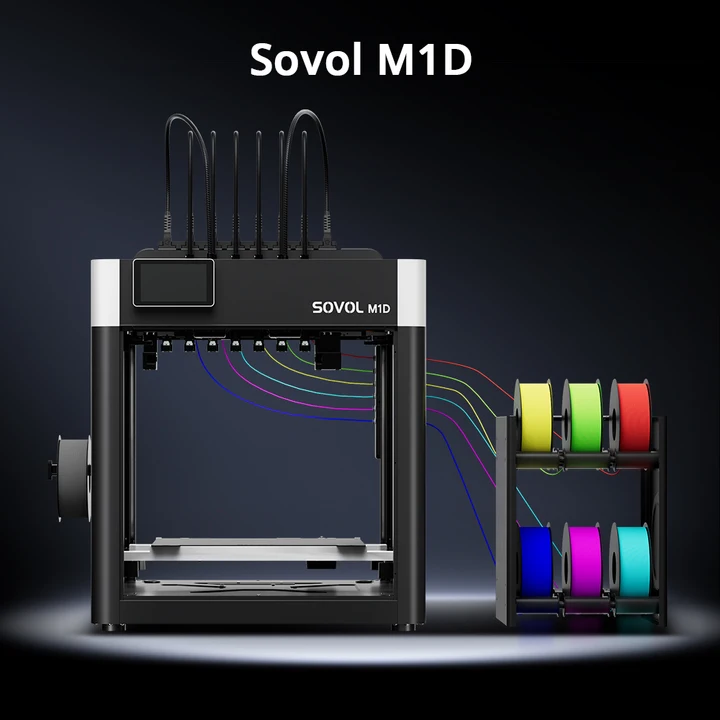
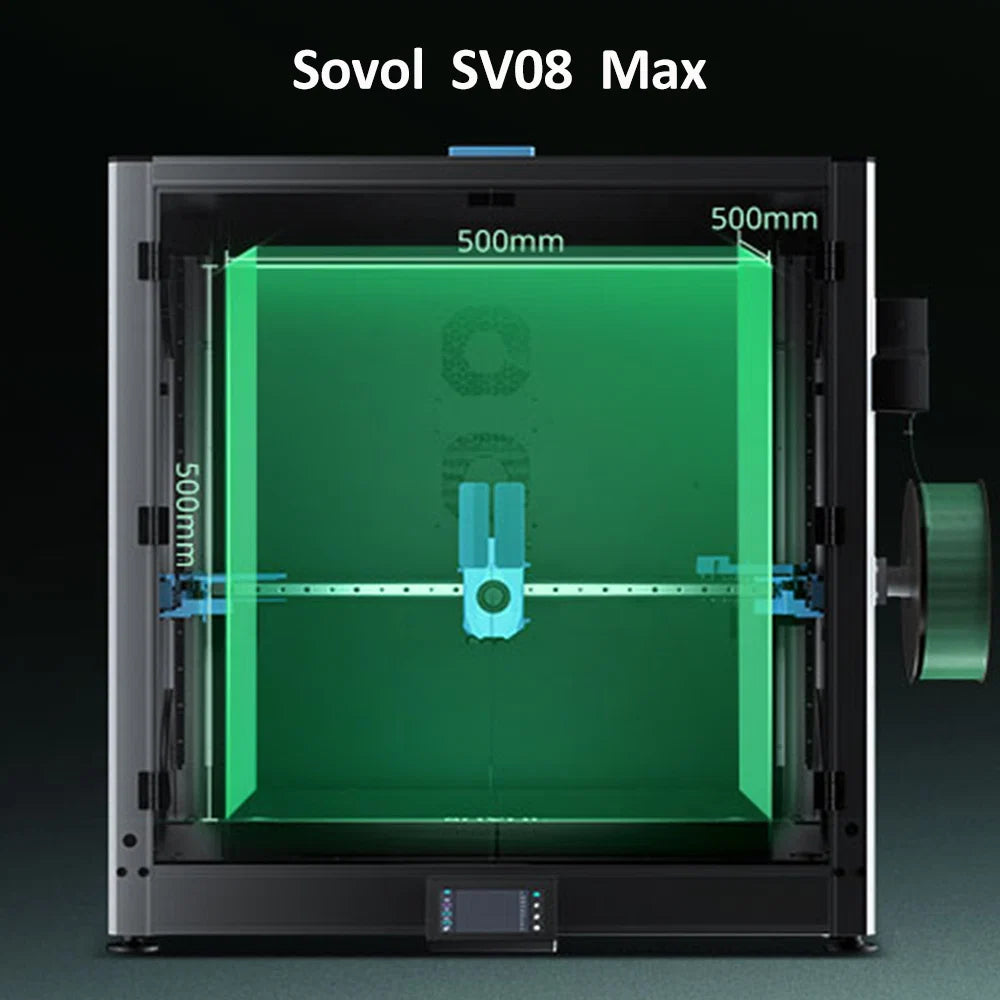




Multicolor 3D Printing unlocks new creative possibilities for designers and makers. Recent innovations have led to applications that blend utility and art:
|
Application Type |
Description |
|---|---|
|
Industrial Art |
Turns functional parts into expressive designs for product design and architecture. |
|
Kinetic Sculptures |
Delivers steampunk-inspired models with moving gears and multi-material features. |
|
Household Items |
Produces unique chairs, clocks, or lights, now feasible for small production runs. |
- Surgeons now use color-coded tools for safer, faster procedures.
- Medical teams print organ models from scans to plan surgeries with precision.
Every creator should assess their objectives, equipment, and readiness to use these advanced techniques.
Key Takeaways
- Multicolor 3D printing enhances creativity, allowing for unique designs in art, household items, and medical applications.
- Choosing the right printing method, such as single extruder or dual nozzle, depends on your goals, budget, and desired print quality.
- Effective model preparation and slicing techniques, like sectioning and color assignment, are crucial for achieving clean color transitions.
- Regular maintenance and calibration of your printer help prevent common issues like color bleed and nozzle clogging.
- Experimenting with both manual and automated color swapping techniques can lead to better results and more complex designs.
Multicolor 3D Printing Methods
Modern 3D Printing offers several hardware approaches for achieving multicolor results. Each method presents unique strengths and challenges. Understanding these differences helps users select the best solution for their needs.
Single Extruder Techniques
Single extruder techniques allow users to print in multiple colors by pausing the print and swapping filaments at specific layers. This approach remains popular due to its accessibility and low cost. Users do not need to install post-processing scripts, which simplifies the workflow. However, the process often requires manual intervention. The G-Code may still contain tool change commands, which can trigger warnings in some printer interfaces. Not all printers support the necessary commands, such as M600, and configuration can become tedious for complex prints.
|
Advantages |
Disadvantages |
|---|---|
|
G-Code still contains tool change command, which causes a warning in Octoprint. |
|
|
|
Less convenient to configure and needs to be inserted for each extruder. |
|
|
Only feasible for M600 command, which might not be supported by all printers. |
Dual nozzle systems and Independent Dual Extruder (IDEX) printers introduce a second extruder, enabling two colors or materials in a single print. Dual nozzle single-head printers offer affordability and straightforward management. However, they can suffer from oozing, require wasteful purging, and sometimes produce inconsistent print quality. IDEX printers, on the other hand, feature two independent print heads. This design eliminates the need for purging and allows for dual printing, which increases productivity. Calibration can be complex, and the heavier print heads may reduce precision. Both systems typically limit users to two materials or colors.
|
System |
Pros |
Cons |
|---|---|---|
|
IDEX 3D Printers |
Dual printing capability, no purging needed, increased productivity |
Complex calibration, heavier heads affect precision, limited to two materials, higher cost |
|
Dual-Nozzle Single-Head |
Affordable, simple to manage, dual-color capability |
Ooze risk, wasteful purging, limited to two materials, potential print quality issues |
Note: IDEX systems excel in producing multi-material prototypes and functional parts, but require careful setup.
Tool Changers
Tool changer systems represent the most advanced solution for multicolor 3D Printing. These machines, such as the Prusa XL and ZR Ultra, use a quick tool swapping mechanism to switch between multiple extruders. This approach minimizes filament waste and enables fast material changes. Tool changers offer high flexibility and scalability, supporting several colors or materials in one print. The initial investment is higher, and the machines occupy more space. Maintenance requires attention to the materials used, and an enclosure may be necessary for optimal performance, especially with high-density materials like PETG.
|
System |
Pros |
Cons |
|---|---|---|
|
Minimal waste, fast material changes, high flexibility, scalable to multiple materials |
Higher cost, increased complexity, larger footprint |
|
Aspect |
Details |
|---|---|
|
Tool Swapping Mechanism |
Quick tool swapping mechanism reduces filament waste during color changes. |
|
Reliability |
Impressive reliability noted after extensive use, with minimal issues reported. |
|
Maintenance Considerations |
Requires attention to materials used and the need for an enclosure for optimal performance. |
- Over 300 hours of print time without issues, except for user error.
- Adjusted settings for high-density PETG parts to improve print quality.
- Using an enclosure helps prevent warping on large prints.
Pro Tip: Tool changers suit professional environments where reliability and flexibility are critical.
Comparing Multicolor Printing Systems
The table below summarizes the main differences in print quality and complexity among the leading multicolor 3D Printing methods:
|
System |
Pros |
Cons |
|---|---|---|
|
Tool Heads (Prusa XL, ZR Ultra) |
Minimal waste, fast material changes, high flexibility, scalable to multiple materials |
Higher cost, increased complexity, larger footprint |
|
BambuLab AMS |
User-friendly, compact, scalable with multiple units, easy filament management |
Wasteful purging, limited material compatibility, slower switching |
|
IDEX 3D Printers |
Dual printing capability, no purging needed, increased productivity |
Complex calibration, heavier heads affect precision, limited to two materials, higher cost |
|
Dual-Nozzle Single-Head |
Affordable, simple to manage, dual-color capability |
Ooze risk, wasteful purging, limited to two materials, potential print quality issues |
Selecting the right multicolor 3D Printing method depends on the user's goals, budget, and willingness to manage complexity. Each system offers a distinct balance between print quality, ease of use, and scalability.
Slicing Techniques for Multicolor Prints
Model Splitting and Sectioning
Clean color boundaries in multicolor prints depend on precise model preparation. Designers often split models into distinct sections before slicing. This process ensures each color or material remains isolated, reducing the risk of color bleed and improving the final appearance. The following steps outline an effective strategy for model splitting and sectioning:
- Select the "Modify" function, then use "Optimize Boundary" to smooth and identify the boundary between areas.
- Choose "Modify" again and select "Smooth Boundary" to visualize the intersection, which appears as a blue line.
- Accept the selection to create a clearly delineated area.
- Define the selected area as a distinct object by using "Create Facegroup."
- Split these complex sections with the "Split Complex" option in the Object Browser.
- Export each section as its own .stl file for further processing.
Tip: Splitting models into separate .stl files allows for easier assignment of colors or materials during the slicing stage.
Layer and Zone Color Assignment
Slicing software plays a critical role in assigning colors to specific layers or zones. Programs like Cura, PrusaSlicer, and Simplify3D enable users to divide models into sections based on color. Within the slicer, users can assign colors or materials to each part, and preview the design layer by layer. This preview helps identify potential issues before printing begins.
- PrusaSlicer: Supports manual color changes using M600 G-code and integrates with the Prusa MMU system.
- Ultimaker Cura: Offers post-processing scripts such as 'Pause at Height' or 'Filament Change' for manual color swaps.
- Bambu Studio / OrcaSlicer: Optimized for the Bambu Lab AMS multi-material system, streamlining the color assignment process.
The slicer converts the prepared model into step-by-step instructions (G-code) for the printer. These instructions include commands for color changes at designated layers or zones. Many systems automatically map filament slots to the correct colors. Users can also manually select or adjust these mappings on the screen for greater control.
Note: Previewing the sliced model layer by layer helps catch color assignment errors before starting the print.
Slicer Software Settings
Fine-tuning slicer settings can significantly impact the quality of color transitions in multicolor prints. Several adjustments help achieve crisp, clean boundaries between colors:
- Calibration of pressure advance improves the sharpness of color transitions.
- Adjusting the outer wall line width to 0.25mm reduces visible gaps at color boundaries, though it may slightly affect surface quality.
- Using a smaller nozzle size, such as 0.2mm, minimizes gap size but increases print time.
- Modifying CAD designs to create thicker regions at color boundaries enhances the appearance of transitions.
|
Setting |
Impact on Print Quality |
|---|---|
|
Pressure Advance Calibration |
Sharper, cleaner color transitions |
|
Outer Wall Line Width (0.25mm) |
Reduces gaps, may affect surface finish |
|
Smaller Nozzle Size (0.2mm) |
Minimizes gaps, increases print duration |
|
Thicker CAD Boundaries |
Improves transition appearance, adds structural strength |
3D Printing enthusiasts who master these slicing techniques can achieve vibrant, professional-quality multicolor results. Careful model preparation, thoughtful color assignment, and precise slicer adjustments form the foundation of successful multicolor prints.
Hardware for Multicolor Printing
Filament Splicers and Palettes
Filament splicers and palettes have transformed multicolor printing by automating material changes and reducing manual intervention. Devices like the Mosaic Palette 3 Pro splice multiple filaments into a single strand, supporting up to eight colors. This technology enables users to print complex designs with minimal effort. The Palette X integrates with advanced systems to automate loading, unloading, and material selection. This automation ensures the correct filament feeds into the printer, which increases reliability and reduces operator workload.
Key features of filament splicers and palettes include:
- Printing with up to four colors (eight for Pro models).
- Compatibility with materials of varying properties for functional prints.
- Simplified use of breakaway and soluble supports.
The following table highlights popular hardware add-ons and their benefits:
|
Hardware Add-on |
Description |
Key Features |
Why It's Great |
|---|---|---|---|
|
Prusa Multi-Material Upgrade 2S (MMU2S) |
Prints with up to five filaments in one job. |
User-friendly, detailed setup guide |
Seamless integration with Prusa printers, reliable multicolor output |
|
Mosaic Palette 3 Pro |
Splices multiple filaments into a single strand. |
Supports up to eight colors, intuitive setup |
Expands creative possibilities for standard printers |
|
Enraged Rabbit Carrot Feeder (ERCF) |
Open-source MMU for single Direct Drive toolheads. |
Automatic filament changes, buffer system |
Adds multi-material capability to more printers |
|
Chameleon 3D Color Mixing Hotend |
Adds color mixing to any 1.75mm printer. |
No modifications needed |
Affordable, easy upgrade for colorful prints |
Multi-Extruder Integration
Integrating multiple extruders into a printer introduces new capabilities but also presents challenges. Nozzle alignment remains critical; misalignment can cause poor print quality. Automated calibration systems help maintain proper alignment. Oozing and stringing often occur, but users can address these issues by adjusting slicer settings. Different materials may not bond well, so designers often use interlocking features to improve adhesion.
Common challenges include:
- Clogged nozzles, which require regular cleaning.
- Uneven extrusion, which users can balance by adjusting individual flow rates.
- Color contamination, which can be minimized by optimizing purge settings.
Multi-extruder setups enable complex, high-quality prints with multiple colors or materials. However, users must maintain their equipment and fine-tune settings to achieve the best results.
Manual Color Swapping
Manual color swapping remains a practical solution for creators who use single-extruder printers. This technique allows users to produce multicolor prints without investing in advanced hardware. Careful planning and precise execution are essential for successful results.
Swapping Steps
Operators follow a series of steps to achieve manual color changes during a print. The process typically involves:
- Select a single-extruder printer equipped with a pause function.
- Prepare the slicing software, such as Creality Print, and identify the layers where color changes are desired.
- Insert pause points in the slicer at the chosen layers.
- Initiate the printing process.
- When the printer pauses, unload the current filament and load the new color.
- Resume printing to continue with the new filament.
This method provides flexibility for users who want to experiment with color transitions on basic models.
Layer Pauses and Timing
Strategic placement of layer pauses plays a critical role in the success of manual color swaps. Users who fail to position pauses correctly often encounter adhesion problems between layers. Print failures increase when pauses occur at unsuitable points. Reports indicate that improper timing can reduce the success rate to as low as 20 percent. Careful review of the model and thoughtful selection of pause locations help improve reliability.
- Incorrect pause placement leads to poor material bonding.
- Print failures rise when timing is not optimized.
- Success rates improve with deliberate planning.
Clean Transitions
Achieving clean color transitions requires attention to detail throughout the design and printing process. Designers plan models with distinct color sections or patterns. Slicing software, such as Cura or PrusaSlicer, enables users to insert pause commands at precise layer heights. The printer halts at these points, allowing manual filament changes. Accurate timing and careful planning ensure seamless transitions between colors.
- Manual color swapping uses pause functions built into most printers.
- Well-designed models feature clear boundaries for color changes.
- Slicing software assists with pause command placement.
- Users break the print at specific layers to swap filaments.
- Consistent results depend on preparation and execution.
Tip: Test manual color swaps on small models before attempting complex designs. This approach helps refine timing and technique.
Optimizing Print Quality
Bed Adhesion Tips
Successful multicolor 3D Printing begins with strong bed adhesion. Operators should always check that the print bed is level and the Z-height is set correctly. Products like Magigoo help parts stick to the surface, especially when printing with challenging materials such as polycarbonate. Printing with a brim increases the contact area and reduces the risk of warping or shifting. Technicians often maintain consistent bed and nozzle temperatures throughout the print. They use thoroughly dried filament and avoid drafts around the printer to prevent sudden temperature changes. Slower print speeds and reduced layer heights also improve adhesion and minimize warping.
- Level the bed and set Z-height accurately.
- Apply bed adhesion products for better grip.
- Print with a brim for enhanced stability.
- Keep filament dry and avoid drafts.
- Slow down print speed and reduce layer height.
Flush Test Prints
Flush test prints allow users to identify and resolve quality issues before starting a full multicolor project. These small sample prints help technicians check for extrusion problems, bonding strength, and cooling effects. Operators often adjust nozzle temperature or reduce print speed to address insufficient extrusion. Increasing the number of wall loops and infill rate improves bonding strength. Reducing fan speed and raising the heat bed temperature prevents excessive cooling. The table below summarizes common print quality issues and solutions:
|
Issue |
Cause and Solution |
|---|---|
|
Insufficient extrusion |
Raise nozzle temperature or slow print speed; clean or unclog nozzle. |
|
Low bonding strength |
Increase wall loops and infill rate. |
|
Excessive cooling |
Lower fan speed; increase bed temperature; close enclosure. |
|
Seam issues |
Set wall loops to 3; avoid multiple models per plate; raise nozzle temperature; use Spiral Vase mode. |
|
Belt pattern |
Increase outer wall speed; reduce layer height or raise temperature. |
|
Top layer gaps/inconsistency |
Adjust flow rate settings to prevent overflow or gaps. |
Preventing Color Bleed
Color bleed can ruin the appearance of multicolor prints. Operators adjust purge settings to clear old filament between color changes. Increasing transition lengths allows for better purging and cleaner boundaries. Maintaining a clean nozzle ensures consistent extrusion and prevents unwanted mixing. Many technicians use a transition tower to deposit excess filament during color swaps. Extruder calibration improves flow rates and helps optimize the timing of color changes. Careful planning and regular maintenance keep colors crisp and distinct.
- Adjust purge settings for thorough filament clearing.
- Increase transition lengths for better color separation.
- Clean the nozzle regularly.
- Use a transition tower for excess filament.
- Calibrate extruder for optimal flow and timing.
Note: Consistent maintenance and careful setup prevent color bleed and deliver professional multicolor results.
3D Printing Troubleshooting
Software Compatibility
Software compatibility plays a crucial role in successful multicolor 3D Printing. Users often encounter issues when slicer software does not support specific hardware features or file formats. Many printers require firmware updates to work with advanced slicing tools. Technicians should verify that their slicer supports multi-extruder setups and color assignment functions. Compatibility checks help prevent failed prints and wasted materials. Some slicers, such as PrusaSlicer and Bambu Studio, offer dedicated profiles for popular multicolor hardware. Users should select the correct printer profile before slicing. File formats like .stl and .3mf may behave differently across platforms. Testing with sample models ensures smooth workflow integration.
Tip: Always update slicer software and printer firmware to access the latest features and bug fixes.
Common Issues and Fixes
Multicolor 3D Printing introduces unique challenges. Operators frequently report nozzle clogging, color contamination, and misaligned layers. The following table summarizes common problems and recommended solutions:
|
Issue |
Cause |
Solution |
|---|---|---|
|
Nozzle Clogging |
Old filament or debris |
Clean nozzle, use fresh filament |
|
Color Contamination |
Inadequate purging |
Increase purge length, use tower |
|
Layer Misalignment |
Poor calibration |
Recalibrate, check hardware |
|
Software Errors |
Incompatible slicer settings |
Update software, verify profiles |
Technicians should run calibration prints before starting large projects. Regular maintenance, such as cleaning extruders and checking bed levels, improves reliability. Many users resolve software errors by reinstalling slicers or resetting printer profiles. Operators who document their troubleshooting steps build a valuable reference for future prints.
Note: Consistent maintenance and careful calibration reduce downtime and improve multicolor print quality.
Best Practices for Multicolor Slicing
Model Preparation
Effective model preparation sets the foundation for successful multicolor prints. Designers follow a series of steps to ensure optimal results:
- Pause the print for manual filament changes when a single-color section completes. This approach works best for simple Z-axis color transitions.
- Select multi-color filaments, such as rainbow filament, for decorative prints where precise color placement is not required.
- Design separate parts for different colors. This method may require assembly after printing but allows for intricate, multi-part designs.
- Calibrate the printer bed and nozzles with precision to avoid misalignment.
- Clean nozzles thoroughly. Use wipe towers or purge blocks during filament swaps to maintain print quality.
- Adjust slicing software settings specifically for multicolor prints.
- Start with two-color models before advancing to more complex designs.
Tip: Careful planning during model preparation reduces errors and improves the final appearance of multicolor prints.
Slicer Optimization
Slicer optimization plays a critical role in achieving sharp color boundaries and smooth transitions. Technicians adjust parameters such as purge length, wall thickness, and print speed. They select the correct color for each model section within the slicer interface. Calibration of pressure advance and retraction settings minimizes color bleed and stringing. Previewing the sliced model layer by layer helps identify potential issues before printing begins. Operators often run test prints to fine-tune these settings, ensuring the best possible outcome.
Consistent Quality
Consistent quality in multicolor prints requires ongoing evaluation and adjustment. Technicians use several metrics to assess both color reproduction and surface finish:
- ΔE*ab and spectral similarity measure color accuracy.
- Image-based metrics, including entropy and histogram equalization, help evaluate surface quality.
- The Hough transform and structural similarity index (MSSIM) provide insight into print consistency.
- Offline photography offers a comprehensive view of surface quality.
Regular monitoring with these metrics helps maintain high standards in 3D Printing projects. Technicians document results and adjust processes as needed to achieve reliable, professional outcomes.
Successful multicolor slicing in 3D printing relies on careful planning, reliable bed adhesion, and the right tools such as filament splicers or palettes. Users should experiment with both manual color swapping and automated systems to discover what works best for their projects. Common issues often resolve by checking model thickness, adjusting artwork orientation, and reviewing sliced views for overlaps. For continued improvement, users can explore advanced slicing techniques and study methods like vertex color slicing to enhance color accuracy and model quality.
FAQ
What is the best slicer for multicolor 3D printing?
PrusaSlicer, Bambu Studio, and Cura stand out for multicolor slicing. Each offers robust color assignment tools and supports popular hardware. Users should select a slicer that matches their printer and workflow requirements.
How can users prevent color bleed between sections?
Operators should increase purge lengths and use transition towers. Regular nozzle cleaning also helps. Proper slicer settings and maintenance keep color boundaries sharp and distinct.
Can a single-extruder printer produce multicolor prints?
Yes. Users can pause the print at specific layers and swap filaments manually. This method works best for simple designs with clear color transitions.
Why do some colors appear dull after printing?
Incorrect temperature settings or poor filament quality often cause dull colors. Operators should use high-quality filament and calibrate print temperatures for each material.
