



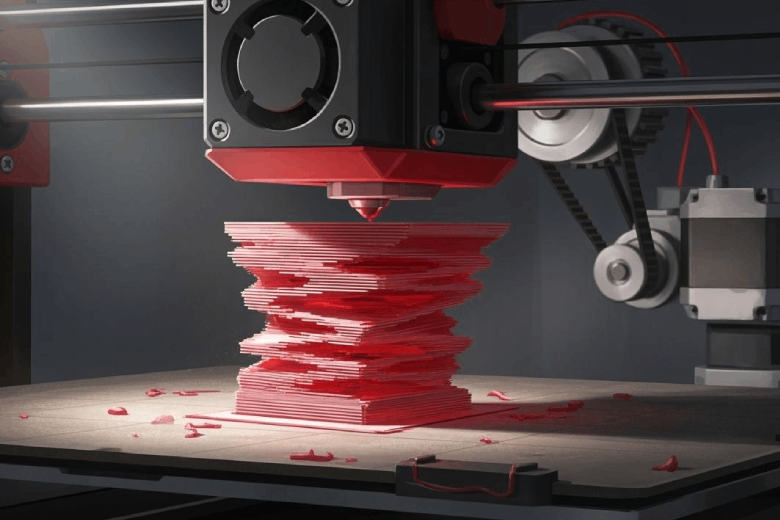
Schichtverschiebungen beim 3D-Druck sind oft frustrierend für alle, die glatte Ergebnisse erwarten. Mechanische Probleme wie lockere Riemen oder ungleichmäßige Spannung können dazu führen, dass sich der Druckkopf von seiner vorgesehenen Position verschiebt. Auch elektrische Fehler wie überhitzte Schrittmotortreiber oder falsche Spannungseinstellungen tragen zu Schichtverschiebungen bei. Druckeinstellungen und Umgebungsfaktoren wie Vibrationen und eine ungünstige Positionierung können ebenfalls zu verschobenen und falsch ausgerichteten Schichten führen. Die folgende Tabelle zeigt häufige Ursachen, die die Leistung des Druckers beeinträchtigen:
| Ursache | Beschreibung |
|---|---|
| Zahnriemen auf der X- und Y-Achse können sich dehnen und an Spannung verlieren, was zu Verschiebungen während des Druckvorgangs führt. | |
| Überhitzung von Schrittmotortreibern | Kann dazu führen, dass Motoren Schritte überspringen, was zu einer Verschiebung der Schichten führt. |
| Vibrationen von nahegelegenen Maschinen | Kann zu Verschiebungen und Schichtablösung führen, wenn der Drucker auf einer instabilen Oberfläche steht. |
Dieser Artikel bietet praktische Schritte zur Fehlerbehebung für alle, die Probleme mit der Druckkopfposition beim 3D-Druck haben.
Wichtigste Erkenntnisse
- Überprüfen und korrigieren Sie die Riemenspannung regelmäßig. Lockere Riemen können beim Drucken zu fehlerhaft ausgerichteten Schichten führen.
- Stellen Sie sicher, dass der Drucker auf einer stabilen Oberfläche steht. Vibrationen von Maschinen in der Nähe können zu Schichtverschiebungen führen.
- Stellen Sie die Spannung des Schrittmotors gemäß der Bedienungsanleitung des Druckers ein. Falsche Einstellungen können dazu führen, dass der Druckkopf seine Position verliert.
- Überprüfen Sie die Slicer-Einstellungen vor dem Drucken.
Pro Die korrekte Konfiguration trägt zu einer reibungslosen Bewegung des Druckkopfes bei und verhindert Fehlausrichtungen. - Führen Sie regelmäßige Wartungsarbeiten durch, einschließlich der Reinigung und Schmierung beweglicher Teile. Dadurch wird ein reibungsloser Betrieb des Druckers gewährleistet und Schichtverschiebungen werden reduziert.
Mechanische Ursachen der Schichtverschiebung
Lose Riemen und Riemenscheiben
Lose Riemen und Riemenscheiben Dies kann häufig zu Schichtverschiebungen beim 3D-Druck führen. Wenn die Riemenspannung nachlässt, verliert der Drucker seine Positionsgenauigkeit, und der Druckkopf kann sich unerwartet verschieben. Benutzer berichten häufig davon. unzureichende Riemenspannung Dies führt zu falsch ausgerichteten Schichten und Fehlern im fertigen Druck. Mechanische Ungenauigkeiten durch verschlissene Riemen oder Riemenscheiben können die Druckqualität erheblich beeinträchtigen. Regelmäßige Wartung von Riemen und Riemenscheiben beugt Schichtverschiebungen vor und sorgt für einen reibungslosen Betrieb des 3D-Druckers.
Tipp: Überprüfen Sie vor dem Druckvorgang immer die Riemenspannung. Ein straff gespannter Riemen überträgt die Bewegung effektiv und sorgt für die korrekte Ausrichtung der Schichten.
- Lockere Riemen sind eine Hauptursache für Schichtverschiebungen bei 3D-Druckern.
- Unzureichende Spannung kann zu Fehlausrichtungen der Schichten führen.
- Die Instandhaltung von Riemen und Rollen ist für die Positionsgenauigkeit unerlässlich.
Fehlausgerichtete Schienen
Falsch ausgerichtete Schienen stören die Bewegung des Druckkopfes und können zu falsch ausgerichteten Schichten führen. falsch ausgerichteter oder lockerer Rahmen Dies führt zu schlechter Druckqualität und Achsenverfahrproblemen. Ablagerungen in den Rahmenkanälen können ein Springen des Druckkopfes und damit kurzzeitige Achsenverschiebungen verursachen. Bei größeren Hindernissen kann die Achse blockiert oder aus der Bahn geworfen werden, was die Ausrichtung und Integrität der Schichten direkt beeinträchtigt.
Notiz: Durch regelmäßiges Reinigen der Schienen und Rahmenkanäle wird die Positionsstabilität erhalten und ein Verrutschen verhindert.
Starre Achsen und Kupplungen
Starre Achsen und Kupplungen behindern die reibungslose Bewegung, wodurch der Druckkopf seine Position verlieren kann. Wenn sich Achsen oder Kupplungen nicht frei bewegen, kann es zu Schichtverschiebungen kommen.Dieses Problem führt oft zu falsch ausgerichteten Schichten und beeinträchtigt die Gesamtqualität des Drucks.
Rahmeninstabilität
Eine instabile Rahmenkonstruktion beeinträchtigt die Positioniergenauigkeit des Druckers. Ein wackeliger oder lockerer Rahmen kann dazu führen, dass sich der Druckkopf während des Betriebs verschiebt und somit Schichten fehlerhaft ausgerichtet werden. Ein stabiler und sicherer Rahmen verhindert Schichtverschiebungen beim 3D-Druck und gewährleistet die Integrität jeder einzelnen Schicht.
Kurzcheckliste für mechanische Einstellungen:
- Prüfen Sie das Druckprofil auf korrekte Einstellungen.
- Reduzieren Sie die Druckgeschwindigkeit auf unter 60 mm/s.
- Die Fahrgeschwindigkeit sollte auf 100 mm/s eingestellt werden.
- Retraktionseinstellungen anpassen.
- Z-Hop aktivieren.
- Kämmmodus deaktivieren.
- Stellen Sie die richtige Riemenspannung ein..
Ein stabiler Rahmen, leichtgängige Achsen und korrekt gespannte Riemen tragen wesentlich zur Positionsgenauigkeit des 3D-Druckers bei. Die Behebung dieser mechanischen Ursachen beugt Verschiebungen vor und gewährleistet die korrekte Ausrichtung jeder einzelnen Schicht.
Elektrische Probleme beim Schichtwechsel im 3D-Druck
Schrittmotor Pro Makel
Schrittmotoren spielen eine entscheidende Rolle bei der Bewegung des Druckkopfs und des Druckbetts. Erhalten diese Motoren nicht die korrekte Spannung oder Stromstärke, kann es zu Schrittverlusten kommen. Dies führt häufig zu Schichtverschiebungen beim 3D-Druck. Falsche Spannungseinstellungen können Überhitzung oder ein zu geringes Drehmoment verursachen, was ebenfalls zu Schichtfehlausrichtungen führt. Techniker empfehlen, die Spannungseinstellungen (VREF) gemäß der Bedienungsanleitung des Druckers anzupassen. Sie raten außerdem dazu, ein Multimeter für eine präzise VREF-Kalibrierung zu verwenden und die Motortemperatur nach den Anpassungen zu überwachen. Regelmäßige Neukalibrierung trägt zur Aufrechterhaltung einer optimalen Motorleistung bei.
Häufige Probleme mit Schrittmotoren sind:
- Falsche Spannungs- oder Stromeinstellungen
- Überhitzung aufgrund mangelhafter Belüftung
- Unzureichendes Drehmoment führt zu einer Verschiebung des Druckkopfes.
- Lose oder schlecht verbundene Flachkabel
- Mechanischer Widerstand im Motor
Zur Diagnose von Schrittmotorproblemen sollten Benutzer Folgendes beachten:
- Prüfen Sie, ob das Flachbandkabel richtig angeschlossen ist. zum Y-Motortreiber.
- Prüfen Sie, ob der Y-Schlitten leichtgängig ist.
- Den Widerstand des Schrittmotors können Sie durch manuelles Drehen der Riemenscheibe prüfen.
Überhitzung des Treibers
Überhitzung des Treibers Überhitzung ist nach wie vor eine häufige Ursache für Schichtverschiebungen beim 3D-Druck. Wenn Schrittmotortreiber überhitzen, können sie Schritte überspringen, was zu einer Verschiebung der Schichtposition führt. Staubablagerungen und mangelhafte Belüftung können die Überhitzung verschlimmern. Ein präzises Drehmoment ist für die einwandfreie Funktion des Motors unerlässlich; daher trägt die Kühlung der Treiber dazu bei, Schichtverschiebungen zu vermeiden.
Tipp: Stellen Sie den Drucker an einem gut belüfteten Ort auf und reinigen Sie die Elektronik regelmäßig von Staub, um das Risiko einer Überhitzung zu verringern.
Stromversorgungsfehler
Fehler im Netzteil können die Stromzufuhr zu Motoren und Treibern unterbrechen. Plötzliche Spannungseinbrüche oder -spitzen können dazu führen, dass der Drucker seine Position verliert und dadurch Schichten falsch ausgerichtet werden. Techniker empfehlen, das Netzteil auf stabile Leistung zu überprüfen und defekte Komponenten auszutauschen. Ein zuverlässiges Netzteil gewährleistet gleichmäßige Bewegungen und verringert das Risiko von Schichtverschiebungen während des 3D-Drucks.
Notiz: Eine stabile Stromversorgung sorgt für einen reibungslosen Betrieb des Druckers und beugt Motorverlusten vor.
Elektrische Probleme wie Schrittmotorprobleme, Überhitzung des Treibers und Netzteilfehler verursachen häufig Schichtverschiebungen beim 3D-Druck. Die Behebung dieser Probleme trägt zu einer präzisen Schichtpositionierung bei und verbessert die Gesamtdruckqualität.
Druckeinstellungen und Ebenenverschiebung
Hohe Druckgeschwindigkeit
Viele Anwender glauben, dass hohe Druckgeschwindigkeiten zu Schichtverschiebungen beim 3D-Druck führen. Studien zeigen jedoch, dass Die Druckgeschwindigkeit erhöht sich statistisch nicht. Die Wahrscheinlichkeit einer Veränderung. Festigkeit und Verhalten von 3D-gedruckten Proben bleiben bei unterschiedlichen Druckgeschwindigkeiten konstant. Spannungs-Verformungs-Verhalten und Bruchfestigkeit ändern sich kaum, wenn der Drucker schneller arbeitet. Dennoch berichten einige Anwender von Veränderungen. laute Geräusche beim Drucken, Dies könnte eher auf mechanische Probleme als auf die Geschwindigkeit selbst zurückzuführen sein. Der Druckkopf kann sich verstellen, wenn die Riemen locker sind oder die Motoren zu schwach sind.
Tipp: Wenn der Drucker laute Geräusche macht oder sich der Druckkopf unregelmäßig bewegt, überprüfen Sie die mechanischen Komponenten, bevor Sie die Druckgeschwindigkeit anpassen.
Beschleunigung und Ruck
Die Einstellungen für Beschleunigung und Ruck steuern, wie schnell der Drucker die Richtung ändert. Sind diese Werte zu hoch, kann sich der Druckkopf ruckartig bewegen, was zu Schichtverschiebungen führen kann. Plötzliche Richtungsänderungen belasten die Motoren und Riemen des Druckers. Der Druckkopf kann seine Position verlieren, was zu falsch ausgerichteten Schichten führt. Die Firmware „Input Shaper“ beeinflusst mitunter die Beschleunigung, und Benutzer berichten von Schichtverschiebungen nach Aktivierung dieser Funktion. Durch die Anpassung von Beschleunigung und Ruck auf moderate Werte wird eine gleichmäßige Bewegung und eine korrekte Schichtausrichtung gewährleistet.
- Eine zu hohe Beschleunigung kann dazu führen, dass der Druckkopf Schritte überspringt.
- Zu hohe Ruckeinstellungen können zu plötzlichen Verschiebungen in der Schicht führen.
- Moderate Werte verbessern die Stabilität und verringern das Verrutschen.
Slicer-Konfigurationsfehler
Konfigurationsfehler im Slicer führen häufig zu Schichtverschiebungen beim 3D-Druck. Falsche Einstellungen können dazu führen, dass der Drucker Schwierigkeiten hat, den Druckkopf präzise auszurichten. Häufige Fehler sind eine zu hohe Druckgeschwindigkeit, eine falsche Riemenspannung und lockere Riemenscheiben. Diese Fehler verhindern, dass der Drucker den Druckkopf genau steuert, was zu Schichtverschiebungen führt.
Notiz: Überprüfen Sie vor dem Drucken immer die Slicer-Einstellungen.
Häufige Slicer-Fehler im Zusammenhang mit Layerverschiebungen:
- Die hohe Druckgeschwindigkeit überlastet die Motoren.
- Falsche Riemenspannung verursacht Schlupf oder Reibung.
- Lose Riemenscheiben verhindern die präzise Bewegung des Druckkopfes.
Durch sorgfältige Anpassung der Druckeinstellungen, der Beschleunigung und der Slicer-Konfiguration lässt sich ein Verschieben der Schichten verhindern. Regelmäßige Kontrollen gewährleisten die einwandfreie Funktion des Druckers und stellen sicher, dass jede Schicht an ihrem Platz bleibt.
Umwelt- und externe Faktoren
Druckervibrationen
Vibrationen von Geräten in der Nähe oder instabilen Oberflächen führen häufig zu Genauigkeitsverlusten beim 3D-Druck. Schon geringe Bewegungen können den Druckkopf verstellen und so Schichtverschiebungen verursachen. Der Drucker muss daher auf einer stabilen Unterlage stehen, um unerwünschte Bewegungen zu vermeiden. Die Auswirkungen von Vibrationen werden oft unterschätzt, doch sie können die Schichtstruktur beeinträchtigen und den 3D-Druck ruinieren.
Tipp: Stellen Sie den Drucker an einem ruhigen Ort fernab von schweren Maschinen auf. Prüfen Sie, ob der Tisch oder Ständer während des Betriebs nicht wackelt.
| Auswirkungen auf die Schichtverschiebung | Empfehlung | |
|---|---|---|
| Temperaturschwankungen | Verursacht thermische Ausdehnung/Kontraktion von Bauteilen | Sorgen Sie für eine stabile Raumtemperatur und verwenden Sie isolierende Gehäuse. |
| Vibrationen in der Nähe | Kann die Druckqualität beeinträchtigen, auch wenn der Effekt geringfügig erscheinen mag. | Gewährleisten Sie eine stabile Druckumgebung. |
Äußere Kräfte oder Einflüsse
Versehentliche Stöße oder Berührungen während des Druckvorgangs können zu plötzlichen Bewegungen des Druckkopfs führen. Diese Bewegungen verursachen Schichtverschiebungen und Fehlausrichtungen. Vermeiden Sie es daher, den Drucker während des Betriebs zu berühren. Haustiere oder Kinder in der Nähe des Geräts erhöhen das Risiko, dass äußere Einflüsse die Schichtposition beeinträchtigen.
- Bewahren Sie den Drucker an einem sicheren Ort auf.
- Während des Druckvorgangs den Zugang für Haustiere und Kinder verhindern.
Temperaturschwankungen
Temperaturschwankungen im Raum können die Komponenten des 3D-Druckers beeinträchtigen. Plötzliche Temperaturabfälle oder -anstiege führen zu Ausdehnung oder Zusammenziehen der Bauteile. Diese Bewegung kann dazu führen, dass der Druckkopf seine Position verliert und sich die Schicht verschiebt. Eine stabile Raumtemperatur trägt zu einer gleichmäßigen Schichtausrichtung bei.
Notiz: Verwenden Sie ein isoliertes Gehäuse, um den Drucker vor Zugluft und Temperaturschwankungen zu schützen.
Düsenkratzer und Saugkraft
Die Düse kann mitunter über die Druckoberfläche schleifen oder am Material ziehen. Dies kann zu Schichtverschiebungen und Defekten führen. Kratzer oder Saugkräfte der Düse können durch einen falschen Z-Offset oder eine unzureichende Bettnivellierung entstehen. Regelmäßige Kalibrierung und Wartung reduzieren das Risiko von Schichtfehlausrichtungen.
- Drucken in gut belüftete Räume oder innerhalb eines geschlossenen Systems, um die Auswirkungen auf die Umwelt zu minimieren.
- Um Schichtverschiebungen zu vermeiden, sollte der Drucker regelmäßig gewartet und kalibriert werden.
- Überprüfen Sie die Druckerkalibrierung und stellen Sie sicher, dass alle Teile fest sitzen.
- Um ein Ablösen der Schichten zu vermeiden, sollte die Maschine auf einer stabilen Oberfläche stehen.
- Halten Sie Firmware und Schneidesoftware auf dem neuesten Stand.
- Optimieren Sie die Bewegungseinstellungen, einschließlich Reisegeschwindigkeiten und -wege.
Umwelteinflüsse und externe Faktoren spielen eine wichtige Rolle bei Schichtverschiebungen. Durch die Kontrolle von Vibrationen, Temperatur und äußeren Einwirkungen kann der 3D-Drucker präzise Schichten erzeugen.
Fehlerbehebung bei 3D-Drucken mit Schichtverschiebung
Schrittweise Überprüfungen
Eine übersichtliche Checkliste zur Fehlerbehebung hilft Anwendern, Schichtverschiebungen beim 3D-Druck schnell zu erkennen und zu beheben. Viele Anwender stellen fest, dass eine logische Vorgehensweise die Ergebnisse verbessert und Zeit spart. Die folgenden Schritte führen Anwender durch die häufigsten Lösungen für Schichtverschiebungen beim 3D-Druck:
- Überprüfen Sie den Druckkopf und die Führungsschienen auf Verunreinigungen oder Blockaden. Entfernen Sie Staub oder Partikel, die die reibungslose Bewegung behindern könnten.
- Prüfen Sie die Riemenspannung und -ausrichtung. Passen Sie die Riemen an, falls sie locker sitzen oder ungleichmäßig verlaufen.
Pro Die Vorspannung verhindert, dass der Druckkopf seine Position verliert. - Überprüfen Sie die Riemenscheiben und Kupplungen. Ziehen Sie alle losen Schrauben oder Bolzen fest, um den Druckkopf zu sichern.
- Testen Sie die Beweglichkeit jeder Achse, indem Sie den Druckkopf vorsichtig bewegen. Er sollte sich leichtgängig und widerstandsfrei bewegen lassen.
- Überprüfen Sie die Druckeinstellungen im Slicer. Verringern Sie Druckgeschwindigkeit und Beschleunigung, falls der Druckkopf springt oder sich verschiebt.
- Überwachen Sie den Drucker während des Betriebs. Achten Sie auf ungewöhnliche Geräusche oder Vibrationen, die auf ein Problem hinweisen könnten.
- Prüfen Sie, ob das Netzteil eine stabile Spannung liefert. Tauschen Sie es aus, wenn der Drucker sich unerwartet abschaltet oder neu startet.
- Aktualisieren Sie Firmware und Software auf die neuesten Versionen. Neue Updates beheben häufig Fehler, die zu Layerverschiebungen führen.
- Kalibrieren Sie die Schrittmotoren und prüfen Sie sie auf Überhitzung. Die Motoren sollten kühl bleiben und den Druckkopf präzise bewegen.
- Stellen Sie den Drucker auf eine stabile Oberfläche. Vermeiden Sie die Platzierung in der Nähe von schweren Maschinen oder in stark frequentierten Bereichen.
Nutzer berichten häufig von einer besseren Druckqualität. Nach der Reinigung des optischen Fensters und der Justierung der x-Achse werden durch diese Schritte viele Probleme im Zusammenhang mit Schichtverschiebungen behoben.
Wartungstipps
Regelmäßige Wartungsarbeiten verringern das Risiko von Schichtverschiebungen beim 3D-Druck und sorgen für gleichmäßige Druckergebnisse. Techniker empfehlen folgende Maßnahmen, um eine optimale Leistung zu gewährleisten:
- Bauplatte neu kalibrieren und nivellieren vor jedem Druckvorgang. Dies gewährleistet gleichmäßige Schichten und eine starke Haftung.
- Entfernen Sie Staub und Schmutz von der Bauplatte und der Düse. Saubere Oberflächen verbessern die Haftung auf dem Druckbett und verhindern, dass der Druckkopf Material mitzieht.
- Ziehen Sie alle Schrauben und Bolzen fest. Ein stabiler Rahmen verhindert, dass sich der Druckkopf während des Betriebs verschiebt.
- Schmieren Sie bewegliche Teile wie Schienen und Achsen. Durch die Schmierung werden Reibung und Geräusche reduziert, sodass sich der Druckkopf reibungslos bewegen kann.
- Die Riemenspannung regelmäßig prüfen und anpassen.
Pro Die Spannung sorgt dafür, dass der Druckkopf in der richtigen Position bleibt. - Reinigen und schmieren Sie den Drucker bei längeren Druckvorgängen alle 30 Minuten bis zu einer Stunde. Dadurch wird Ablagerungen vermieden, die zu Verschiebungen führen können.
- Führen Sie bei Bedarf alle 1-2 Stunden eine gründliche Reinigung, Firmware-Updates und Komponentenprüfungen durch.
- Schrittmotoren (E-Schritte) für präzise Bewegungen auf allen Achsen kalibrieren.
- Motorbefestigungen und Stellschrauben zur Sicherung der Riemenscheiben prüfen und gegebenenfalls festziehen.
- Für optimale Leistung sollten Firmware und Schneidesoftware stets auf dem neuesten Stand sein.
Verhinderung zukünftiger Schichtverschiebungen
Um ein Verrutschen von 3D-Drucken zu verhindern, ist ein proaktives Vorgehen erforderlich. Anwender, die diese Strategien befolgen, haben weniger Probleme und erzielen bessere Ergebnisse:
- Warten Sie Riemen und Riemenscheiben, indem Sie auf die richtige Spannung und Ausrichtung achten.
- Reinigen und schmieren Sie die beweglichen Teile, um die Reibung zu verringern und Blockaden zu vermeiden.
- Vermeiden Sie aggressive Geschwindigkeitseinstellungen, die den Druckkopf und die Motoren überlasten.
- Verbessern Sie die Haftung der ersten Schicht und des Druckbetts, indem Sie die Bauplatte neu kalibrieren und die Düse reinigen.
- Der Drucker sollte in einer stabilen Umgebung aufgestellt werden, fern von Vibrationen und Temperaturschwankungen.
- Sichern Sie Bett und Rahmen, um Bewegungen während des Druckvorgangs zu vermeiden.
- Passen Sie die Druckgeschwindigkeit an, um die Belastung der Motoren zu reduzieren und zu verhindern, dass der Druckkopf seine Position verliert.
- Vermeiden Sie Kollisionen, indem Sie den Druckbereich frei von Werkzeugen, Schmutz und anderen Gegenständen halten.
- Führen Sie eine Wartungscheckliste ein, insbesondere in Schulen oder gemeinsam genutzten Umgebungen, um sicherzustellen, dass alle Benutzer die bewährten Verfahren befolgen.
Viele Anwender bemerken eine deutliche Verbesserung der Druckqualität nach Anwendung dieser Präventionsstrategien. Sorgfältiges und detailgenaues Arbeiten hilft, Schichtverschiebungen zu vermeiden und präzise 3D-Drucke zu gewährleisten.
Eine zuverlässige Checkliste zur Fehlerbehebung, regelmäßige Wartung und intelligente Präventionsstrategien beheben die häufigsten Ursachen für Schichtverschiebungen beim 3D-Druck. Diese Maßnahmen helfen Anwendern, die korrekte Position des Druckkopfs beizubehalten und stets hochwertige 3D-Drucke zu erstellen.
Schichtverschiebungen bei 3D-Drucken entstehen häufig durch mechanische, elektrische und umweltbedingte Faktoren. Regelmäßige Kontrollen und Wartungsarbeiten helfen, Fehlausrichtungen zu vermeiden und die Schichtqualität zu verbessern. Studien zeigen, dass sich die meisten Schichtprobleme durch einfache Anpassungen beheben lassen.Die folgende Tabelle hebt häufige Ursachen und Lösungen für Schichtverschiebungen hervor:
| Ursache der Schichtverschiebung | Lösung |
|---|---|
| Änderungen durch äußere Kräfte oder Filamente | Beseitigen Sie Hindernisse aus den Achsen und nutzen Sie Videos, um Probleme zu erkennen. |
| Hochviskoses Filament | Trockenes Filament verwenden, Prime Tower nutzen, Heizbetttemperatur anpassen |
| Übermäßige Druckgeschwindigkeit | Automatische Wiederherstellung aktivieren, Stangen reinigen |
Ein 3D-Drucker profitiert von Reinigung, Festziehen und Neukalibrierung. Anwender, die diese Schritte befolgen, haben weniger Verschiebungsprobleme und eine gleichmäßigere Schichtausrichtung.
Häufig gestellte Fragen
Warum verschieben sich Schichten nur in eine Richtung?
Eine Verschiebung der Schichten in eine Richtung deutet oft auf ein mechanisches Problem hin. Möglicherweise ist der Riemen oder die Riemenscheibe auf dieser Achse locker. Benutzer sollten die Teile auf Verschleiß prüfen und alle Schrauben festziehen.
Können Firmware-Updates das Problem der Schichtverschiebung beheben?
Firmware-Updates beheben mitunter Fehler, die zu Schichtverschiebungen führen. Sie können die Motorsteuerung und -stabilität verbessern. Für optimale Ergebnisse sollten Benutzer stets die neueste Firmware installieren.
Was sollten Benutzer tun, wenn es während des Druckvorgangs zu einer Schichtverschiebung kommt?
Benutzer sollten den Druckvorgang unterbrechen und den Drucker überprüfen. Sie müssen prüfen, ob Riemen, Rollen oder andere Teile lose sind oder ob Blockaden vorliegen. Durch Neustart des Druckvorgangs nach Behebung des Problems lässt sich ein weiteres Verrutschen oft verhindern.
Führt die Druckgeschwindigkeit immer zu Schichtverschiebungen?
Eine hohe Druckgeschwindigkeit führt nicht immer zu Schichtverschiebungen. Meistens sind mechanische Probleme wie lockere Riemen oder schwache Motoren die Ursache. Benutzer sollten die Hardware überprüfen, bevor sie die Geschwindigkeit reduzieren.
