






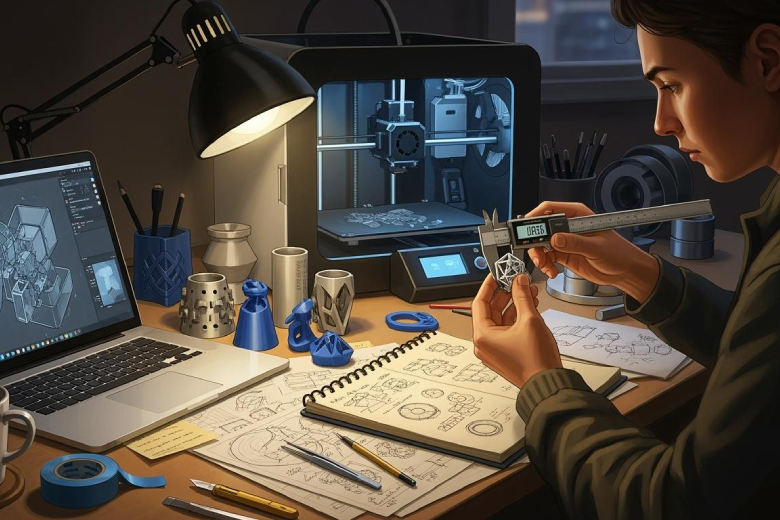
People who want reliable results from 3d projects should conduct tests before starting. Calibration helps the printer work with precision. Fit tests show if the parts align correctly, and material checks confirm that the filament performs well. Following a structured test process prevents wasted resources and reduces errors.
Tip: Regular calibration ensures consistent 3d printing quality.
Key Takeaways
- Conduct tests before 3D printing to prevent failures and save time. Simple checks can catch issues early.
- Regularly calibrate your printer to ensure consistent quality. Calibration helps avoid common print problems.
- Perform fit tests to confirm parts assemble correctly. This step reduces the risk of failed assemblies.
- Select appropriate test files and slicing software to evaluate printer performance. Using the right tools enhances accuracy.
- Evaluate print tests carefully to optimize settings and improve results. Iterative adjustments lead to better outcomes.
Why Conduct Tests Before Printing
Prevent Print Failures
People who conduct tests before starting a 3d project increase their chances of success. Pre-print testing helps users avoid common problems that waste time and material. Many print failures happen because of simple mistakes. For example, incorrect exposure settings or an empty resin tank can stop a print before it begins. Users can prevent these issues by running a dry test, checking resin levels, and leveling the build plate. The table below shows some common failure types and how to avoid them:
|
Failure Type |
Common Causes |
Prevention Tips |
|---|---|---|
|
Nothing prints at all |
Incorrect exposure settings, empty resin tank, hardware issues, corrupted files |
Confirm correct printer profile, run a dry test, check resin levels, re-level build plate, increase exposure |
|
Fails to stick to the build plate |
Poor leveling, dirty build plate, under-exposed bottom layers |
Level the build plate, clean the surface, adjust exposure settings, reduce lift speed |
Testing also improves the accuracy and reliability of 3d prints. Factors like CAD software, slicing methods, and test specimens all influence the final result. For example, the way a user slices a model can change its geometrical accuracy. The following table highlights how different factors affect accuracy:
|
Factor |
Influence on Accuracy |
|---|---|
|
CAD Software |
Affects tessellation approach for large elements |
|
Design Approach |
Assembly mode enhances accuracy |
|
Slicing Methods |
Impacts geometrical accuracy |
|
3D Model Formats |
No significant influence observed |
|
Test Specimens |
Examined elements from 254 µm to 12.7 mm |
Ensure Fit and Tolerance
Fit tests play a key role in designing for 3d printing. These tests help users check if parts will assemble as planned. Without proper fit tests, parts may not connect or move as intended. Testing for fit and tolerance also helps users understand how their printer handles different design tolerances. The table below explains common fit types and their uses:
|
Fit Type |
Description |
|---|---|
|
Press Fit |
Used for parts that must not detach under load; requires precise control over material properties. |
|
Tight Fit |
Achieves close assembly with minimal clearance; affected by printing technology and layer height. |
|
Normal Fit |
Balances clearance and interference; allows easy assembly and accommodates slight variations. |
|
Loose Fit |
Significant clearance for easy assembly; important to consider material warpage in design. |
Fit tests also reveal if the printer can meet 3d printing tolerances. By running these tests, users can adjust their design or printer settings to achieve the right fit. This process ensures that the final assembly works as expected. People who conduct tests before printing reduce the risk of failed assemblies and wasted material.
Prepare for 3D Printed Unit Tests
Calibrate Your Printer
Calibration forms the foundation for successful 3d printed unit tests. Every printer requires careful setup before starting a new project. A sturdy printer assembly prevents unwanted movement during printing. Users should update firmware and slicer software to access the latest features and bug fixes.
A well-calibrated printer produces accurate 3d models and reduces the risk of failed prints. The following steps help users prepare for 3d printed unit tests:
- Inspect the printer assembly for loose parts.
- Update firmware and slicer software.
- Level the print bed and set the Z-offset.
- Calibrate the extruder by marking, measuring, and adjusting E-steps.
- Adjust the flow rate and perform temperature calibration.
- Modify retraction and speed settings.
- Print a test model to evaluate results.
- Save slicer settings and profiles.
Calibration procedures can differ between FDM and SLA printers. FDM printers focus on mechanical bonding and depend on nozzle size and extruder movement for resolution. SLA printers use chemical bonding and rely on the light source for detail. The table below compares the two types:
|
Feature |
FDM |
SLA |
|---|---|---|
|
Calibration Focus |
Mechanical bonding |
Chemical bonding |
|
Print Resolution |
Dependent on nozzle size and extruder movement |
Dependent on light source |
|
Layer Interaction |
Weight of upper layers compresses lower layers |
Less force applied on layers |
|
Surface Finish |
Rough and rigid |
Smoother |
Common errors detected during calibration include under-extrusion, over-extrusion, and first layer failures. These problems can ruin a print and waste material. A successful calibration helps users avoid these issues and ensures that each test produces reliable results.
Load and Level Bed
Proper filament loading and bed leveling are essential for 3d printing. If users skip these steps, they may damage the printer or ruin the print. For example, improper bed leveling can cause the nozzle to hit the bed, making the Z-axis crooked or even denting the build plate. These mistakes require time-consuming repairs and recalibration.
The table below shows how often users should level the bed and calibrate nozzle height:
|
Scenario |
Frequency |
|---|---|
|
Before first print or after assembly |
Once |
|
After changing the nozzle |
Once |
|
Regular checks |
At least once a week |
|
When a print has failed |
As needed |
Users should also calibrate when changing filament, swapping nozzles, or noticing print issues. Regular checks every few months help maintain consistent results.
Note: The first layer is the most important part of any 3d print. If it fails, the entire print may not succeed.
A well-leveled bed and properly loaded filament allow the printer to lay down smooth, even layers. This preparation step increases the chance that each test will reveal accurate information about the printer’s performance. By following these guidelines, users can trust the results of their 3d printed unit tests and avoid common problems.
Get Test Files & Software
Find Unit Test for 3D Printing
Selecting the right test object is the first step in testing 3d printed parts. Many designers use a unit test for 3d printing to check printer accuracy and performance. Several popular test models help users evaluate different aspects of their machines. These models are available for free from trusted online repositories. Some of the most widely used test files include:
- PolyPearl Tower: Tests bridging, curves, overhangs, and stringing. Download here
- 5-mm Steps: Checks dimensional accuracy and bridging. Download here
- Stringing Test: Evaluates temperature, cooling, and retraction settings. Download here
- Bed Leveling Calibration: Aids in bed leveling for better first layers. Download here
- Slope Angle Test: Assesses staircasing effects on prints. Download here
- Temperature Tower: Tests temperature settings and print quality. Download here
- Hollow Cube: Evaluates retraction, oozing, and bridging. Download here
- Cali Cat: Tests dimensional accuracy and overhangs. Download here
- Shootout Collection: Offers a range of tests for various printing challenges. Download here
These files allow users to test different printer features before starting a major project. Using a variety of test models helps identify issues early and improves the reliability of 3d prints.
Choose Slicing Software
Slicing software prepares 3d models for printing by converting them into instructions for the printer. The choice of slicer and its settings can greatly affect the results of a test. Users should look for software that offers flexible control over print parameters. The table below highlights important features to consider:
|
Feature |
Description |
|---|---|
|
Adjusts smoothness and detail; lower values give finer results but take longer. |
|
|
Wall/perimeter settings |
More walls increase strength and finish but add print time. |
|
Infill density and pattern |
Changes strength and weight; select based on the needs of the test. |
|
Print speed and temperature |
May need adjustment for best results. |
|
Retraction settings |
Reduces stringing and blobs; tune for each filament. |
|
Variable Layer Height |
Balances speed and quality by changing layer thickness. |
|
Custom Supports |
Controls support placement for easier removal and better quality. |
|
Modifier Meshes |
Allows different settings for specific areas of the model. |
|
Sequential Printing |
Prints objects one at a time to reduce stringing. |
|
Bridge Settings |
Improves unsupported spans. |
Slicer settings such as layer height, extrusion width, and print speed all influence the outcome when testing 3d printed parts. Pre-configured profiles can save time, but users should test individual settings to see their impact. Adjusting retraction speed, rest time, and anti-aliasing can also improve print quality. Careful setup of slicing software ensures accurate results for every test.
Tip: Always use the same slicer and settings when comparing test results for consistency.
Run and Evaluate Tests
Print in Final Orientation
Printing unit tests in the same orientation as the final part is essential for accurate evaluation. The orientation of a print affects its mechanical properties and structural integrity. When users print specimens from the top orientation, they may observe delamination of the outer layers. This issue demonstrates that incorrect orientation can lead to significant structural failures.
Printing the specimens from the ‘top’ orientation resulted in delamination of the outer layers, demonstrating that incorrect orientation can lead to significant structural failures.
To achieve reliable results, users should:
- Print in an orientation that aligns layers with the axis where tension forces are highest.
- Print in an orientation that intersects layers with the axis where compression forces are highest.
By matching the orientation of the test model to the final part, users can conduct tests that reveal true performance. This approach helps identify weaknesses and ensures that the final 3d printed fit prototype meets design requirements.
Check Material and Parameters
Material selection and parameter optimization play a major role in the outcome of 3d print tests. Different materials impact tensile strength, impact resistance, and flexibility. Tensile strength is often weakest along the Z-axis due to layer adhesion, so users must evaluate print orientation carefully. Impact strength tests, such as the Charpy or Izod test, measure a material's toughness and require consistent print settings for accuracy. Flexural strength testing indicates resistance to bending forces, with results influenced by print orientation and material type.
Users should conduct tests that evaluate the following:
- The stress-strain curve to compare material properties against application requirements.
- Post-processing techniques like annealing to enhance material properties and address limitations from the printing process.
- Maximum operating stress, deflection requirements, cyclic loading, and environmental factors.
- Processing parameters, which significantly influence mechanical properties and require careful optimization.
- Build orientation, which affects mechanical properties due to anisotropy.
Layer thickness and interior density also influence mechanical properties. Larger layer thickness can reduce thermal stresses, while increasing interior density enhances strength and stiffness. Exposure time, filler concentration, and layer orientation further affect the results of 3d print tests.
|
Factor |
Influence on Mechanical Properties |
|---|---|
|
Layer Thickness (LT) |
Affects interfacial bonding and strength between layers; larger LT can reduce thermal stresses. |
|
Interior Density (ID) |
Increasing ID enhances strength and stiffness by balancing stresses throughout the item. |
Users should calibrate print temperature and speed settings to enhance material flow, layer adhesion, and overall print accuracy. Higher temperatures can improve flow and allow for faster extrusion, but must be balanced to avoid defects. Increasing travel speed can shorten printing time, but excessive speed may lead to imprecise prints or layer shifts. Accurate bed leveling improves initial layer adhesion, reducing failed prints and allowing for higher print speeds. Maintaining a stable ambient temperature around 20-25°C helps ensure consistent printing speed and reduces defects.
Assess Fit and Tolerance
After running 3d print tests, users must assess fit and tolerance to ensure parts meet design specifications. Fit tests help determine if components assemble correctly and function as intended. Users can conduct tests using statistical tolerance analysis and worst case tolerance analysis.
|
Method |
Description |
|---|---|
|
Statistical Tolerance Analysis |
Utilizes CAD software features to perform tolerance stack-up calculations, ensuring parts fit correctly. |
|
Worst Case Tolerance Analysis |
Focuses on achieving higher precision in manufacturing by analyzing the worst-case scenarios. |
Tools such as the hole tolerance test and 3d printed fit prototype allow users to measure fit and test tolerances before finalizing designs.
|
Tool/Method |
Purpose |
|---|---|
|
Hole Tolerance Test |
Determines the accuracy of a printer by comparing designed hole sizes to actual measurements. |
|
3D Printed Fit Prototype |
Tests the fit of components within 3D printed parts before finalizing designs. |
Key indicators of a successful print test evaluation include:
- Well-leveled: Uniform and solid disks indicate a well-leveled bed.
- Bed low: Stringy material or incomplete connection to the outer circle suggests the bed is low.
- Bed high: Flattened or overly pressed disks signal a high bed.
- Bed very high: Inconsistently or incompletely laid disks indicate a very high bed.
Users should measure absolute deviation to ensure parts fit together correctly and assess tolerance repeatability for consistency across multiple prints. Best practices for evaluating print test results include:
- Evaluate the printed model for issues like stringing, inadequate infill, and surface quality. Take notes on areas needing improvement.
- Iterate adjustments by modifying settings such as retraction and reprint for comparison.
- Understand the iterative process, recognizing that perfect results may require multiple refinements.
- Troubleshoot multiple issues by prioritizing adjustments based on their impact and addressing one issue at a time.
By following these steps, users can conduct tests that reveal true fit and tolerance, optimize print parameters, and achieve reliable results in 3d printing projects.
Testing before 3D printing leads to better results and fewer problems. Calibration aligns hardware and software, while evaluation steps improve print quality and reduce waste. The table below highlights key benefits:
|
Benefit |
Description |
|---|---|
|
Improved Print Quality |
Calibration ensures consistent quality in prints. |
|
Reduced Waste |
Efficient calibration minimizes material waste. |
|
Enhanced Efficiency |
Faster project turnaround through automated tasks. |
Real-time feedback and iterative design help users refine their process. Quality control tools predict outcomes and solve issues early. Making testing a routine step ensures reliable and successful projects.
FAQ
What is the most important test before 3D printing?
Bed leveling stands as the most important test. A level bed helps the first layer stick well. This step prevents many common print failures.
How often should someone calibrate a 3D printer?
A user should calibrate before large projects, after changing filament or nozzles, and when print quality drops. Regular checks every few weeks keep the printer in top shape.
Where can someone find reliable test files?
- Thingiverse
- Printables
- Cults3D
These websites offer free and trusted test models for calibration and performance checks.
What should someone do if a test print fails?
|
Step |
Action |
|---|---|
|
1 |
Check bed leveling |
|
2 |
Inspect filament and nozzle |
|
3 |
Adjust slicer settings |
|
4 |
Re-run the test |
Small changes often fix common problems.
