



3D printing is a skill that takes time, experimentation, and patience to master. Few things are more frustrating than a print that fails repeatedly when all you want is a clean, strong, and high-quality model.
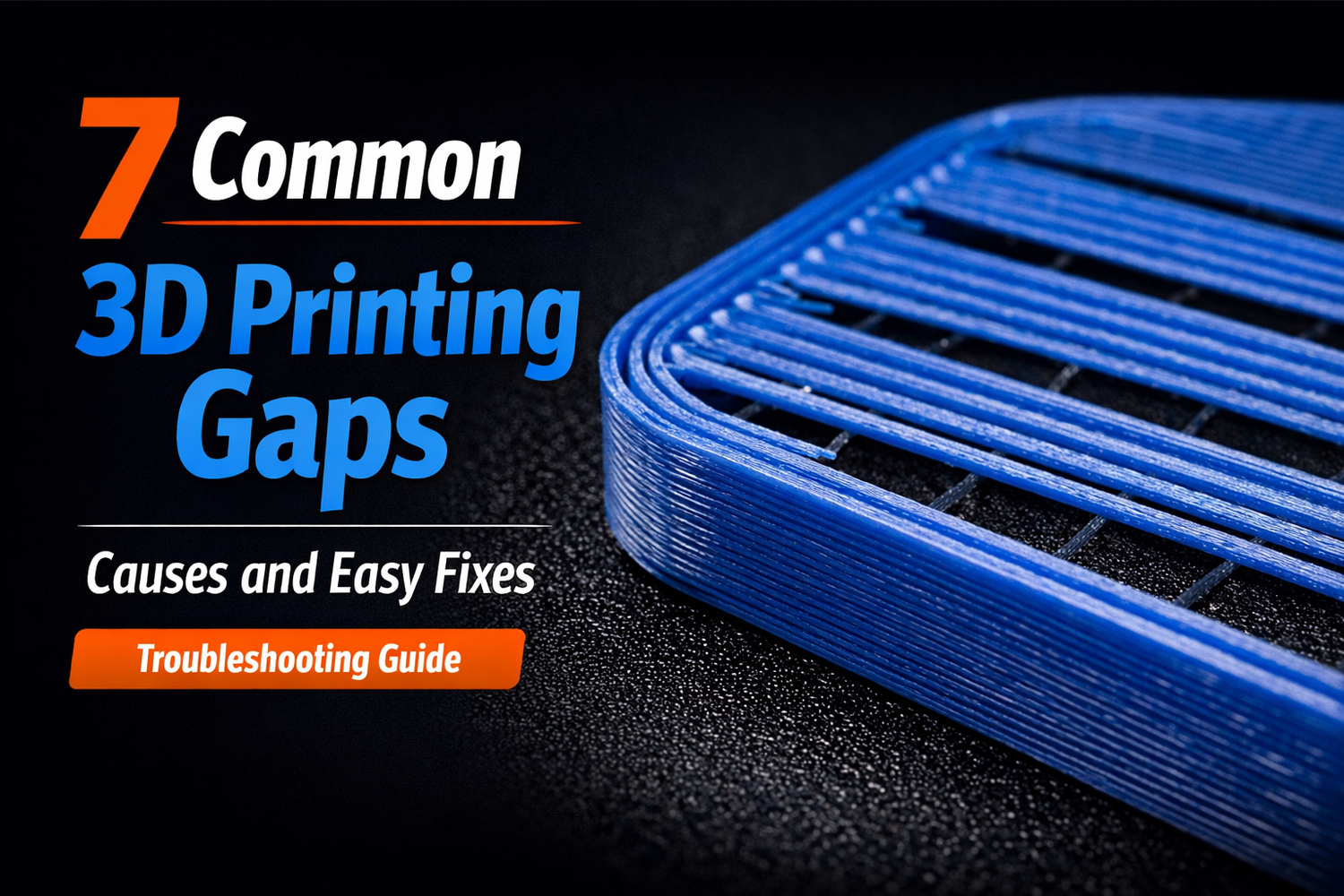
If you are seeing gaps or holes in your 3D prints, you are not alone. This issue can be tricky because many different factors can cause it. In this guide, we will break down the most common types of printing gaps, explain why they happen, and show practical ways to fix them.
1. Gaps Between First-Layer Lines
Problem
The first layer shows consistent gaps between extrusion lines. Instead of a smooth surface, the bottom of the model looks like a grid pattern.
Possible Causes
One common cause is an incorrect Z offset. If the nozzle is too far from the build plate, the extruded filament cannot be slightly squished against the surface. That slight squish is necessary for the lines to merge into a solid layer.
Under-extrusion can also create this issue because the lines are thinner than expected, leaving gaps between them.

Solutions
- Adjust the Z offset so the nozzle is slightly closer to the build plate
- Run the printer’s auto bed leveling procedure
- Calibrate the extrusion flow rate
2. Missing Material Areas
Problem
Some areas of the first layer contain no material even though the nozzle passed over them. This can severely affect bed adhesion and may ruin the entire print.
Possible Causes
This usually happens when the nozzle is too close to the bed, preventing filament from flowing properly. In extreme cases, the nozzle may scrape the build plate.
Other possible causes include:
- Improper bed leveling
- Incorrect Z offset calibration
- Debris or warped areas on the build plate
- Loose mechanical components

Solutions
- Re-level the build plate
- Adjust the Z offset
- Clean the build surface
- Tighten loose screws and check the motion system
3. Small Holes or Surface Gaps
Problem
Tiny holes or short gaps appear on the first layer. They may appear across the surface or only in certain areas.
Possible Causes
These gaps can occur due to several factors:
- Poor bed adhesion
- Under-extrusion or over-extrusion
- Limitations of slicing algorithms

Most commonly, slicing software cannot perfectly fill tiny wedge-shaped areas, especially on curved surfaces.
Solutions
- Improve bed adhesion
- Calibrate extrusion flow
- Enable Detect Thin Walls in the slicer
- Use the Arachne perimeter generator if your slicer supports it
This feature allows the slicer to vary wall thickness and better fill small gaps.
4. Surface Pits or Blobs
Problem
Small pits, dots, or surface blemishes appear on the side walls of the print.
Possible Causes
This is often caused by extrusion issues such as:
- Incorrect retraction settings
- Moist filament
- Poor seam placement

Moist filament is easy to identify because you may hear popping or crackling sounds during printing as water evaporates.
Solutions
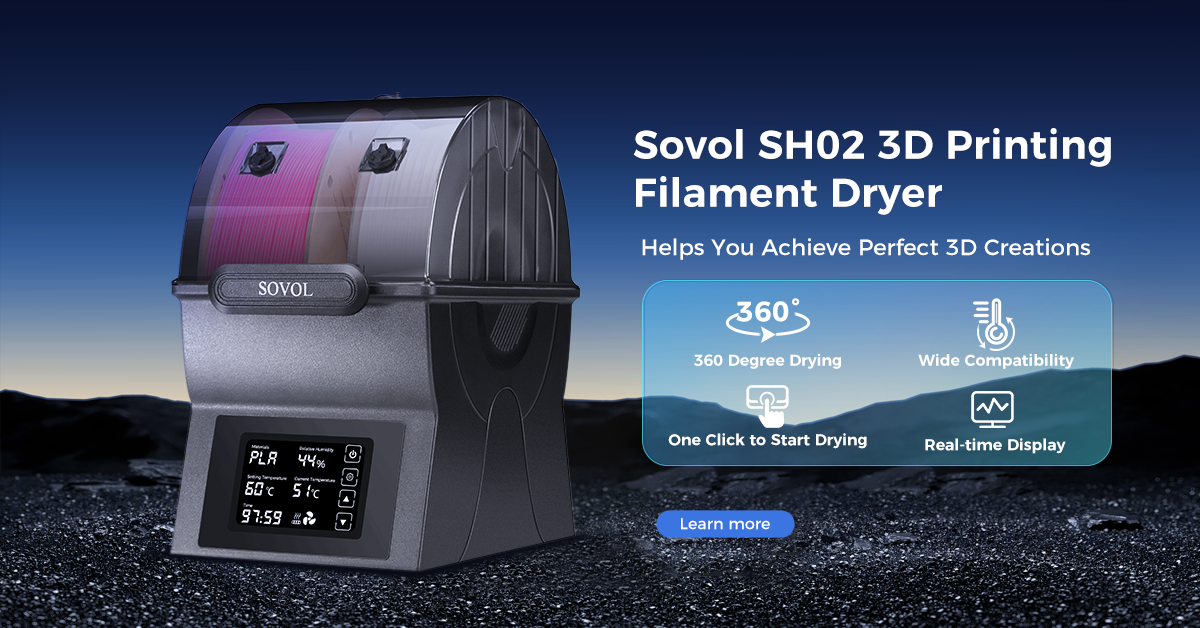
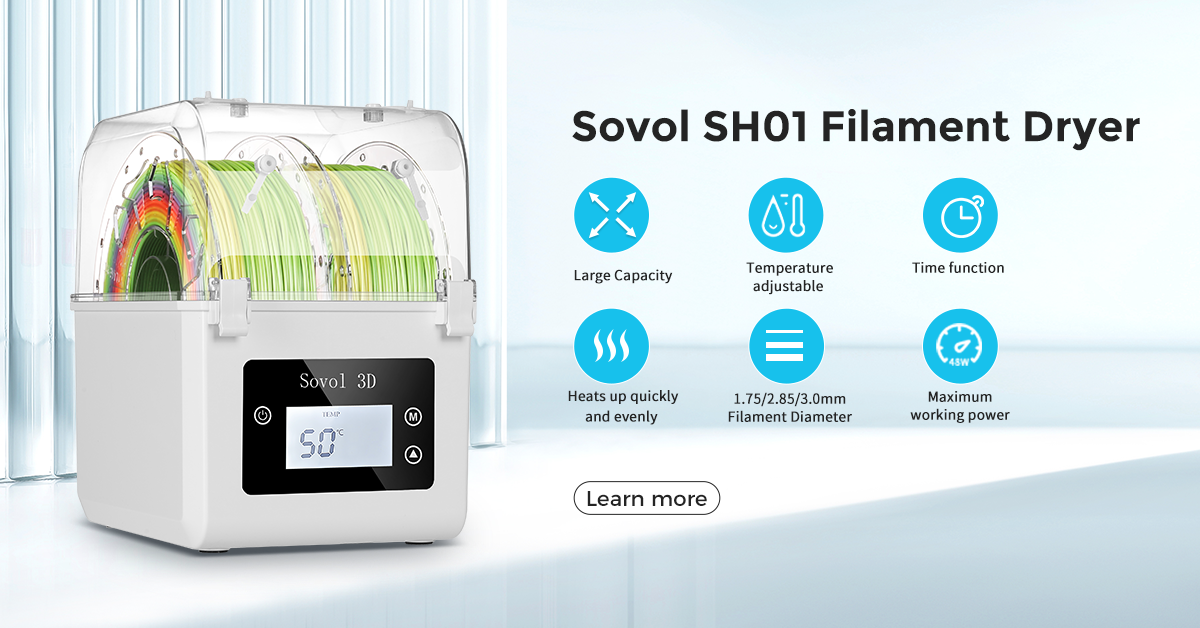
- Dry the filament properly
- Tune retraction settings
- Adjust seam placement settings
5. Layer Separation
Problem
Layers partially split or separate from each other. This is also known as delamination.
Possible Causes
Poor layer bonding is often caused by:
- Low nozzle temperature
- Under-extrusion
- High print speed
- Excessive layer height

Materials with high thermal contraction such as ABS or nylon are especially prone to this issue.
Solutions
- Increase nozzle temperature slightly
- Reduce print speed
- Optimize extrusion settings
- Use an enclosure for materials like ABS or nylon
6. Gaps Between Top Layer Lines
Problem
Visible gaps appear between the lines of the top surface, making the print look weak or unfinished.
Possible Causes
- This typically happens when:
- There are not enough top solid layers
- Infill density is too low
- Under-extrusion is present

Solutions
- Increase the number of top solid layers
- Increase infill density
- Improve extrusion calibration
- Trying different infill patterns may also help create a stronger base for the top layers.
7. Wall Separation Gaps
Problem
Holes appear between the outer wall and the top layers. This is especially noticeable around circular features such as holes or cylinders.
Possible Causes
- Printing the top layer too fast
- Severe under-extrusion
- Low infill density in lower layers

Solutions
One helpful setting is Infill Overlap in slicers such as Cura. This controls how much the infill overlaps with the outer wall.
Recommended adjustment:
- Increase from 15% to around 30%
- Avoid going above 50%, as too much overlap can create new printing issues.
You can also:
- Slightly increase printing temperature
- Reduce printing speed
- Increase top layer count
Final Thoughts
Gaps in 3D prints can come from many sources, including calibration issues, slicer settings, or filament quality. The key to solving them is identifying the exact type of gap you are seeing and adjusting the right parameters.
With proper calibration, good filament storage, and optimized slicer settings, most gap issues can be fixed quickly. Once your first layer and extrusion are properly tuned, the quality of your prints will improve dramatically.
