






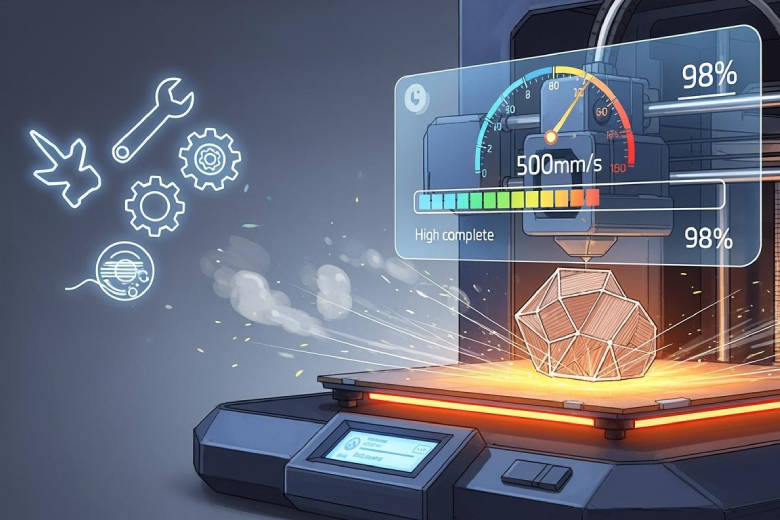
A 3d printer relies on a heated bed to achieve reliable adhesion and consistent print speed. Faster heating helps reach the target temperature quickly, which improves print quality and reduces wait times. Upgrading the heating element increases speed and heat distribution. Insulation keeps the heated surface efficient. Users must check temperature settings for optimal results.
Tip: Always verify compatibility before changing heated bed components.
Key Takeaways
- Upgrade your heating element to a high wattage model for faster heating and improved print quality.
- Insulate your heated bed with materials like cork or foam to reduce heat loss and speed up temperature reach.
- Check your power supply to ensure it can handle the demands of your upgraded heated bed for consistent performance.
- Use manual or automated preheating strategies to minimize wait times before starting your prints.
- Maintain a stable room temperature and protect your printer from drafts to enhance heating efficiency.
Upgrade Heated Bed Heating Element
Upgrading the heating element stands out as the most effective way to boost heated bed speed in any 3d printer. A more powerful heater delivers faster heating, which means less waiting before starting a print. Users who print with pla often benefit from reaching the target temperature quickly, especially when working with larger beds or thicker glass surfaces.
High Wattage Heaters for 3D Printers
High wattage heaters increase the rate of heat transfer to the heated bed. This improvement leads to better performance and shorter heating times. The following table compares heating times for stock heaters and high wattage silicone heat mats:
|
Modification |
Heating Element |
Time Taken |
|---|---|---|
|
Stock Heater |
Hot-End (30w volcano) |
3 minutes 24 seconds (26C to 230C) |
|
Stock Heater |
Heated Bed |
1 minute 31 seconds (25C to 60C) |
|
Silicone Heat Mat |
High Wattage |
3x faster heating (requires better power supply) |
To choose a high wattage heater, users should check the size of their heated bed and select a heater that matches the dimensions. Most beds for pla prints use 200-300mm square heaters. Installation involves removing the old heater, cleaning the bed surface, and attaching the new heater with adhesive or clamps. Users must connect the heater to the printer’s power supply and verify wiring before powering on.
AC Silicone Heater Pads
AC silicone heater pads offer rapid heating for large beds. These pads use mains voltage to deliver strong heat output. Many users who print with pla on large beds prefer AC silicone pads for their speed and efficiency. When installing, users should ensure the pad fits the heated bed and that the wiring supports the higher voltage.
Before you continue, fair warning. Up to this point your printer probably only has 1 mains (110V) going straight into your power brick. Adding a 110V heated bed now means you'll have 110V coming out of that brick. Furthermore, depending on your printer, your bed may be moving a whole lot, causing all sorts of wear and tear to cables. 110V IS DANGEROUS. Make sure everything is grounded properly and protected from wear and tear. TAKE ALL NECESSARY PRECAUTIONS WHEN DEALING WITH 110V. Oh and if you're in Europe 220V WILL KILL YOU EVEN FASTER!!
Safety and compatibility remain critical. Users must check that their printer’s power supply can handle the increased load. Proper grounding and cable management prevent hazards. Always follow manufacturer instructions and local electrical codes when upgrading the heated bed for pla printing.
Check Power Supply for 3D Printer
When PSU Upgrade Is Needed
A 3d printer relies on a stable power supply to operate the heated bed, nozzle, and electronics. Many users upgrade the heated bed to print pla faster, but they often overlook the importance of the power supply. Upgrading the power supply only helps if the original unit cannot deliver enough voltage and amperage for all components. If the heated bed struggles to reach the target temperature or the printer resets during heating, the power supply may be underpowered.
To determine if a power supply upgrade is necessary, users should calculate the total amperage and wattage required. For example, a heated bed designed for pla printing may require 10.5 Amps and about 130 Watts. The nozzle typically uses 3.6 Amps and 40 Watts. Motors and electronics consume around 6 Amps. If the total measured power consumption stays below the rated output, such as 14 Amps for a 240 Watt, 20 Amp power supply, the unit is adequate. A power supply that cannot maintain stable voltage under load will cause inconsistent heating and print failures.
Tip: Always check the label on the power supply for voltage and amperage ratings before upgrading the heated bed for pla.
Amperage and Safety Tips
Safety remains a top priority when working with voltage and power supply upgrades. Users should avoid exceeding the rated amperage of the power supply. Overloading the unit can cause voltage drops, overheating, and even fire hazards. When printing pla at high temperatures, the heated bed may consume between 50 and 100 Watts. The power supply must deliver consistent voltage to all components, especially during long prints.
A table helps users compare typical power requirements:
|
Component |
Amperage (A) |
Wattage (W) |
Voltage (V) |
|---|---|---|---|
|
Heated Bed (pla) |
10.5 |
130 |
12/24 |
|
Nozzle |
3.6 |
40 |
12/24 |
|
Motors/Electronics |
6 |
70 |
12/24 |
Users should inspect wiring for damage and ensure all connections are secure. Proper grounding protects against voltage spikes. If the power supply cannot maintain voltage during pla printing, consider upgrading to a higher wattage unit. Always follow manufacturer guidelines and local electrical codes when replacing the power supply.
Add Heated Bed Insulation
Insulation Materials for Heating Efficiency
Many users want to reduce the time it takes for the heated bed to reach the target temperature, especially when printing with pla. Insulation under the heated bed helps trap heat and improves heating efficiency. Several materials work well for this purpose:
- Cork sheets provide excellent insulation and are easy to cut to size. They help reduce heat loss and speed up heating.
- Foam boards, such as 12 mm thick barafoam, offer strong heat resistance and can lower energy consumption.
- Silicone mats also insulate the heated bed, though they cost more than cork or foam.
Cork stands out as a popular choice for 3d printer users who print with pla. It resists heat and does not burn easily. Foam insulation, like barafoam, can reduce energy consumption by 5–10%. For example, the Ender-2 Pro uses 10% less energy with insulation, while the Ender-3 and Ender-5 see savings of 8.6% and 5%. These materials help the heated bed maintain temperature, which means less energy is needed for heating and more consistent pla prints.
Tip: Insulation not only speeds up heating but also keeps the heated bed at a stable temperature during long pla prints.
Installation Steps
Installing insulation under the heated bed is a simple process. First, users should turn off the printer and unplug it for safety. Next, they need to measure the heated bed and cut the insulation material to match its size. Most users attach cork or foam to the bottom of the heated bed using high-temperature adhesive or heat-resistant tape.
A table shows the steps for adding insulation:
|
Step |
Action |
|---|---|
|
1 |
Power off and unplug the printer |
|
2 |
Measure and cut insulation to fit bed |
|
3 |
Attach insulation with heat-safe glue |
|
4 |
Check for cable clearance and movement |
|
5 |
Reconnect and test heating function |
Users should check that the insulation does not block any moving parts or wires. After installation, they can run a test print with pla to confirm faster heating and stable bed temperature. Proper insulation helps the heated bed reach the target temperature quickly and saves energy during every pla print.
Use Preheating and Timing Strategies
Manual Preheat for Bed Temperature
Many users want to reduce the heat up time before starting a print. They often overlook the impact of manual preheating on overall print speed. By starting the heating process for the heated bed and nozzle before loading the file, they can reach the target bed temperature faster. This strategy works well for pla, which requires precise temperature control for good adhesion and consistent print speed.
A simple routine helps maximize heating efficiency:
|
Step |
Action |
|---|---|
|
1 |
Power on the 3d printer |
|
2 |
Select preheat for pla from the menu |
|
3 |
Wait for the heated bed to reach temperature |
|
4 |
Start the print once bed temperature is stable |
Manual preheating allows the heated bed to reach the desired temperature before the print begins. This approach minimizes delays and improves speed, especially for users who print with pla on larger beds. They can monitor the temperature and adjust settings to optimize heating and heat up time.
Note: Manual preheating works best when users know the required bed temperature for their specific pla filament.
Automate Preheating in Slicer
Automating preheat routines in slicer software streamlines the heating process and saves time. Popular slicers like PrusaSlicer and Cura allow users to add custom start G-code commands. These commands control the heating sequence for the heated bed and nozzle, ensuring the printer reaches the correct temperature before printing with pla.
Users can include commands such as:
- G28 W: Homes all axes without mesh bed leveling.
- G80: Initiates mesh bed leveling.
- M104 S[first_layer_temperature]: Heats the extruder after leveling.
- M109 S[first_layer_temperature]: Waits for the extruder to reach the specified temperature.
- M191 S{chamber_temperature[0]}: Sets the chamber temperature for the first filament.
- M191 S{overall_chamber_temperature}: Sets the chamber temperature to the highest setpoint.
- M191: Heats and waits until the chamber reaches the target temperature.
Automated routines ensure the heated bed and nozzle reach the correct temperature for pla before the print starts. This method reduces heat up time and improves print speed. Users who print with pla benefit from consistent heating and better bed temperature control. They can adjust the G-code to match their filament and printer setup, optimizing heating for every print.
Tip: Automating preheating in the slicer helps maintain stable bed temperature and reduces wait times for pla prints.
Optimize Print Environment for Heating
Enclosures and Draft Protection
Environmental factors play a major role in the efficiency of a 3D printer’s heated bed. When a printer operates in an open space, drafts and cold air can draw heat away from the bed. This slows down heating and forces the printer to use more voltage to maintain the set temperature. Many users notice that their heated bed takes longer to reach the target temperature for pla when the printer sits near a window or in a garage.
Enclosures help trap heat around the printer. They create a stable environment that reduces the impact of drafts and sudden temperature changes. A simple enclosure can consist of acrylic panels or even a cardboard box. Some users add insulation to the enclosure walls for extra heat retention. Draft protection also matters. Placing the printer away from doors or vents prevents cold air from affecting the heated bed. These steps allow the printer to use voltage more efficiently and reach the desired temperature for pla faster.
Tip: Always check that cables and electronics inside the enclosure have proper ventilation to avoid overheating from trapped heat or excess voltage.
Room Temperature Effects
The temperature of the room directly affects how quickly the heated bed reaches its target. A warmer room helps the bed retain heat, while a cold room makes heating slower and less efficient. The printer must draw more voltage to compensate for heat loss in a chilly environment.
- The room temperature significantly impacts bed adhesion, especially for pla.
- In colder conditions, the heated bed struggles to maintain temperature, leading to poor adhesion and print quality.
- Cold ambient temperatures can cause warping and delamination in prints.
- Professional 3D printers often have enclosed and heated build volumes to mitigate these issues.
- A recommended ambient temperature for optimal printing is around 20-22°C.
Users can improve heating speed by raising the room temperature or moving the printer to a warmer area. They should avoid placing the printer near open windows or in unheated basements. These changes help the heated bed reach the target temperature for pla with less voltage and energy. Consistent room temperature also improves print quality and reduces the risk of failed prints.
Set Optimal Bed Temperature
Material-Specific Settings
Selecting the optimal bed temperature for a 3D printer depends on the material used. PLA, ABS, and PETG each require different temperature settings to achieve strong first layer adhesion and reliable bed adhesion. PLA usually performs best with a bed temperature between 50°C and 60°C. ABS needs a higher temperature, often set between 90°C and 110°C, to prevent warping and improve adhesion. PETG benefits from a bed temperature in the range of 65°C to 90°C. Setting the correct temperature helps maintain voltage stability and ensures the heated bed reaches the target temperature quickly.
|
Material |
Recommended Bed Temperature |
Notes |
|---|---|---|
|
PLA |
50–60 °C |
Good for first layer adhesion |
|
ABS |
90–110 °C |
Prevents warping, improves adhesion |
|
PETG |
Enhances bed adhesion, avoid exceeding 90°C |
Users should always check the filament manufacturer’s guidelines for optimal bed temperature. Matching the temperature to the material improves adhesion and reduces print failures. The heated bed must maintain consistent voltage to keep the temperature stable throughout the print.
Avoiding Overshoot and PID Issues
Incorrect bed temperature settings can cause several problems. If the temperature is too low, poor bed adhesion and weak first layer adhesion may occur. High temperature can lead to warping, layer shifting, and even hardware damage. Continuous heating stresses the printer’s voltage system and may overheat components. Firmware crashes sometimes leave the bed powered on, causing overheating. Thermistor failures can mislead the control system about the actual bed temperature. Cheaper boards may have MOSFETs that fail, keeping the bed on and risking damage.
To avoid these issues, users should:
- Set the optimal bed temperature for each material.
- Monitor voltage and temperature during printing.
- Calibrate the PID controller to prevent temperature overshoot.
- Inspect thermistors and wiring regularly.
- Use quality electronics to maintain safe voltage levels.
Proper settings and regular checks help maintain stable bed temperature, improve adhesion, and protect printer hardware. Achieving the optimal bed temperature ensures consistent first layer adhesion and reliable prints with PLA, ABS, or PETG.
Troubleshooting Heated Bed Heating Issues
Slow Heating Causes
A 3D printer may experience slow heating of the heated bed for several reasons. Users often notice that the bed temperature rises slowly, which affects print speed and first layer adhesion. The most common causes include issues with the heater, thermistor, connectors, and wiring. The following table summarizes these problems:
|
Issue |
Description |
|---|---|
|
The heater may not function properly if unchanged or worn out. |
|
|
Thermistor Reading |
Inaccurate thermistor readings can affect temperature control. |
|
Connectors |
Loose connectors on the control board or heated bed cause problems. |
|
Cable Break |
Broken cables reduce heating efficiency and speed. |
|
LED Indicator |
The LED on the heatbed connector should be on during heating. |
|
Thermistor Contact |
Poor contact with the heated surface leads to incorrect readings. |
|
Air Gap |
An air gap between the thermistor and heated surface affects temperature. |
A faulty heater or thermistor can prevent the heated bed from reaching the correct temperature. Users should check for cable breaks and ensure connectors are secure. The LED indicator helps confirm that the heated bed receives power during heating. Good thermistor contact with the heated surface ensures accurate bed temperature readings, which improves adhesion and print speed.
Fixing Common Problems
Troubleshooting heated bed heating issues involves several steps. Users should inspect hardware, wiring, and firmware to maintain proper temperature and speed. The table below outlines recommended actions:
|
Step |
Description |
|---|---|
|
1 |
Check PCB orientation to avoid mounting upside down, which causes heat loss. |
|
2 |
Adjust power supply voltage using the trimpot for better heating efficiency. |
|
3 |
Inspect wiring for overheating or wrong gauge, which reduces heating speed. |
|
4 |
Address environmental factors like wind that dissipate heat from the bed. |
|
5 |
Add insulation under the heated bed to minimize heat loss and stabilize temperature. |
Users should verify that the PCB is mounted correctly to prevent unnecessary heat loss. Adjusting the power supply voltage can help the heated bed reach the target temperature faster. Proper wiring ensures efficient heating and stable bed temperature. Environmental factors, such as drafts, can lower bed temperature and reduce adhesion. Insulation under the heated bed helps maintain consistent temperature and improves print speed.
Tip: Regularly check thermistor placement and wiring to ensure accurate bed temperature readings and reliable adhesion.
Firmware updates may also resolve heating issues. Users should update firmware to the latest version and calibrate temperature settings for optimal adhesion and print speed. Consistent troubleshooting keeps the heated bed working efficiently and supports high-quality prints.
Upgrading the heating element remains the fastest way to improve heated bed speed and achieve more successful prints. Users should always check compatibility and follow safety steps, such as unplugging the printer and letting the bed cool before repairs. Regular maintenance, like inspecting wiring and cleaning the heated bed, helps prevent problems and supports ongoing success. Safe experimentation and learning lead to more successful prints and greater success with every project.
- Stop the printer if cracks or uneven heating appear.
- Choose a replacement bed that matches the printer’s specifications.
- Keep liquids away from the printer to avoid electric shock.
FAQ
What is the safest way to upgrade a heated bed?
Users should always unplug the printer before starting. They must check voltage compatibility and follow manufacturer instructions. Proper grounding and secure wiring prevent electrical hazards. Safety goggles and gloves protect against burns and shocks.
Does insulation affect print quality?
Insulation helps the heated bed maintain stable temperatures. This stability improves first layer adhesion and reduces warping. Users often see smoother prints and fewer failed jobs when they add insulation under the bed.
How can someone tell if their power supply is underpowered?
A table helps users check for signs:
|
Symptom |
Possible Cause |
|---|---|
|
Bed heats slowly |
Insufficient wattage |
|
Printer resets |
Voltage drop |
|
Inconsistent heating |
Overloaded supply |
Can preheating routines damage the printer?
Preheating routines do not harm the printer when used correctly. Users should avoid setting temperatures above recommended levels. Monitoring the printer during preheating prevents overheating and protects hardware.
