






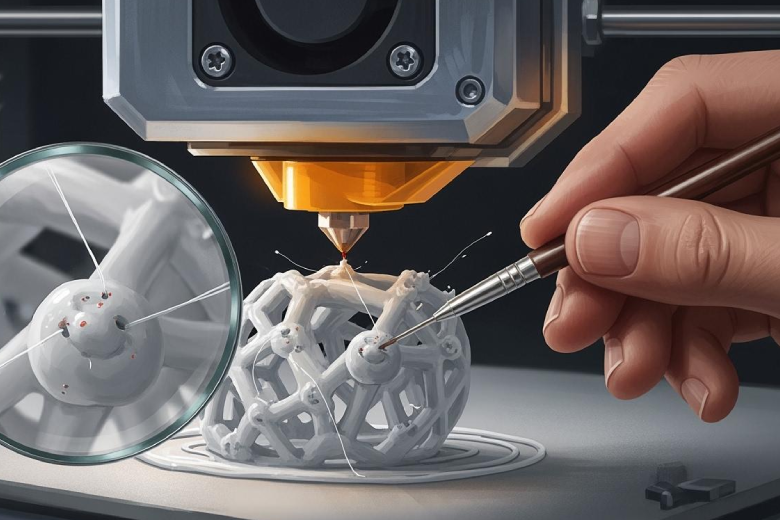
Les imperfections et les irrégularités de l'impression 3D apparaissent sous forme de petites bosses ou de points à la surface d'un objet imprimé. Ces défauts résultent souvent de… paramètres d'extrusion incohérents ou de rétraction incorrects. Elles peuvent nuire à la qualité d'impression en rendant les surfaces rugueuses et moins précises. De nombreux utilisateurs constatent ces défauts lorsque le matériel ou les paramètres de l'imprimante nécessitent un ajustement. Des actions simples comme l'optimisation de la rétraction, le nettoyage des buses ou le réglage de la vitesse peuvent y remédier. La plupart des gens rencontrent ces problèmes à un moment ou un autre, mais avec de la patience, chacun peut obtenir des impressions plus nettes.
Points clés à retenir
- Ajustez les paramètres de rétraction pour minimiser les imperfections et les boutons.
Pro La rétraction empêche les fuites de filament excédentaire lors des déplacements. - Calibrez votre imprimante pour éviter la sur-extrusion. Cela garantit l'utilisation de la quantité optimale de filament et améliore la qualité d'impression.
- Réglez la température de buse appropriée à votre filament.
Pro Les différentes températures permettent de maintenir une extrusion constante et de réduire les imperfections de surface. - Conservez le filament correctement pour éviter l'absorption d'humidité. Utilisez des récipients hermétiques avec un dessiccant pour le garder au sec et préserver sa qualité.
- Entretenez régulièrement votre imprimante. Nettoyez les buses et vérifiez les paramètres pour garantir un fonctionnement optimal et réduire les risques de bavures et de défauts d'impression.
Causes des bavures d'impression 3D
Rétraction Pro défauts
Paramètres de rétraction jouer un rôle majeur dans l'apparition de Impression 3D de formes informes et de boutons. Lorsque l'imprimante rétracte le filament lors de ses déplacements, elle évite les coulures. Si la distance de rétraction est trop courte, un excès de matériau peut s'échapper, formant des bavures et des irrégularités à la surface. Trop de rétractation peut entraîner des vides et d'autres imperfections. L'imprimante doit équilibrer la rétraction pour éviter une extrusion irrégulière et des imperfections de surface. De nombreux utilisateurs remarquent que paramètres de rétraction incorrects entraînent souvent des défauts, notamment lorsque l'extrudeuse redémarre et expulse un surplus de filament.
Conseil : Ajuster le «Distance de redémarrage supplémentaire« Dans les paramètres du logiciel de découpe, vous pouvez contrôler la quantité de plastique amorcée lorsque l'extrudeuse reprend son fonctionnement, réduisant ainsi les bavures et les imperfections. »
Surextrusion
La surextrusion est l'une des causes les plus fréquentes de défauts et d'imperfections en impression 3D. Lorsque l'imprimante expulse plus de filament que nécessaire, elle crée des bosses et des aspérités. La surextrusion peut survenir si le débit est trop élevé ou si le diamètre de la buse ne correspond pas aux paramètres du logiciel de découpe. Ces dépôts excessifs entraînent des défauts et une qualité d'impression inférieure. Les utilisateurs constatent souvent la formation de bavures en début ou en fin de couche, là où une quantité excessive de matériau s'accumule.
La surextrusion peut entraîner :
- Taches aux transitions de couches
- Boutons sur les surfaces verticales
- Mauvaise adhérence des couches due à un excès de matériau
Problèmes de température
La température de la buse influe sur la façon dont le filament s'écoule et se lie. températures élevées Un filament trop fluide augmente le risque de formation de bavures et de défauts. À l'inverse, une température trop basse peut entraîner des couches fragiles et une mauvaise adhérence. L'imprimante doit trouver la température optimale pour chaque type de filament afin d'éviter les imperfections de surface. Une température trop élevée peut provoquer des écoulements incontrôlés du filament, créant ainsi des bavures. À l'inverse, une température trop basse peut empêcher l'adhérence des couches, engendrant des espaces et une surface rugueuse.
Remarque : Vérifiez toujours la plage de température recommandée pour votre filament afin de garantir une extrusion constante et d'éviter les défauts.
Paramètres du trancheur
Les paramètres du logiciel de découpe déterminent le déplacement et l'extrusion du filament par l'imprimante. Des paramètres incorrects peuvent entraîner l'apparition de bavures et de points noirs. Paramètres de rétraction Dans le logiciel de découpe, des paramètres tels que la vitesse et la distance influent souvent sur la quantité de filament qui s'écoule lors des déplacements. Ajuster la « Distance de redémarrage supplémentaire » permet de contrôler la quantité de filament réamorcée lors du redémarrage de l'extrudeuse, réduisant ainsi les imperfections de surface. Les pauses dans l'impression, dues aux commandes du logiciel de découpe, peuvent également entraîner la formation de bavures lorsque la buse reste immobile et laisse échapper du matériau.
Paramètres de segmentation courants liés aux blobs et aux zits :
- Vitesse et distance de rétraction
- Options de glisse et d'essuyage
- Distance de redémarrage supplémentaire
Humidité du filament
Humidité dans le filament L'humidité peut dégrader la qualité du matériau et provoquer des bavures lors de l'impression 3D. Lorsque le filament absorbe l'humidité de l'air, il perd de sa résistance à la traction et de sa flexibilité. Sous l'effet de la chaleur de l'imprimante, l'humidité s'évapore et forme des bulles d'air. Ces bulles sont à l'origine de défauts tels que des bavures et des fils qui se forment. Parmi les signes d'un filament humide, on peut citer un crépitement provenant de l'extrudeuse, la présence de bulles dans le filament et des imperfections visibles sur la pièce imprimée.
Conseil : Conservez le filament dans des récipients hermétiques avec des sachets déshydratants pour le garder au sec et préserver la qualité d'impression.
Mouvements de refroidissement et de transport
Le refroidissement et les déplacements influencent la vitesse de solidification du filament et la fluidité des transitions entre les sections d'impression. Un refroidissement insuffisant peut entraîner la formation de bavures, le filament restant mou et s'écoulant par excès. Un refroidissement excessif peut nuire à l'adhérence des couches. Des déplacements sans rétraction adéquate peuvent laisser des traces de filament, provoquant des imperfections et des bavures. L'imprimante doit optimiser la vitesse du ventilateur et les paramètres de déplacement pour minimiser les défauts de surface et garantir une extrusion régulière.
Facteurs clés :
- vitesse du ventilateur de refroidissement
- Distance de déplacement entre les zones d'impression
- Réglages de la hauteur des couches
Citation : De nombreux guides techniques recommandent d'optimiser les paramètres de refroidissement et de déplacement afin de réduire les bavures et les imperfections, notamment sur les impressions détaillées.
Correction des bavures d'impression 3D
Ajuster la rétraction
Les paramètres de rétraction sont essentiels pour éviter les bavures et les imperfections d'impression 3D. Lorsque l'imprimante rétracte le filament lors de ses déplacements, elle prévient les coulures et les défauts de surface. Il est conseillé d'ajuster la vitesse et la distance de rétraction par petits incréments. Augmenter la vitesse et réduire la distance de rétraction permet de trouver le bon équilibre.
Le réglage des paramètres de rétraction permet de :
- Réduisez l'excédent de filament au début de chaque nouvelle ligne, ce qui provoque souvent des taches et des boutons.
- Améliorez la qualité d'impression en réduisant les bavures et les irrégularités d'extrusion.
- Éviter une extrusion irrégulière qui entraîne des défauts visibles.
Calibrage de la surextrusion
Une surextrusion entraîne souvent des bavures, des imperfections et des surfaces rugueuses sur les impressions 3D. Pour corriger une extrusion incorrecte, il est nécessaire de calibrer le multiplicateur d'extrusion et le débit. Ce processus garantit que l'imprimante expulse la quantité de filament adéquate.
| Technique | Description |
|---|---|
| Étalonnage du multiplicateur d'extrusion | Réglez le multiplicateur d'extrusion pour ajuster précisément le débit et éviter la sur-extrusion, qui provoque des défauts de surface. |
-
Le calibrage du débit permet de corriger à la fois la sous-extrusion et la sur-extrusion.
-
Optimisation des paramètres de rétraction Réduit encore davantage le nombre de cordes et améliore la précision.
-
Remarque : Un étalonnage régulier permet de maintenir une extrusion constante et d’éviter la formation de bavures sur les pièces imprimées.
Ensemble Pro par température
La température de la buse influe sur l'écoulement et l'adhérence du filament. Un réglage précis de la température est essentiel pour une extrusion de qualité constante. Une température trop élevée peut entraîner une surextrusion, provoquant des bavures et des irrégularités. Baisser la température de la buse de 5 à 10 °C permet souvent de réduire ces défauts.
- Éviter l'accumulation de matériaux en excès.
- Améliorer l'adhérence des couches et réduire les irrégularités d'extrusion.
- Améliorer la qualité d'impression globale.
Vérifiez toujours la plage de température recommandée pour votre filament et effectuez de petits ajustements pour éviter les imperfections.
Réglage des paramètres de Slicer
Les paramètres du logiciel de découpe contrôlent le déplacement de l'imprimante et l'extrusion du filament. Il est conseillé aux utilisateurs de régler et de calibrer leur imprimante en ajustant les options du logiciel de découpe afin de corriger les défauts et les imperfections d'impression 3D.
| Réglage du trancheur | Description |
|---|---|
| | Fusionne les mouvements courts pour réduire la taille du code G et lisser les surfaces. |
| | Permet de corriger les petits caractères si la différence se situe dans une marge d'erreur définie, améliorant ainsi la précision. |
| Réglage de la résolution dans CURA | Ajuste la longueur minimale des segments de ligne pour réduire les artefacts et améliorer la fluidité. |
- Ajustez les options de refroidissement et d'essuyage pour éviter les bavures à la fin des mouvements d'impression.
- Ajustez avec précision la distance de redémarrage supplémentaire pour contrôler l'amorçage du filament et éviter les imperfections de surface.
Conseil : Testez différents paramètres de découpe sur des impressions de petite taille avant de vous lancer dans des projets plus importants.
filament sec
L'humidité présente dans le filament peut provoquer des bavures, des boursouflures et d'autres défauts d'impression 3D. Sécher le filament avant l'impression permet d'éviter ces problèmes.
- Utilisez un séchoir à filament ou un four à convection avec un bon contrôle de la température.
- Vérifiez la température de séchage correcte pour votre type de filament.
- Surveillez le filament pendant le séchage pour éviter toute surchauffe.
- Placez le filament sur un plateau ou une grille propre pour une circulation d'air uniforme.
- Conserver le filament séché dans des boîtes hermétiques avec des sachets déshydratants.
- Utilisez des fiches d'humidité pour contrôler le taux d'humidité et remplacez les dessiccants tous les mois.
- Conservez les bobines à l'abri de la lumière du soleil et de la chaleur, en n'exposant que la partie nécessaire à l'impression.
Améliorer le refroidissement
Les ventilateurs de refroidissement contribuent à solidifier rapidement le filament après l'extrusion. Un refroidissement accru empêche l'accumulation de matière, responsable des bavures et des irrégularités.
Amélioration du refroidissement des pièces:
- Solidifie le filament plus rapidement, réduisant ainsi le risque de formation de bavures.
- Prévient l'affaissement et améliore la finition de surface.
- Améliore l'adhérence des couches et réduit les imperfections.
Pour les matériaux comme le PETG ou le nylon, réglez les ventilateurs de refroidissement à 30-50 % pour équilibrer refroidissement et adhérence.
Optimiser le déplacement et la hauteur des couches
L'optimisation des déplacements et de la hauteur des couches permet de corriger les défauts et les imperfections d'impression 3D. Le réglage de ces paramètres assure un déplacement fluide de l'imprimante entre les différentes sections et un dépôt précis du filament.
| Ajustement | Recommandation |
|---|---|
| Vitesse de déplacement | Réglez la vitesse entre 150 et 200 mm/s si l'imprimante le prend en charge. |
| Hauteur du saut en Z | Utilisez 0,2 mm pour éviter que le filament ne traîne. |
| Glisser | Ajustez progressivement le volume de coulée pour éviter les surfaces insuffisamment remplies. |
| Refroidissement | Activez les ventilateurs à 30-50 % pour certains filaments. |
| Paramètres de rétraction | Réduisez la distance de rétraction de 0,5 mm si des espaces apparaissent. |
- Un réglage précis du déplacement et de la hauteur des couches réduit le risque de bavures et de points noirs.
- Ces réglages améliorent également la qualité d'impression globale et minimisent les imperfections de surface.
De petites modifications de la vitesse de déplacement et de la hauteur de couche peuvent faire une grande différence dans la réduction des défauts.
Poste-Pro Techniques de cessation
Parfois, même après un étalonnage précis, de petites imperfections peuvent subsister. Des techniques de post-traitement comme le lissage chimique à la vapeur ou le ponçage manuel permettent d'éliminer ces défauts et d'obtenir une finition plus lisse.
Pour obtenir les meilleurs résultats, il faut toujours s'attaquer aux causes profondes avant de recourir au post-traitement.
Prévenir les boutons et les points noirs
Entretien régulier
Un entretien régulier permet de maintenir un L'imprimante 3D fonctionne sans problème Elle contribue à prévenir les bavures et les imperfections d'impression 3D. Nettoyer la buse chaque semaine permet d'éliminer les résidus de filament qui peuvent obstruer les surfaces et créer des défauts. Remplacer la buse toutes les 500 heures garantit un débit constant et réduit le risque de bavures. Vérifier le serrage des courroies et des vis permet également d'éviter les décalages brusques susceptibles d'entraîner des imperfections ou d'autres défauts.
Conseil : Des buses propres et une imprimante bien entretenue garantissent une meilleure qualité d'impression et moins d'imperfections.
Optimisation du découpeur
L'optimisation du logiciel de découpe est essentielle pour réduire les bavures et les imperfections d'impression 3D. Activer les fonctions de lissage et d'essuyage permet de masquer les joints et de minimiser les coulures. Ajuster les paramètres de refroidissement évite la surchauffe, source de sur-extrusion et de bavures. Définir la température adéquate pour chaque type de filament contribue à éviter les imperfections et améliore l'adhérence des couches.
| Stratégie | Explication |
|---|---|
| Le contrôle de l'humidité du filament permet d'éviter la formation de bulles qui entraînent l'apparition de grumeaux et de points noirs. | |
| Régler les paramètres du système de refroidissement | |
| Réglez les températures d'impression correctes | Le respect des consignes du fabricant concernant les réglages de température permet d'éviter les défauts tels que les taches et les points noirs. |
- Effectuez un test de tour de température pour déterminer la température optimale de la buse.
- Ajustez la vitesse du ventilateur dans le trancheur pour optimiser le refroidissement.
Stockage de filaments
- Utilisez des récipients hermétiques ou des sacs sous vide.
- Ajouter des dessiccants à changement de couleur pour contrôler l'humidité.
- Conservez le filament dans un endroit frais et sombre.
Vitesse d'impression et hauteur de couche
Réglage de la vitesse d'impression et hauteur de couche Cela permet de réduire les bavures et les imperfections. Une vitesse plus lente offre un meilleur contrôle de l'extrudeuse, ce qui contribue à prévenir la surextrusion et les défauts de surface. Une hauteur de couche environ 20 % inférieure au diamètre de la buse améliore souvent les résultats. Des couches plus épaisses peuvent parfois masquer les imperfections, mais des couches plus fines produisent généralement des surfaces plus lisses.
Ajustez la hauteur de couche de votre buse. Essayez de la réduire et voyez si cela améliore la situation.
Mise à jour du firmware
La mise à jour du firmware de l'imprimante garantit l'accès aux dernières fonctionnalités et aux correctifs de bugs. Les nouvelles versions améliorent souvent le contrôle de l'extrusion, ce qui contribue à prévenir les bavures et les imperfections d'impression 3D. Des mises à jour régulières améliorent également la qualité d'impression et réduisent le risque de bavures dues à un logiciel obsolète.
| Stratégie de prévention | Étapes à suivre | Avantages |
|---|---|---|
| Choisissez des marques de filaments de haute qualité comme Creality | Extrusion constante | |
| Stockage | Utilisez des sacs sous vide contenant du silice | Prévenir l'apparition de boutons liés à l'humidité |
| Entretien des buses | Nettoyer chaque semaine ; remplacer toutes les 500 heures | Évitez les obstructions et les irrégularités de débit. |
| Optimisations du trancheur | Activer le mode roue libre et essuyer | Masquer les coutures et réduire les suintements |
| Étalonnage | Étapes E et tests de débit | Livraison précise du filament |
En suivant ces étapes simples, chacun peut éviter la plupart des bavures, des imperfections et autres défauts. De bonnes habitudes et des vérifications régulières permettent d'obtenir de meilleures impressions et une meilleure adhérence des couches.
Guide de dépannage
Vérifications rapides
De nombreux utilisateurs constatent que des vérifications rapides permettent de révéler la cause première des défauts et imperfections d'impression 3D. Ils devraient commencer par abaisser la température d'impression par paliers de 5 °C. Cette action permet d'éviter la fonte excessive et les coulures du filament. Ensuite, il convient de calibrer les paramètres de rétraction.
Astuce : De petites variations de température ou de rétraction peuvent souvent faire une grande différence pour réduire les bavures d’impression 3D.
Diagnostic étape par étape
Une approche systématique aide les utilisateurs à identifier et à corriger les imperfections et les boutons. Ils doivent suivre les étapes suivantes :
- Examinez l'impression à la recherche de taches ou de boutons visibles.
- Diminuez la température de la buse si des bavures apparaissent, car cela réduit la surextrusion.
- Augmentez la vitesse du ventilateur de refroidissement pour solidifier rapidement le filament.
- Calibrer la distance et la vitesse de rétraction pour éviter les suintements.
- Ajustez le débit pour éviter un excès de filament.
- Modifier l'alignement des coutures en Z pour masquer les imperfections sur les zones moins visibles.
- Effectuez un test d'impression sur un petit objet après chaque réglage.
Ce processus aide les utilisateurs à trouver le paramètre exact qui provoque les bavures lors de l'impression 3D. Ils doivent effectuer une modification à la fois et observer les résultats.
Plan d'action relatif aux problèmes persistants
Si les boutons et autres imperfections persistent, les utilisateurs peuvent suivre ce plan d'action :
| Problème | Mesures correctives |
|---|---|
| Cordage | |
| Mauvaise adhérence | Ajuster le décalage Z |
| Sous-extrusion | Augmenter le multiplicateur d'extrusion |
Pour corriger les bavures, il est conseillé d'augmenter la rétraction. En cas de mauvaise adhérence des couches, ajuster le décalage Z améliore le contact entre elles. Si une sous-extrusion apparaît, augmenter le multiplicateur d'extrusion garantit un débit de filament suffisant. Ces étapes permettent de résoudre les problèmes de bavures et de défauts tenaces en impression 3D qui ne répondent pas aux solutions classiques.
Remarque : Un dépannage régulier et de petits ajustements permettent d'obtenir des impressions plus lisses et moins d'imperfections.
Impression 3D de formes informes et de boutons Ces problèmes résultent souvent d'une quantité excessive de filament, d'une rétraction incorrecte ou d'un refroidissement insuffisant. Il est possible de les résoudre en ajustant la vitesse d'impression, la rétraction, la température et le stockage du filament. Le tableau ci-dessous récapitule les points principaux :
| Causes | Solutions et prévention |
|---|---|
| Excès de filament | Réduisez la vitesse d'avance, ajustez la rétraction, augmentez le refroidissement |
| filament humide | Conserver correctement, utiliser une boîte étanche |
| Refroidissement insuffisant | Augmenter la puissance du ventilateur |
Le dépannage permet aux utilisateurs d'apprendre et d'améliorer la qualité d'impression. Chaque impression est une occasion de progresser et d'obtenir des résultats plus fluides.
FAQ
Qu’est-ce qui provoque les imperfections et les bavures sur les impressions 3D ?
De nombreux facteurs peuvent être à l'origine de ces défauts. Parmi les causes fréquentes, on retrouve des paramètres de rétraction incorrects, une surextrusion, des températures élevées, un filament humide et un refroidissement insuffisant. Chaque facteur influe sur la manière dont l'imprimante dépose le filament sur la surface.
Comment réduire rapidement les taches sur une impression ?
Baisser la température d'impression de 5 °C est souvent utile. Ajuster la distance et la vitesse de rétraction permet également de réduire les bavures. Il est conseillé de vérifier le degré de séchage du filament et d'augmenter la vitesse du ventilateur de refroidissement pour de meilleurs résultats.
Est-ce que tous les filaments créent des amas et des boutons ?
Non. Certains filaments, comme le PLA, s'impriment généralement avec moins de défauts de surface. Les matériaux tels que le PETG ou les filaments flexibles peuvent présenter davantage de bavures et d'imperfections s'ils ne sont pas séchés ou refroidis correctement.
Les paramètres du logiciel de découpe peuvent-ils corriger les imperfections de surface ?
| Fonctionnalité de découpe | Effet sur les boutons et les taches |
|---|---|
| Glisser | Réduit les blocs de fin de ligne |
| Essuyer | Lisse les transitions entre les calques |
| Couture en Z | Masque les boutons visibles |
Les réglages du logiciel de découpe permettent de minimiser les défauts de surface et d'améliorer la qualité d'impression.
