





A print can fail in the first five minutes, halfway through the job, or only when you examine the finished part. Those failures look different, so the fastest way to fix them is to start with when the problem appeared and what the last good layer looked like.
This guide covers the most common FDM print problems in plain language. It gives you a first check for each symptom, then a small test to try before you rerun a long print. Use the profile for your actual printer, nozzle and filament as your starting point; there is no universal temperature or fan setting that fixes every machine.
First, find the point where the print went wrong
- At the first layer: lines do not stick, bunch up around the nozzle, or peel from the bed. Start with the build surface and first-layer setup.
- During the print: a corner lifts, supports fall, extrusion becomes thin, or the object moves. Look for the last complete layer and the first missing feature.
- On the finished part: strings, rough surfaces or weak layers may point to filament condition, temperature, cooling or speed.
If a print has already become a loose nest of filament, pause or stop it using the printer controls. Wait for movement to stop before inspecting it, and do not pull plastic off a hot end or moving mechanism by hand.
1. The first layer will not stick

Finger oils, dust, the wrong bed surface for the material, or an unsuitable nozzle-to-bed distance can all spoil the first layer. Clean the plate using its manufacturer’s instructions, confirm that it is installed correctly, and run the printer’s normal leveling or first-layer procedure.
Watch a small first-layer test. If the lines are round and separate, the nozzle may be too far from the bed; if the nozzle scrapes or the lines are severely flattened, it may be too close. Adjust only in small steps according to your printer’s instructions. A brim can help a narrow or corner-heavy model, but it will not replace a clean surface and a sound first layer.
2. A corner lifts later

Warping happens when cooling and shrinkage pull part of the print away from the bed. Large flat bases, sharp corners and a cold draft make it easier to notice. Check the bed and material profile, clean the plate, and keep a window, air conditioner or room fan from blowing directly across the part.
Try rotating the model, adding a suitable brim, or rounding the model’s corners where the design allows. For ABS and ASA, a suitable enclosed environment can help keep conditions stable; ordinary PLA can suffer in an overly hot enclosure. Follow the material and printer guidance rather than simply turning every temperature upward.
3. The print turns into spaghetti
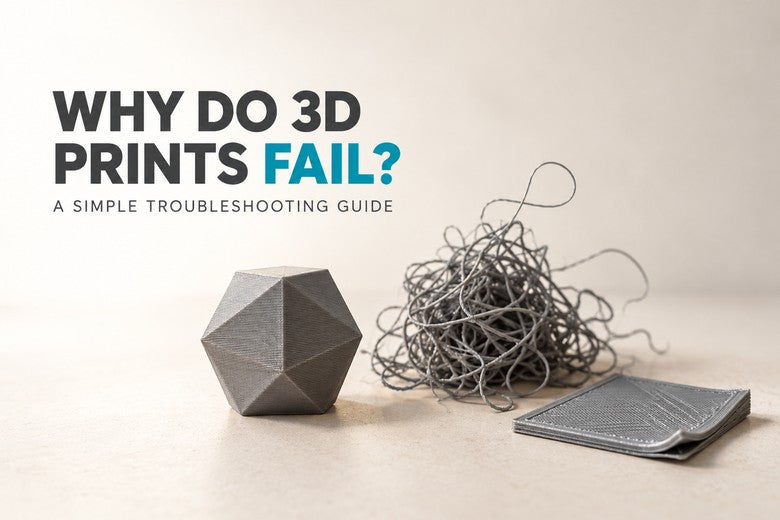
A tangle of loose filament usually means the nozzle kept extruding after the model or a support was no longer under the planned path. The tangle is the result, not the original cause.
Find the last good layer. Did the model detach? Did a support tower fall? Did a corner curl upward before the nozzle hit it? Compare that height with the sliced preview. Repair the first failure you can identify; changing retraction to cure a detached model will not help. If plastic has wrapped around the heater block or wires, use the printer’s maintenance instructions instead of forcing it off.
4. Material stops coming out evenly
Thin, incomplete or missing lines may indicate a partial nozzle blockage, an obstructed filament path, a spool that cannot unwind freely, or a speed that demands more melted plastic than the hot end can provide. Check the spool, feed path and extruder first. Look for clicking, ground filament or a nozzle that extrudes unevenly.
Then compare the job with a known-good material profile. Try a smaller test at a lower speed if the problem appears mostly in fast sections. A wet filament can also produce rough, inconsistent extrusion; dry it only according to its manufacturer’s instructions. Do not compensate for a blocked nozzle by blindly increasing flow.
5. Fine strings appear between parts

Stringing happens when a little material oozes during travel moves. Begin with the correct filament profile and a dry spool when the material needs drying. Then test nozzle temperature and retraction in small, controlled steps within the material and printer limits. Excessive retraction can create feeding problems, so do not copy a large value from a different printer.
First confirm that the model itself remains intact. A few wisps on a successful print are a finishing issue, while long loose strands over missing geometry signal a larger failure.
6. The upper part suddenly shifts sideways
A layer shift is a sudden sideways offset, after which later layers continue in the wrong position. Look for an impact with a curled corner or loose support, an obstruction in the travel path, and printer-specific belt or pulley issues. Stop and inspect safely before starting another long print.
Do not try to fix a true X/Y layer shift by changing nozzle temperature alone. If the same shift happens at the same height, examine the model and travel path at that height; if it occurs across unrelated models, follow the machine’s motion-system checks.
7. Supports fail or the underside looks rough
A tall, thin support may detach or topple before it reaches the feature it was meant to hold. In the slicer preview, check that the support has a stable base and actually reaches the difficult overhang. Consider a different model orientation or a support type better suited to the shape.
If the support survives but the underside sags, inspect the support interface and the gap to the model using the slicer’s tested profile. A gap that is too small can make supports hard to remove; a gap that is too large can leave the first supported paths drooping. Change one setting at a time and print a small difficult section first.
8. Layers crack or the part breaks too easily
A clean split along layer lines suggests weak layer bonding or shrinkage stress. Check that the selected filament profile matches the actual spool, that extrusion is consistent, and that cooling and drafts are appropriate for the material. If the part fails only when loaded, consider its orientation: FDM parts do not carry force equally in every direction.
Test a small sample before adjusting temperature within the filament maker’s range or changing the fan setting. A stronger-looking wall will not necessarily fix a part whose main load pulls the layers apart.
A five-minute checklist before you print again
- Photograph the failure and locate the last good layer.
- Check the sliced preview at the same height for missing walls, overhangs and support.
- Confirm the correct printer, nozzle and filament profile.
- Clean the bed and observe a small first-layer test.
- Make sure the spool feeds freely and the nozzle extrudes evenly.
- Change one likely cause, print a small test, and record what improved.
Trying several unrelated changes at once makes the next result harder to understand. A small repeatable test usually saves more time and filament than immediately rerunning the whole model.
Frequently asked questions
What should I check first when a 3D print fails?
Look at when it failed. For an early failure, start with the build plate and first layer. For a later failure, locate the last good layer and inspect the model, supports and travel path there.
Why does a print fail after several hours?
A corner can gradually curl, a support can topple, feeding can become inconsistent, or the nozzle can collide with a raised area. The visible filament tangle may appear long after the original problem began.
Will a brim solve every adhesion problem?
No. It can add contact area, but it cannot repair an oily plate, an incorrect first layer, a clogged nozzle or a support that is unstable higher up.
Should I raise the nozzle temperature?
Only after checking the correct material profile and the observed symptom. A small test within the filament maker’s range can help some extrusion or bonding issues, but excessive heat can add stringing and reduce detail.
Can an automatic failure detector replace checking the print?
It may help identify a problem earlier, but it cannot make a weak first layer or unstable support reliable. Observe the first layer and review the preview for important prints.
Conclusion
Most print failures become easier to solve when you stop treating them as one problem. First-layer adhesion, mid-print movement, missing extrusion and finished-part defects each point to different checks. Find the first thing that went wrong, use a small repeatable test, and change one cause at a time.

Ready for more ambitious prints?
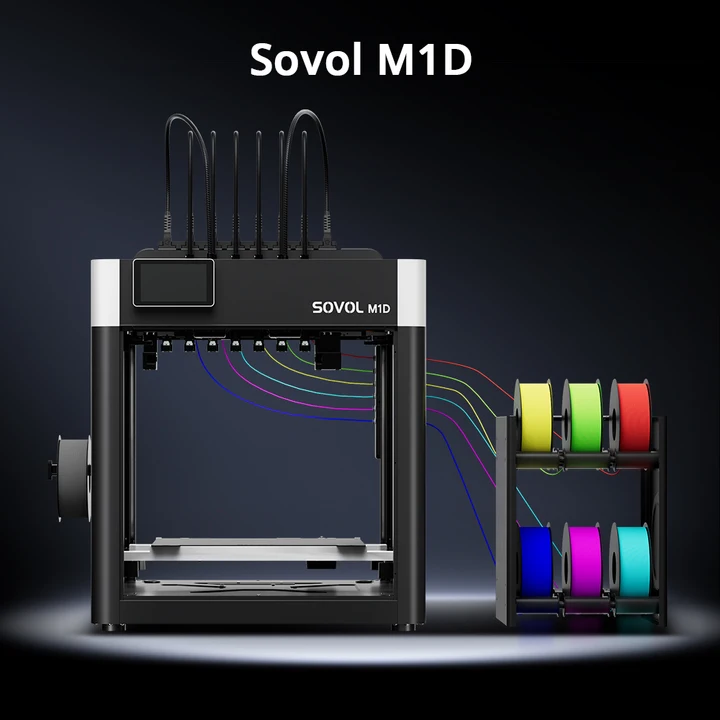
The same first-layer and material checks matter in multicolor jobs. Explore the Sovol M1D and compare its current configurations for your projects.
Explore Sovol M1D