



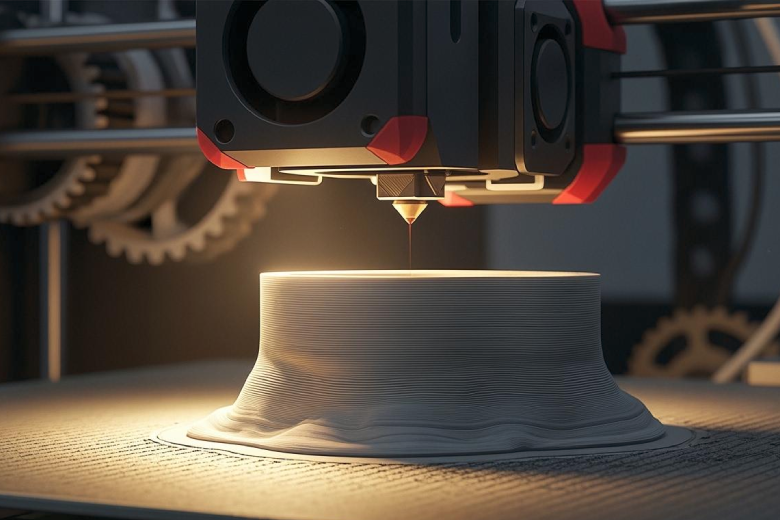
Elephant foot describes a common issue in 3d printing where the bottom layer of a print bulges outward. This effect can ruin the look and function of parts. The main causes include excessive bed temperature, nozzle height set too low, and insufficient cooling. Software or modeling choices can also play a role. Understanding these causes helps anyone seeking better print quality.Elephant foot affects prints by making the base wider than intended. Fixing elephant foot improves accuracy and reliability.
Key Takeaways
- Elephant foot occurs when the first layer of a print bulges outward. This can affect the print's appearance and function.
- Excessive bed temperature is a major cause of elephant foot. Lowering the bed temperature can help prevent this issue.
- Proper nozzle height is crucial. If the nozzle is too close to the bed, it can press the filament outward, leading to a bulge.
- Good cooling is essential. Ensure cooling fans work properly to help the filament solidify quickly and maintain its shape.
- Regular maintenance, including bed calibration and nozzle height adjustments, can significantly reduce the risk of elephant foot.
Main Causes of Elephant Foot in 3D Printing
Excessive Bed Temperature
Elevated print bed temperatures play a major role in the formation of elephant foot. When the bed is too hot, the first layer of filament stays soft for longer. This softness allows the material to spread outward, creating the classic bulge seen in elephant foot 3d print defects. Experts recommend lowering the bed temperature to reduce this effect. High temperatures can also make the base layer stick too firmly, making it difficult to remove the print without damage. Elephant foot often appears when the bed temperature is set higher than necessary for the filament type. Adjusting the temperature helps prevent 3d printing elephant foot and improves the accuracy of the first layer.
Tip: Always check the recommended bed temperature for your filament. Lowering the temperature by a few degrees can make a big difference in avoiding elephant foot.
Nozzle Too Close to Bed
The distance between the nozzle and the print bed is critical for avoiding 3d elephant foot. If the nozzle is too close, several problems can occur:
- The nozzle presses down on the first layer, causing the material to expand outward.
- This expansion improves adhesion but leads to elephant foot, making the base wider than intended.
- Manufacturing tolerances and dimensional accuracy decrease, which affects the fit and function of printed parts.
Bed leveling inaccuracies often cause the nozzle to sit too close to the bed. Proper calibration is essential. There are two main methods to set the optimal nozzle distance:
- Turn on the printer and heat the bed to simulate real printing conditions.
- Access the calibration menu and use auto bed leveling to measure the bed height at different points.
- Fine-tune the Z-offset using a piece of paper. The paper should slide under the nozzle with slight resistance.
- Start a test print to check if the first layer is applied evenly.
Manual leveling involves moving the print head to each corner, adjusting screws, and checking the center. The nozzle should slightly compress PLA but less so for PETG. If the nozzle is too close, it can tear the material or cause poor adhesion. If it is too far, the lines will not stick properly. Correct nozzle height prevents elephant foot and ensures a smooth first layer.
Insufficient Cooling
Cooling is crucial in preventing elephant foot 3d print issues. Inadequate cooling allows the filament to stay soft and expand, which leads to the formation of elephant foot. Poor ventilation during printing can cause the first layer to deform and bulge outward. Improving cooling helps the filament solidify quickly, maintaining the intended shape and size.
- Enhance ventilation to avoid expansion and deformation of the first layer.
- Make sure the cooling fans are working properly and set to the correct speed for the material.
Software settings can also affect cooling. If the cooling is set too low, or if excess filament is extruded, elephant foot may appear. An incorrectly set Z-offset can compress the first layer, making cooling even more important. Preventing 3d printing elephant foot requires attention to both hardware and software factors.
Note: Always check your cooling settings before starting a print. Good cooling reduces the risk of elephant foot and improves overall print quality.
Detecting Elephant Foot in 3D Prints
Visual Signs of Elephant Foot
Detecting elephant foot early can help improve the quality of your 3d printing projects. The most obvious sign appears at the base of the print. The first layer often looks wider or pressed outward compared to the layers above. Sometimes, the lower edges seem flat and too wide. In extreme cases, the layers above may curve inward, making the base look even larger.
Here is a table that shows the main visual characteristics:
|
Visual Characteristic |
Description |
|---|---|
|
First Layer |
Curved outward and wider than the layers above |
|
First Layer |
Pressed outward, too wide compared to upper layers |
|
First Layer |
Deformation where lower edges appear too wide and flat |
|
Subsequent Layers |
May appear slightly concave inward in extreme cases |
You can spot elephant foot by looking for these signs during and after printing. If the base of your print bulges or looks uneven, it is likely you have this issue.
Tip: Check the first layer as soon as the print starts. If you see the edges spreading out, pause the print and adjust your settings.
Common Print Issues
Elephant foot is not the only problem that can affect 3d printing. It is important to know how it differs from other errors. The table below compares elephant foot with other common print issues:
|
Printing Error |
Symptoms |
|---|---|
|
Elephant Foot |
|
|
Over-Extrusion |
Too much material extruded, leading to surface issues |
|
Under-Extrusion |
Insufficient material, causing gaps |
|
Layer Shifting |
Misalignment of layers |
Early detection of elephant foot helps prevent wasted material and time. Watch for the first layer spreading out or looking too thick. Regularly inspect your prints and use proper calibration to avoid this problem.
Note: Keeping your printer clean and checking settings before each print can reduce the risk of elephant foot.
Fixing Elephant Foot: Practical Solutions
Adjusting Bed Temperature
Many 3d printing problems start with the print bed. If the bed temperature is too high, the first layer stays soft and forms a bulge. Lowering the temperature helps the filament solidify faster and prevents the bulge from spreading. To fix this problem, follow these steps:
- Calibrate the print bed before each print.
- Gradually lower the bed temperature in small steps.
- Make sure the bed and hotend temperatures match the manufacturer's recommendations.
A cooler bed reduces the risk of elephant foot and makes the base layer more stable. This simple adjustment solves many bulge problems.
Tip: Always check the filament packaging for the best temperature range.
Setting Correct Z-Offset
The nozzle height affects the first layer. If the nozzle sits too close to the bed, it presses the filament outward, causing a bulge. To fix this problem, adjust the Z-offset:
- Heat the bed to printing temperature.
- Use a piece of paper to check the gap between the nozzle and bed.
- Adjust the Z-offset until the paper slides with slight resistance.
Proper Z-offset prevents the bulge and improves print quality. This step is important for troubleshooting elephant foot.
Improving Cooling
Cooling helps the filament harden quickly. Weak cooling lets the first layer stay soft, which leads to a bulge. To fix this problem:
- Check that the cooling fans work well.
- Set the fan speed to match the filament type.
- Improve ventilation around the printer.
Good cooling stops the bulge from forming and keeps the print shape accurate.
Software and Model Adjustments
Software and modeling changes can help fix elephant foot. Some slicers offer features to reduce the bulge problem. For example, PrusaSlicer has an 'Elephant's Foot Compensation' option. This tool adjusts the first layer to limit the bulge. Adding a small 45° chamfer to the model's base also reduces the bulge and makes the print look cleaner.
|
Solution |
Benefit |
|---|---|
|
Elephant's Foot Compensation |
Limits bulge on first layer |
|
45° Chamfer |
Reduces bulge and improves fit |
These adjustments help with troubleshooting and fixing elephant foot in 3d printing. They target the bulge problem at its source.
Note: Try both software and modeling solutions for stubborn bulge problems.
Preventing 3D Printing Elephant Foot
Best Practices for First Layers
The first layer is the foundation of every 3d printing project. A successful first layer helps in preventing elephant foot and ensures the rest of the print builds correctly. Start by cleaning the print bed before each print. Dust or leftover filament can affect the first layer and lead to problems like elephant foot. Always check that the print bed is level. An uneven bed can cause the first layer to be too thick or too thin in some areas. This unevenness often results in the first layer spreading out, which is a main cause of elephant foot.
Set the nozzle height carefully. If the nozzle sits too close to the bed, it presses the first layer outward. If it is too far, the first layer will not stick. Adjust the Z-offset until the first layer adheres well but does not bulge. Lower the bed temperature slightly if you notice the first layer staying soft for too long. This adjustment helps the first layer solidify quickly and keeps it from expanding. Use the correct fan speed to cool the first layer at the right rate. Good cooling helps the first layer keep its shape and prevents elephant foot.
Tip: Watch the first layer as it prints. If you see the first layer spreading or bulging, pause the print and make adjustments.
Regular Maintenance Tips
Regular maintenance is key to preventing elephant foot in 3d printing. Calibrate the print bed often to improve first layer adhesion. Adjust the nozzle height so it is not too close or too far from the print bed. Re-level the heated bed to ensure the first layer applies evenly. Manual calibration helps you find the correct values for the nozzle and bed distance. Make sure the print bed is aligned and the first layer prints smoothly across the entire surface.
Check the heated bed temperature before each print. Lower the temperature if you see signs of the first layer warping or bulging. Clean the print bed to remove any residue that could affect the first layer. Inspect the cooling fans and make sure they work properly. Good airflow helps the first layer solidify and keeps the print base from expanding.
A simple maintenance checklist can help:
- Calibrate the print bed before every print.
- Adjust the nozzle height for a perfect first layer.
- Re-level the bed regularly.
- Clean the print bed to avoid first layer issues.
- Check fan operation for proper first layer cooling.
By following these steps, you can reduce the risk of elephant foot and improve your 3d printing results. Preventing elephant foot starts with careful attention to the first layer and regular printer maintenance.
Elephant foot remains a common challenge in 3d printing, often caused by a wide first layer, poor ventilation, overextrusion, or incorrect Z-offset. Solutions include adjusting the bed temperature, improving cooling, and using features like Elephant’s Foot Compensation. Regularly check printer settings and re-level the bed to prevent elephant foot. Applying these steps helps achieve better 3d printing results and reduces print defects. Review your setup before each print for consistent quality.
- Adjust Z-offset and bed temperature
- Optimize cooling and ventilation
- Use slicer features for compensation
Consistent checks and small adjustments can prevent elephant foot and improve your prints.
FAQ
What is the main cause of a bulging first layer in 3D prints?
A high bed temperature often causes the first layer to bulge. The filament stays soft and spreads out before it cools. Lowering the bed temperature can help prevent this problem.
How can I quickly check for elephant foot during printing?
Watch the first few layers as they print. If the base looks wider than the rest of the model, pause the print. Adjust the bed temperature or nozzle height before restarting.
Does every filament type need the same bed temperature?
No. Each filament type has a recommended bed temperature. PLA usually needs a lower temperature than ABS or PETG. Always check the filament packaging for the best settings.
Can software help fix elephant foot?
Yes. Many slicers have features like "Elephant's Foot Compensation." This setting reduces the bulge by adjusting the first layer size. You can also add a chamfer to the model base.
Is regular printer maintenance important?
Yes. Clean the bed, check the nozzle height, and calibrate the printer often. Regular maintenance helps prevent common issues and improves print quality.
