






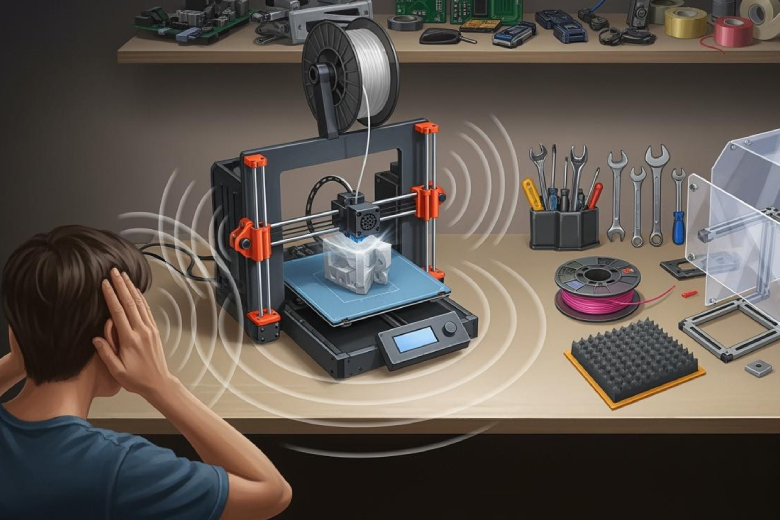
Many users hear unexpected sounds when their 3D printer runs. The most common sources of 3d printer noise include fans, motors, vibrations, and loose parts.
- Fans spin quickly and move air.
- Motors drive movement and can hum or click.
- Vibrations travel through tables and floors.
- Loose screws or worn parts rattle during printing
Key Takeaways
- Identify common noise sources in 3D printers, such as fans, motors, vibrations, and loose parts. Understanding these helps target solutions effectively.
- Lower fan speed settings can significantly reduce noise. Adjusting speeds in the control panel balances cooling and quiet operation.
- Regular maintenance is crucial. Tightening screws, lubricating parts, and inspecting belts monthly keeps the printer running smoothly and quietly.
- Consider upgrading to silent stepper drivers and quieter aftermarket fans for long-term noise reduction. These upgrades can transform your printing experience.
- Use simple solutions like anti-vibration pads and heavy surfaces to dampen noise. These beginner-friendly fixes can lead to noticeable improvements.
Main Causes of 3D Printer Noise
Fan Noise
Fans play a major role among the sources of noise in 3d printers. They cool the hot end and other components, but their spinning blades create a constant hum. The noise level depends on the fan type and its speed. The following table shows typical noise levels for different fans during operation:
|
Fan Type |
Noise Level (dB) |
|---|---|
|
Hot End |
60 |
|
4 ft away from printer |
50 |
|
Idle State |
55 |
|
Heat Break/Part Cooling |
65 |
Many users notice that part cooling fans are the loudest, especially when running at full speed. Dirty or low-quality fans can make the sound even worse. Lowering fan speed or upgrading to quieter models can help reduce 3d printer noise.
Motor Noise
Motors drive the movement of the printer’s axes. Stepper motors are the most common type used in 3D printers. They produce humming or whining sounds, especially during fast movements. Several factors affect motor noise:
- Stepper motors offer precision and reliability.
- The choice of stepper motor drivers influences noise levels.
- Current supplied to motors impacts noise output.
- Using dampers and proper bearings can lower noise.
Adjusting motor settings or upgrading drivers can make a big difference in quiet 3d printing.
Vibrations
Vibrations come from rapid movements and sudden direction changes. These vibrations travel through the printer frame and the surface it sits on, amplifying the overall sound.
Ringing is a wavy pattern that may appear on the surface of your print due to printer vibrations or wobbling. This pattern is noticeable when the extruder makes sudden direction changes, leading to visible print defects.
Stepper motors and cooling fans also contribute to vibrations. Placing the printer on a sturdy surface and using anti-vibration pads can help reduce these sources of noise in 3d printers.
Loose Parts
Loose or worn parts often rattle and increase noise. Users report that the extruder assembly, power supply fan, and stepper motors are common trouble spots. Tightening screws and bolts can eliminate rattling. The metal construction of the working platform can amplify noise if parts are not secure. Regular checks and maintenance help keep everything quiet and stable.
Reduce 3D Printer Noise from Fans
Quieter Aftermarket Fans
Many users seek quieter aftermarket fans to reduce noise from their 3D printers. Some aftermarket fans promise lower decibel levels, but results can vary. Not every replacement guarantees a quieter experience.
- Some aftermarket fans produce noise levels similar to jet engines.
- Older fans sometimes operate quietly, showing that age does not always mean more noise.
- Switching from a radial to an axial fan changes the pitch but does not always lower the overall noise.
- Fan design and construction play a major role in sound output.
Choosing a high-quality fan with positive reviews helps improve quiet 3d printing. Beginners should check compatibility before buying new fans.
Lower Fan Speed Settings
Lowering fan speed settings offers a simple way to reduce noise. Many printers allow users to adjust fan speed in the control panel or slicing software.
- Reducing fan speed lowers noise output.
- The printer must stay cool enough to avoid overheating.
- Users can experiment with different speeds to find the best balance between cooling and noise.
A small decrease in speed often leads to noticeable noise reduction. Beginners should start with small adjustments and monitor print quality.
Fan Dampers and Mounts
Fan dampers and mounts help with dampening vibrations and noise. These accessories absorb vibrations and prevent sound from traveling through the printer frame. The table below shows common methods and their benefits:
|
Method |
Description |
Benefits |
|---|---|---|
|
Heavy Base |
Concrete paver under the printer |
Stabilizes, absorbs vibrations, reduces noise |
|
Anti-Vibration Mats |
Soft materials under the printer |
Lowers noise, prevents shaking |
|
Damper Boards |
Heavy boards for stability |
Reduces vibrations on the surface |
Installing dampers or mats is easy and does not require advanced skills. Beginners can use household items like yoga mats or thick foam for similar results.
Tip: Start with simple solutions like lowering fan speed or adding a mat before investing in new fans.
3D Printer Noise Reduction for Motors
Silent Stepper Drivers
Silent stepper drivers offer a major improvement in reducing stepper motor noise. Standard drivers often reach noise levels as high as 78dB, which sounds similar to a truck passing by. Most operate around 70dB, like a car on the road. Silent stepper drivers, such as StealthChop and SpreadCycle, work much more quietly. StealthChop drivers run almost silently below 400 mm/min, with normal operation at about 60dB. SpreadCycle drivers peak at 60dB, making them 18dB quieter than standard drivers. Many users report that after upgrading to TMC2100 silent stepper drivers, the loudest part of their printer becomes the power supply fan. This upgrade makes quiet 3d printing possible for many hobbyists.
- Standard drivers: peak at 78dB, average 70dB
- StealthChop: around 60dB, peak 70dB at high speed
- SpreadCycle: peak at 60dB
Lubrication and Maintenance
Regular maintenance keeps motors running smoothly and quietly. Cleaning and lubricating moving parts prevents squeaking and grinding. Tightening loose frames and belts reduces unwanted noise and improves print quality. Many users find that upgrading to silent stepper drivers and adding vibration dampers also helps create smoother operation. Maintenance tasks do not require advanced skills, and most users can complete them with basic tools.
Tip: Schedule monthly checks for cleaning, lubrication, and tightening. This routine helps prevent stepper motor noise and keeps the printer in top condition.
Quiet/Silent Mode
Many modern 3D printers include a quiet or silent mode. This feature changes how the printer moves, reducing the speed and smoothing out motor movements. When activated, silent mode lowers the overall noise level during printing. Users who want to print overnight or in shared spaces benefit from this option. Silent mode works best when combined with silent stepper drivers and regular maintenance.
|
Feature |
Benefit |
|---|---|
|
Silent Drivers |
Lower motor noise |
|
Lubrication |
Smoother, quieter movement |
|
Silent Mode |
Reduced noise during printing |
Quiet 3d printing depends on a combination of upgrades and good habits. Silent stepper drivers, regular maintenance, and silent mode all help reduce stepper motor noise and create a better printing experience.
Noise Reduction from Vibrations
Anti-Vibration Pads
Many users choose anti-vibration pads to reduce noise from their 3D printers. These pads help isolate vibrations and maintain print quality, especially during high-speed printing. The 3dB Anti-Vibration Foot Pad is designed for vibration isolation and noise reduction. Users report that anti-vibration pads provide stability and can improve issues like ghosting or ringing. However, placing the printer on a lightweight surface may limit the effectiveness of anti-vibration pads, allowing more movement of the printer frame. For best results, combine anti-vibration pads with a heavy base.
- Anti-vibration pads isolate vibrations and reduce noise.
- Stability improves print quality and reduces ghosting.
- Lightweight surfaces may limit the effectiveness of anti-vibration pads.
Heavy Surface Placement
Placing a 3D printer on a heavy surface increases mass and helps with dampening vibrations. A concrete paver or stone base absorbs vibrations and reduces noise. The printer should be acoustically coupled to the mass for maximum vibration dampening. Non-isolating feet, such as felt pads, help avoid isolating the printer from the base. Isolating foam or Sorbothane feet can prevent remaining vibrations from transmitting to the table.
|
Surface Type |
Recommendation |
|---|---|
|
Heavy Surface |
Use a 17x17 inch paver stone to increase mass and dampen vibrations. |
|
Acoustically Coupled |
Ensure the printer is acoustically coupled to the mass for maximum vibration dampening. |
|
Non-Isolating Feet |
Felt non-isolating feet are recommended to avoid isolating the printer from the base. |
|
Isolating Foam |
Use isolating foam or Sorbothane feet to prevent remaining vibrations from transmitting. |
Adding mass to the setup decreases vibration and noise. Isolating pads separate the increased mass from the supporting surface, improving quiet 3d printing.
Sound Insulation Foam
Sound insulation foam surrounds the printer and absorbs some noise. Acoustic foam helps reduce fan noise and high-pitched sounds. Medium and low-pitched noises from motors remain audible. Using an enclosure or quieter stepper drivers may offer better results for overall noise reduction. Sound insulation foam works best as part of a larger noise control strategy.
- Acoustic foam reduces fan noise and high-pitched sounds.
- Motor noises may remain audible.
- Enclosures and silent drivers provide more effective noise reduction.
Vibration Dampeners
Vibration dampeners attach to the printer and absorb movement. Recent research shows that lamellar viscoelastic dampers outperform traditional constrained layer dampers. These dampeners provide superior vibration mitigation and help maintain print quality. Vibration dampeners work well with anti-vibration pads and heavy surfaces, creating a strong vibration isolation system.
Tip: Combine anti-vibration pads, heavy surfaces, and vibration dampeners for the best results in reducing printer noise.
Fixing Loose or Worn Parts
Loose or worn parts often cause unwanted noise in 3D printers. Regular inspection and maintenance help keep the machine running quietly and smoothly. Many users notice that belts, pulleys, bearings, and screws need frequent attention. A simple checklist makes it easier to spot problems before they affect print quality.
Tighten Screws and Bolts
Screws and bolts hold the printer frame and bed together. When these parts loosen, rattling and vibration increase. Technicians recommend checking all screws and bolts on the frame and bed at least once a month. Tightening them with the correct tools prevents print errors and keeps the printer stable. Drive pulleys and lead screw couplers also need regular inspection, as loose connections can affect motion and create extra noise.
Tip: Mark screws with a small dot of nail polish after tightening. This helps track which ones have been checked.
Replace Bearings and Belts
Bearings and belts play a key role in smooth movement. Worn belts may show cracks or fraying, while old bearings can collect dust or lose lubrication. Replacing these parts reduces friction and noise. Adjusting belt tension and upgrading to precision linear rails lead to quieter operation. Many users find that lowering the feed rate to 80% also helps return the printer to near-silent performance. Adding foam liners to motor mounts provides extra dampening.
Common Parts to Inspect:
- Belts: Look for tension and signs of wear.
- Pulleys: Ensure they are secure.
- Bearings: Clean and lubricate regularly.
- Rods and rails: Check for rust or scoring.
Regular Maintenance
Routine maintenance keeps noise levels low. Checking for loose nuts and bolts, especially on moving parts, prevents rattling. Lubricating rods and bearings ensures smooth motion. Maintaining proper belt tension stops slippage and noise during operation. Many users schedule monthly checks to keep their printers in top condition.
|
Maintenance Task |
Frequency |
Benefit |
|---|---|---|
|
Tighten screws/bolts |
Monthly |
Reduces rattling |
|
Monthly |
Prevents friction noise |
|
|
Lubricate moving parts |
Monthly |
Ensures smooth movement |
A regular checklist helps users catch problems early and maintain a quiet printing environment. 🛠️
Quick Fixes and Upgrades for Quiet 3D Printing
Beginner-Friendly Solutions
Many users want to solve noise issues without spending much money or time. They can start with simple steps that require little experience. These quick fixes help achieve quiet printing and improve the overall experience.
- Place the printer on a heavy, stable surface. This reduces vibrations and dampening.
- Add anti-vibration pads under the printer feet. These pads absorb movement and lower noise issues.
- Lower fan speed settings in the printer’s control panel. This step makes the printer quieter while keeping it cool.
- Tighten all screws and bolts. Loose parts often cause rattling and extra noise issues.
- Lubricate rods and bearings. Smooth movement leads to quiet printing and better results.
- Use household items like yoga mats or foam sheets as sound barriers. These materials help block noise issues and are easy to find.
Advanced Upgrades
Some users want advanced noise reduction and are willing to invest in upgrades. These solutions require more skill and sometimes cost more, but they offer long-term benefits for quiet 3d printing.
- Install silent stepper drivers. These drivers lower motor noise and make quiet printing possible.
- Replace stock fans with high-quality, quieter aftermarket fans. This upgrade reduces fan noise issues.
- Add vibration dampeners to motors and frame. These dampeners absorb movement and improve dampening.
- Build or buy a sound-insulated enclosure. Enclosures block noise issues and keep the workspace quiet.
- Upgrade to precision linear rails and better bearings. These parts reduce friction and noise issues.
- Use advanced firmware settings like silent mode. This feature smooths motor movements and supports quiet printing.
Cost vs. Benefit
Users often wonder if upgrades are worth the investment. The table below compares common solutions for quiet printing by cost and effectiveness.
|
Solution |
Cost |
Effectiveness |
Skill Level |
|---|---|---|---|
|
Anti-vibration pads |
Low |
Moderate |
Beginner |
|
Lowering fan speed |
Free |
Moderate |
Beginner |
|
Tightening screws/bolts |
Free |
Moderate |
Beginner |
|
Lubrication |
Low |
Moderate |
Beginner |
|
Silent stepper drivers |
Medium |
High |
Intermediate |
|
Quieter aftermarket fans |
Medium |
High |
Intermediate |
|
Vibration dampeners |
Medium |
High |
Intermediate |
|
Sound-insulated enclosure |
High |
Very High |
Advanced |
|
Precision linear rails/bearings |
High |
Very High |
Advanced |
Users who want quick results can start with low-cost fixes. Those who seek advanced noise reduction should consider investing in upgrades. Each solution offers a different balance of cost and effectiveness. Quiet printing is possible for everyone, whether they choose simple fixes or advanced upgrades.
Tip: Users should try beginner-friendly solutions first. If noise issues remain, they can move on to advanced upgrades for quiet 3d printing.
Many users achieve quieter 3D printing by following simple steps and upgrades.
- Placing printers on heavy surfaces and tightening loose parts helps reduce noise.
- Advanced upgrades, such as silent stepper drivers, offer strong noise reduction.
FAQ
What causes most 3d printer noise reduction problems?
Many users experience issues with 3d printer noise reduction because of fans, motors, vibrations, and loose parts. Each source creates different sounds. Regular maintenance and upgrades help solve these problems.
How often should someone perform 3d printer noise reduction maintenance?
Experts recommend monthly checks for 3d printer noise reduction. Users should tighten screws, lubricate moving parts, and inspect belts. Consistent maintenance keeps the printer quiet and improves print quality.
Can 3d printer noise reduction work with household items?
People often use yoga mats, foam sheets, or heavy boards for 3d printer noise reduction. These items absorb vibrations and block noise. Many beginners find these solutions easy and affordable.
Does upgrading fans help with 3d printer noise reduction?
Upgrading to quieter fans supports 3d printer noise reduction. High-quality aftermarket fans lower noise levels. Users should check compatibility before replacing stock fans to avoid installation issues.
What advanced options exist for 3d printer noise reduction?
Advanced 3d printer noise reduction includes silent stepper drivers, vibration dampeners, and sound-insulated enclosures. These upgrades require more skill and investment. Many users report significant noise reduction after installing these features.
Tip: Start with simple 3d printer noise reduction steps before trying advanced upgrades.
|
Solution |
3d Printer Noise Reduction Benefit |
|---|---|
|
Anti-vibration pads |
Absorbs movement |
|
Silent stepper drivers |
Lowers motor noise |
|
Sound insulation foam |
Blocks high-pitched sounds |
|
Regular maintenance |
Prevents rattling |
