







AMS in 3D printing brings a new level of quality and ease to every project. AMS manages up to four different filaments, so users can switch between materials or colors without stopping the print. The system detects and loads the correct filament automatically. This reduces errors and saves time. AMS also keeps filaments organized and ready for use.
With AMS, users spend less time on manual tasks and more time creating. It makes advanced prints possible for everyone.
Key Takeaways
- AMS allows users to print with up to four different filaments, enabling complex designs without manual changes.
- Automated filament management reduces errors and saves time, allowing users to focus on creativity.
- Proper filament storage and drying are essential for maintaining print quality and preventing jams.
- Regular calibration and spool management help ensure smooth operation and reliable results.
- Experimenting with multi-material prints can lead to innovative designs and enhance project outcomes.
AMS in 3D Printing: Key Features
Multi-Material and Multi-Color Printing
AMS in 3D printing gives users the power to combine different materials and colors in one print. This feature opens up new possibilities for creative and functional designs. The system can handle up to four different filaments at once. This means users can switch between colors or materials without stopping the printer. The ability to use four materials or colors increases flexibility and allows for more complex and detailed projects. Designers can create objects with multiple colors, combine flexible and rigid parts, or add special textures in a single print.
AMS makes multi-material 3D printing simple for everyone. Users do not need to pause their work to change filaments by hand.
Here is a quick look at the main features:
|
Feature |
Description |
|---|---|
|
Multi-Material Printing |
The AMS allows for the use of different materials in a single print, enabling complex designs. |
|
Multi-Color Printing |
It supports printing in multiple colors, enhancing creative possibilities for designers. |
|
Combination of Textures |
Users can combine flexible and rigid materials in one print, catering to diverse project needs. |
Automated Filament Management
AMS acts as an automated material system that reduces manual effort during the printing process. The system loads and unloads filaments automatically. This keeps the print running smoothly and saves time. The automatic material system also monitors filament usage and status. It helps prevent problems like running out of filament or clogs. The RFID system in AMS recognizes each filament type and adjusts printer settings for the best results.
|
Feature |
Benefit |
|---|---|
|
Automatic Material Loading |
Reduces manual intervention during filament changes, allowing for continuous printing. |
|
Filament Monitoring |
Tracks material usage and status to prevent issues like clogs or running out of filament. |
|
RFID System |
Automatically recognizes filament types and adjusts printer settings for optimal results. |
AMS in 3D printing brings convenience and reliability to every project. Users spend less time on manual tasks and more time creating. The automated material system makes advanced prints possible for everyone.
AMS Components Overview
A modern AMS system uses several key components to manage filament and ensure smooth 3D printing. Each part has a specific job that helps the printer work efficiently and reliably.
Spool Holders and Motors
Spool holders keep filament spools secure and organized. They allow the AMS to hold up to four spools at once. Motors work with the holders to move filament from the spool to the printer automatically. This setup means users do not need to feed filament by hand. The motors pull the filament smoothly, which helps prevent tangles and jams.
- Automated material handling improves workflow and print quality.
- The system can switch between spools quickly, even during high-speed prints.
- Filament buffers keep tension steady and stop tangling, making material changes seamless.
Tip: Always check that spools are loaded correctly to avoid feeding issues.
Hub and Buffer Functions
The ams hub acts as the central point for managing filament flow. It directs which filament goes to the printer and controls the switching process. The hub works with sensors to track filament status and usage. Buffers store extra filament and keep it ready for fast changes. They also help maintain the right tension, so the filament does not get stuck or tangled.
Here is a table showing the main AMS components and their functions:
|
Component |
Function |
|---|---|
|
Spool Holders |
Secure and organize filament spools |
|
Motors |
Move filament from spool to printer automatically |
|
AMS Hub |
Directs filament flow and manages switching |
|
Buffers |
Store extra filament and keep tension steady |
|
Sensors |
Track filament status and usage |
AMS supports many popular filament types. Most systems work with 1.75 mm diameter filaments, which include PLA, PETG, ABS, ASA, PET, PA, PC, and more. The system fits spools with widths from 40 to 68 mm and inner diameters from 53 to 58 mm.
|
Supported Filaments |
Diameter |
Spool Width |
Spool Inner Diameter |
|---|---|---|---|
|
PLA, PETG, ABS, ASA, PET, PA, PC, PVA (dry), BVOH (dry), PP, POM, HIPS, Bambu PLA-CF, PAHT-CF |
1.75 mm |
40-68 mm |
53-58 mm |
AMS Setup Guide
Physical Installation Steps
Setting up an AMS for your 3D printer requires careful attention to detail. The process ensures that the system works smoothly and supports reliable filament management. Here are the ams physical install steps you should follow:
- Tap on AMS Service to begin the installation process.
- Enter admin in the password field and tap Send.
- Set a new local administrator password and tap Send.
- Bind the board to AMS using one of these methods:
- Enter AMS administrator credentials and tap Login.
- Scan the QR code, enter credentials, and tap Login.
- Hold the administrator NFC card to the NFC reader.
Tip: Make sure all connections are secure before starting the print process. Loose cables or incorrect setup can cause errors during printing.
AMS in 3D printing relies on proper installation. Each step helps the system recognize and manage filaments. When you follow these steps, you reduce the risk of feeding problems and improve print quality.
Initial Configuration
After installing AMS, you need to configure the system for first use. Calibration ensures that AMS works with your printer and handles filaments correctly. The system uses tools to manage calibration and organize devices for efficient operation.
|
Feature |
Description |
|---|---|
|
Connects with calibration devices to manage calibration of protocols like HART and Fieldbus. |
|
|
Grouping Devices |
Allows easy grouping of devices into test cases and calibration routes for maximum efficiency. |
AMS uses a calibration assistant to connect with devices and manage calibration. Grouping devices into test cases helps organize the setup and makes the process faster. This step is important for reliable filament switching and smooth operation.
Note: Always check the calibration status before starting a new print. Proper calibration prevents errors and keeps the print process running smoothly.
AMS supports many filament types and works with most printers. When you complete the initial configuration, AMS can monitor filament usage and switch materials automatically. This setup improves efficiency and reduces manual effort.
AMS Software Integration
Supported Platforms
AMS works with several popular 3D printing platforms and software solutions. This wide compatibility helps users get the most out of their 3D printers. The following table shows some of the main platforms and software that support AMS:
|
3D Printing Platforms |
Software Solutions |
|---|---|
|
Bambu Lab A1 Mini |
Bambu Studio |
|
Bambu Lab X1C Combo |
3DPrinterOS |
|
Bambu Lab P1S Combo |
Bambu Cloud |
Users can connect AMS to these platforms for a smooth experience. The integration allows for easy setup and reliable operation. Most users find that AMS connects quickly with their printer and software, making the start-up process simple.
Tip: Always check for the latest software updates to ensure AMS works with new features and improvements.
Workflow Automation
AMS brings automation to the 3D printing process. The system manages up to four materials per unit, and users can chain up to four AMS units for a total of sixteen materials. This setup makes it possible to create complex multi-material prints without stopping the printer.
- AMS enables the use of multiple filaments in one project.
- It allows for multi-color or multi-material prints without manual intervention.
RFID tags in filament spools help AMS communicate with the printer. The system reads the tags and adjusts settings for each filament. This speeds up the process and reduces human errors during filament changes.
|
Feature |
Description |
|---|---|
|
AMS Integration |
Allows complex multi-material prints with up to 4 materials per AMS unit and up to 4 chained units (16 materials total). |
AMS automation improves reliability and print quality. The system handles filament switching and reduces the chance of mistakes. Users can focus on design and creativity while AMS manages the technical details.
AMS Optimization Tips
Filament Storage and Drying
Filament quality affects every print. AMS users should store filament in a dry place. Moisture can cause problems like bubbles, weak layers, or jams. Many filaments absorb water from the air. PLA, PETG, and ABS need protection from humidity. Use airtight containers or sealed bags with silica gel packs. This keeps filament dry and ready for use.
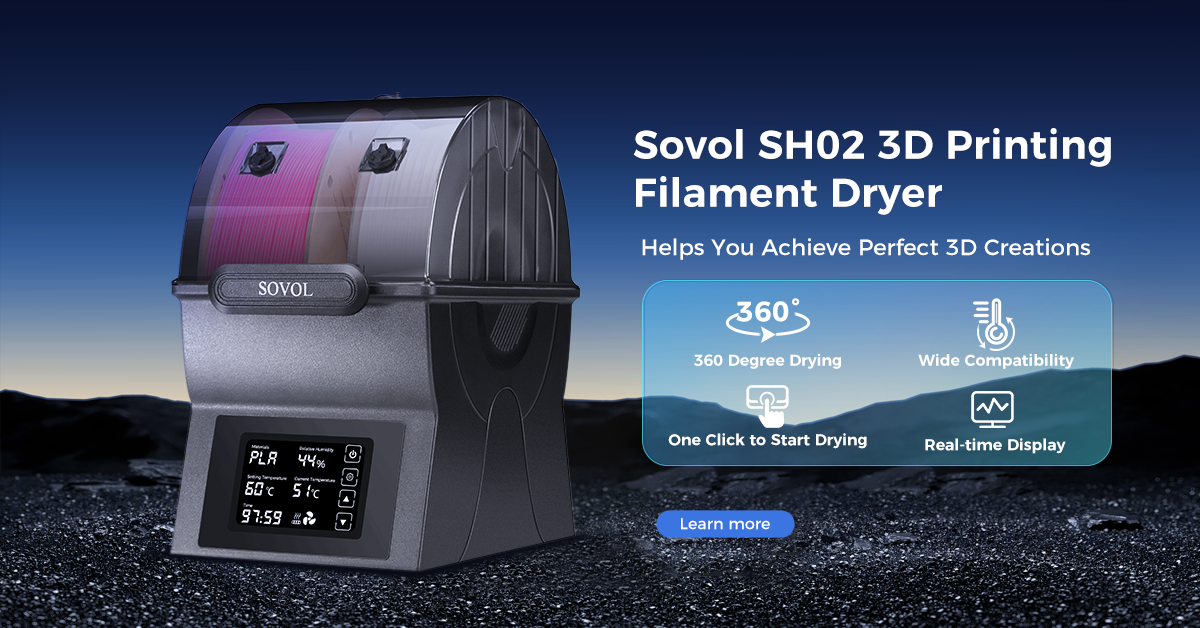
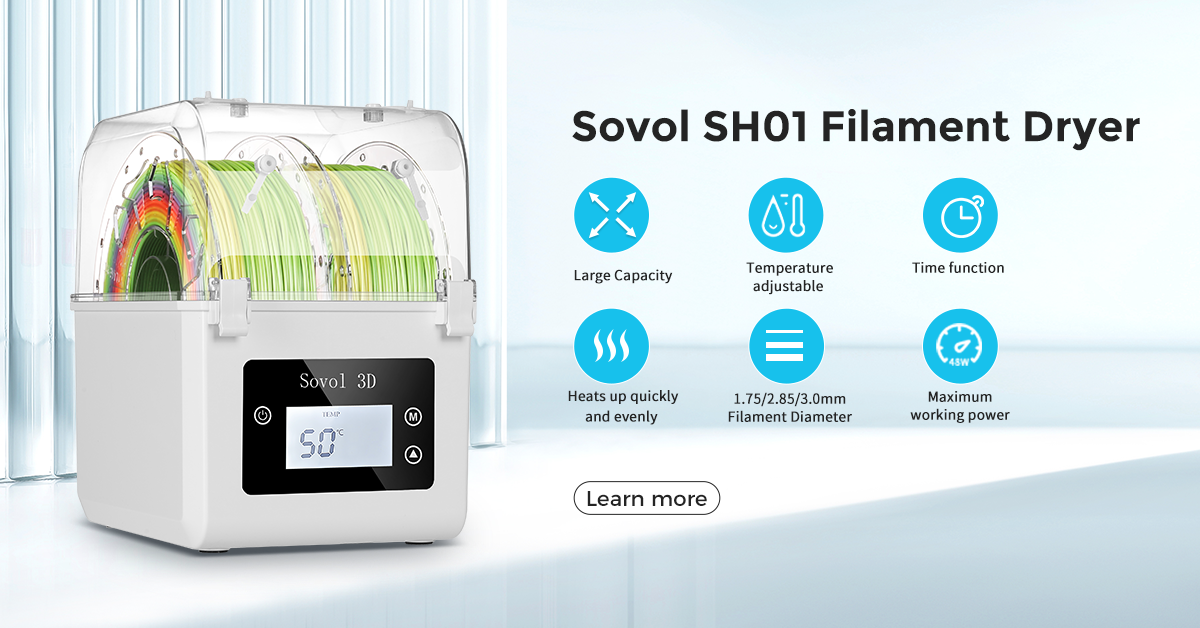
A filament dryer helps remove moisture. Place spools in the dryer before loading them into AMS. Drying improves print quality and reduces errors. Some AMS units have built-in drying features. Check the system for these options.
|
Storage Method |
Benefit |
|---|---|
|
Airtight Container |
Prevents moisture absorption |
|
Silica Gel Packs |
Keeps humidity levels low |
|
Filament Dryer |
Removes water for better prints |
Advanced Spool Management
AMS supports up to four spools at once. Proper spool management keeps the system running smoothly. Organize spools by material and color. Label each spool for easy identification. This helps AMS select the right filament during multi-material or multi-color prints.
Check spool size and compatibility. AMS works best with spools that fit the recommended width and inner diameter. Avoid overfilling the spool holders. This prevents jams and feeding issues.
Some users chain multiple AMS units for larger projects. This allows up to sixteen materials or colors. Plan the order of spools for complex designs. Use the AMS software to track filament usage and switch spools automatically.
|
Spool Management Task |
Result |
|---|---|
|
Labeling Spools |
Faster material selection |
|
Checking Compatibility |
Fewer feeding problems |
|
Chaining AMS Units |
More materials for big projects |
Troubleshooting Common Issues
AMS in 3D printing can face common problems. Users should know how to fix these issues quickly. Here are some troubleshooting steps:
- Filament Jam: Remove the spool and check for tangles. Clean the spool holder and reload the filament.
- Filament Not Detected: Check the RFID tag. Make sure the tag is readable and placed correctly.
- Feeding Error: Inspect the buffer and hub. Clear any blockages and restart the AMS.
- Print Stops Unexpectedly: Check for loose cables or power issues. Secure all connections and restart the printer.
AMS uses a single-in-single-out hotend for smooth filament changes. This design reduces the chance of clogs. Multi-in-single-out approaches can cause mixing problems, but AMS avoids these issues with careful management.
|
Issue |
Solution |
|---|---|
|
Filament Jam |
Remove tangles and reload |
|
Not Detected |
Check RFID tag placement |
|
Feeding Error |
Clear buffer and hub |
|
Print Stops |
Secure cables and restart |
AMS helps users maximize reliability and efficiency. Proper storage, spool management, and troubleshooting ensure the best results for every print.
AMS in 3d printing improves quality, efficiency, and convenience for every project. Users can achieve better results by following setup and optimization tips.
- Organize filament storage for reliable prints.
- Check calibration before each print.
- Use spool management to prevent errors.
Try new features and experiment with multi-material designs. AMS helps users create advanced prints with less effort.
FAQ
How many filaments can AMS handle at once?
AMS can manage up to four filaments at the same time. Users can chain multiple AMS units to increase capacity. This feature supports complex prints with many colors or materials.
What types of filaments are compatible with AMS?
AMS works with 1.75 mm filaments. Supported materials include PLA, PETG, ABS, ASA, PET, PA, PC, and more. Always check spool size and material compatibility before loading.
Tip: Dry filament before use for best results.
Does AMS require special software?
AMS integrates with popular platforms like Bambu Studio and 3DPrinterOS. Most users do not need extra software. Updates improve compatibility and add new features.
|
Platform |
Supported Software |
|---|---|
|
Bambu Lab |
Bambu Studio |
|
Other Brands |
3DPrinterOS |
How can I fix a filament jam in AMS?
Remove the spool and check for tangles. Clean the spool holder. Reload the filament and restart AMS. Regular maintenance prevents jams and keeps the system reliable.
Can AMS switch filaments during a print?
AMS switches filaments automatically during a print. The system detects when a change is needed and loads the correct filament. This process saves time and reduces manual effort.
