



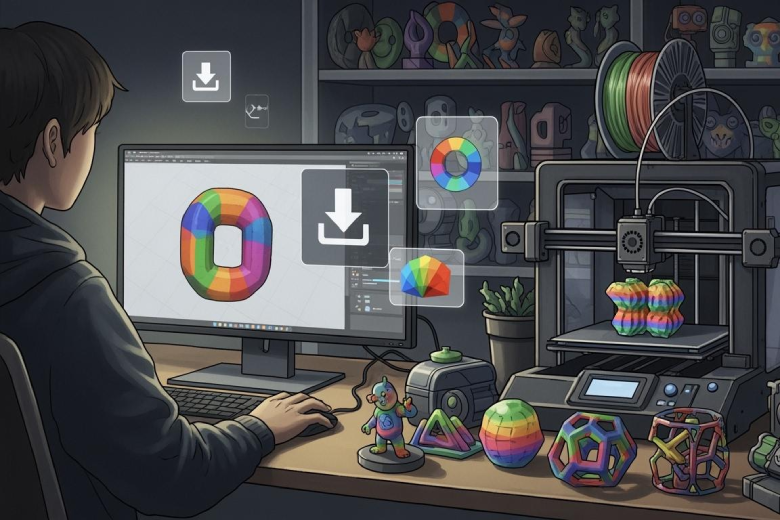
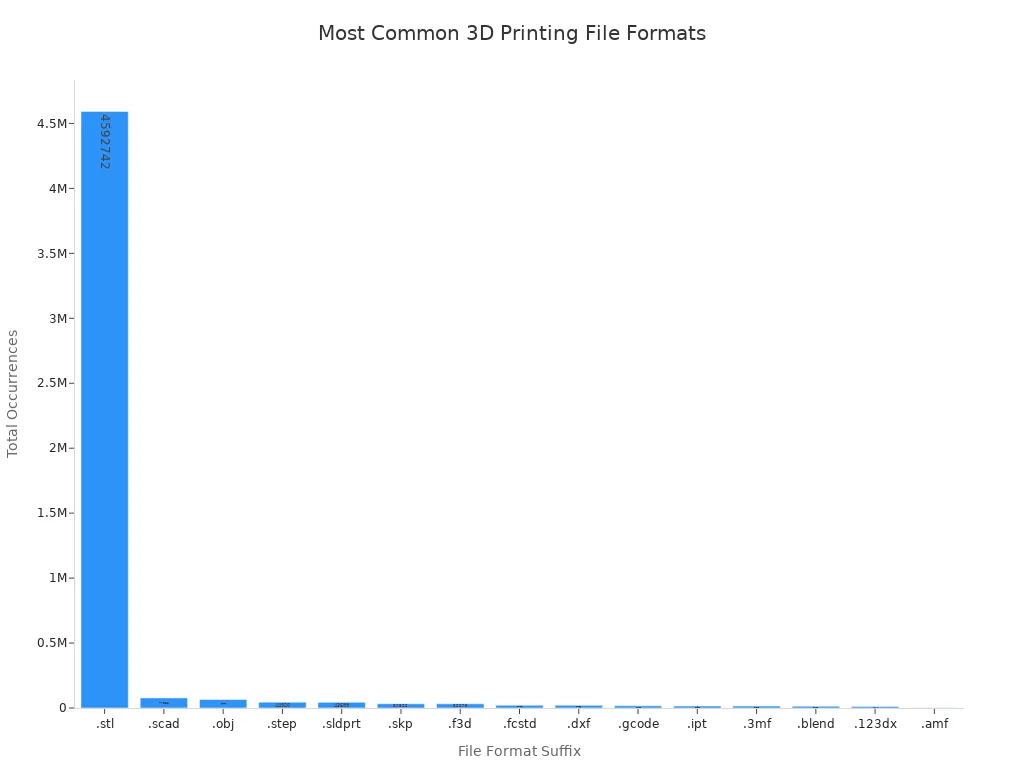
Multi-color 3D print models can be downloaded from specialized online platforms and used with compatible printers. Choosing the right file format, such as .3mf or .OBJ, ensures that color information transfers accurately.
|
Suffix |
File Format Description |
Total Occurrences |
|---|---|---|
|
.stl |
STereoLithography |
4,592,742 |
|
.obj |
Wavefront Object |
65,556 |
|
.3mf |
3D Manufacturing Format |
14,823 |
Users select multi-color 3D printing to create realistic prototypes and help products stand out. Many also search for multi-color 3D printing resources to meet unique design needs.
Key Takeaways
- Choose the right file format like .3mf or .OBJ for successful multi-color 3D printing. These formats retain color data, ensuring vibrant prints.
- Organize your downloaded 3D models by project or color scheme. This helps streamline the printing process and reduces confusion.
- Use reliable slicing software like Cura or Tinkercad to manage multi-color features. These tools enhance print quality and control color transitions.
Find and Download Multicolor 3D Printing Models
Best Sites for Multi-Color 3D Printing Files
People who want to start with multicolor 3d printing often search for reliable sources of models. Many websites offer a wide range of multi-color designs that suit different needs. Some of the top-rated platforms include:
- Cults: This site provides a large selection of multi-color and multi-material 3d printing models. Users can find artistic and decorative designs that use multiple colors. Cults reviews each model for printability before uploading. The site organizes models by categories such as art, fashion, jewelry, and architecture. Many users choose Cults for its variety and quality.
- Other popular sites like Thingiverse and MyMiniFactory also offer multicolor models, but Cults stands out for its focus on color and material diversity.
Tip: When searching for multicolor models, use keywords like "multi-color," "multicolor," or "color 3d printing" in the search bar. This helps filter results to show only models designed for multiple colors.
Choosing the Right File Format (.3mf, .OBJ, .STL)
Selecting the correct file format is important for successful multicolor 3d printing. Each format handles color and texture information differently. Here are the main differences:
- STL format stores only geometry data. It cannot keep color or texture information. This makes it less useful for multi-color prints.
- OBJ format supports both color and texture data. It allows for complex and detailed 3d models. OBJ files help create prints with multiple colors and realistic textures.
- 3MF is a modern format. It is compact and works well for multi-material and multicolor 3d printing. Many slicer programs support 3MF and OBJ formats for colored models.
Note: OBJ files can handle intricate texture details and a wide range of colors. This gives printed objects a more authentic look compared to STL files.
Download and Organize Your Multicolor Files
After finding the right models, users should download and organize their files for easy access. Keeping files sorted by project or color scheme helps prevent confusion during the printing process. Most slicer software supports OBJ and 3MF files, making it easier to prepare models for multicolor 3d printing.
However, users may face some compatibility issues when working with different file formats. The table below lists common problems and their descriptions:
|
Compatibility Issue |
Description |
|---|---|
|
Colliding Surfaces |
Parts of the model overlap, creating spaces that slicer software cannot recognize. |
|
Holes or Gaps in a Mesh |
Adjacent triangles do not share two common vertices, which can lead to printing errors. |
|
Over-refined Mesh |
Too many triangles make file handling difficult, but do not always cause printing problems. |
People who follow these steps can find, download, and organize multicolor 3d printing models with confidence. They can enjoy the creative possibilities that come with printing in multiple colors.
Prepare and Print Multi-Color 3D Models
Slicing Software for Multicolor 3D Printing
Slicing software plays a key role in multicolor 3d printing. It prepares 3d print models for the printer by converting them into instructions. Cura, Creality Print, and Tinkercad are popular choices for both beginners and advanced users. These programs support multicolor features and help users manage multiple colors in their models.
|
Feature |
Description |
|---|---|
|
Allows for the use of multiple materials in a single print, essential for multi-color outputs. |
|
|
Advanced Slicing Options |
Provides detailed control over the slicing process, improving print quality and efficiency. |
Cura and Creality Print offer plugins and settings for multicolor filament management. Tinkercad allows users to split a model into parts, making it easier to assign different colors. These tools help users achieve sharp color transitions and reduce color bleeding. Many users in the 3d 打印多色 community rely on these features to create vibrant and detailed models.
Tip: Always check if the slicing software supports the file format of your multicolor 3d print models. OBJ and 3MF formats retain color data better than STL.
Hardware Methods for Multi-Color 3D Printing
The hardware used for multicolor 3d printing affects the quality and complexity of the final model. Several methods exist, each with unique advantages and disadvantages. Fused Deposition Modeling (FDM) remains the most popular method, accounting for about 67% of the personal 3d printers market. This technology is cost-effective and supports a wide range of multicolor filament types.
- Advantages: Dual printing capability, no purging needed, increased productivity.
- Disadvantages: Complex calibration, heavier heads affect precision, limited to two materials, higher cost.
Dual-Nozzle Single-Head:
- Advantages: Affordable, simple to manage, dual-color capability.
- Disadvantages: Ooze risk, wasteful purging, limited to two materials, potential print quality issues.
- Features: Two extruders on independent print heads, eliminating oozing and cross-color contamination.
- Best For: High-quality, sharp multi-color prints, high-efficiency production, and small-batch manufacturing.
Tool Changer System:
- Features: Multiple independent extruders with advanced SnapSwap™ system, near-zero waste.
- Best For: Intricate multi-color and multi-material parts, high-speed printing, significant material cost savings.
Industries such as automotive, aerospace, and healthcare use multicolor 3d printing to create complex and customized products. The introduction of metallic 3d printing filament has expanded design possibilities, offering both strength and visual appeal. HP Inc. leads the market with its Jet Fusion technology, producing full-color parts for various sectors. This technology supports digital manufacturing and enables local production, making it a top choice for businesses seeking sustainable and high-performance solutions.
Step-by-Step Multicolor Printing Setup
Setting up a multicolor 3d printing job requires careful planning. Experts recommend the following steps:
- Use multicolor filament that shifts colors during printing. Adjust the model size or layer height to control color placement.
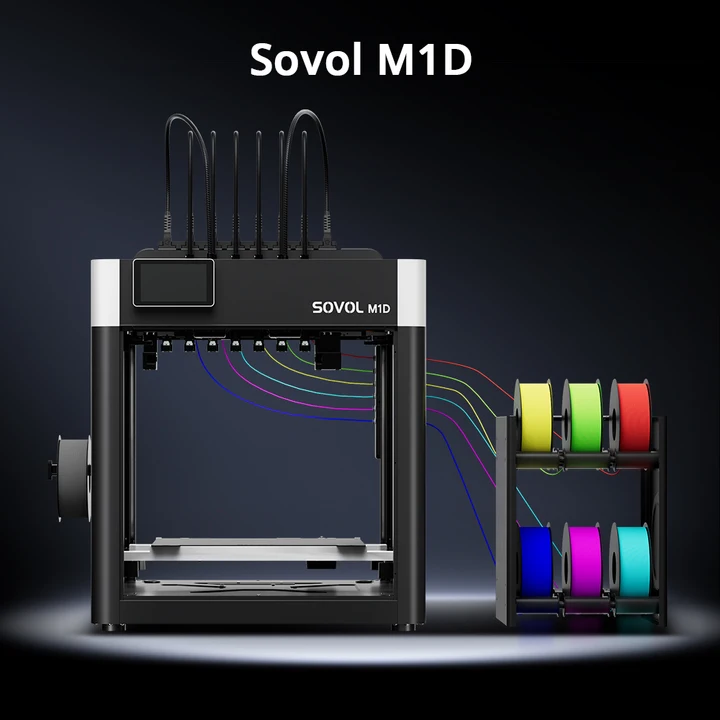
- Select a multi-extruder or color mixing printer for automatic filament switching or blending.
- Start with small test models to experiment with settings before moving to larger projects.
- Set up a purge tower or wipe zone to minimize color contamination between filaments.
- Choose high-contrast colors to enhance the visual impact of the print.
- Maintain a consistent layer height to avoid misalignment when layering multiple colors.
- Use a slicer plugin, such as those available in Creality Print, to streamline multicolor settings.
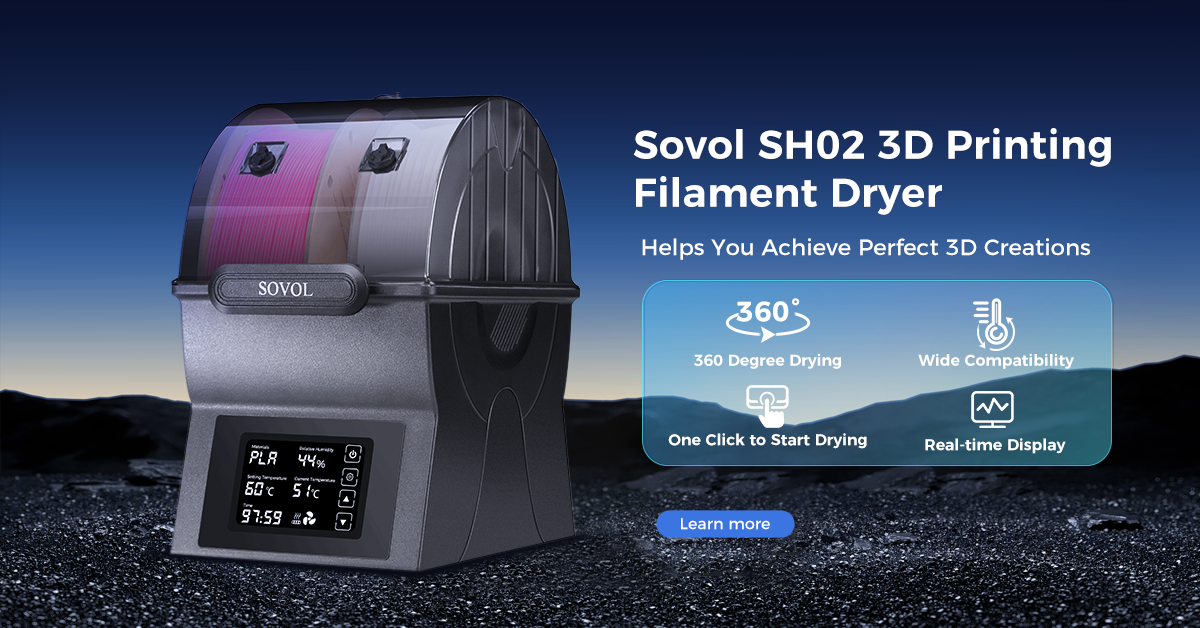
Note: Always dry and store multicolor filament in airtight containers to prevent moisture-related issues. This step is crucial for achieving sharp color boundaries in 3d 打印多色 projects.
Multicolor Printing Tips and Troubleshooting
Multicolor 3d printing can present unique challenges. The following tips help users avoid common mistakes and resolve issues:
- Prepare filament by drying it and storing it properly.
- Calibrate printer settings, including bed leveling and temperature, for precise color transitions.
- Clean the nozzle regularly and adjust purge settings to maintain sharp color boundaries.
- Use advanced slicing techniques to control color placement and minimize bleeding.
Common issues and solutions include:
- Warping: Level and heat the print bed; use a brim or raft.
- Layer adhesion issues: Increase temperature, slow down speed, or optimize cooling fan settings.
- Stringing: Adjust retraction settings to minimize filament oozing.
- Nozzle clogs: Clean the nozzle and adjust temperature and retraction settings.
- Nozzle calibration issues: Use a single nozzle with multiple spools to avoid calibration problems; employ waste towers for color changes.
- Filament oozing: Other nozzles may ooze filament while one is printing; use purge towers to manage this.
- Material adhesion: Different materials may not adhere well; select compatible filaments for best results.
Tip: Clean the build plate with warm water and dish soap to improve bed adhesion. Print lighter colors first, then use darker colors to reduce stringing. Dry hygroscopic filaments like PETG HF to prevent corners from lifting.
Calibration techniques for accurate color transitions include:
- Model splitting to isolate each color and reduce bleed.
- Assigning colors to specific layers or zones for precise transitions.
- Fine-tuning settings such as pressure advance and outer wall line width.
- Adjusting flush rates to clear old filament during color changes.
- Regular nozzle cleaning to prevent color mixing.
Routine maintenance ensures consistent print quality:
- Clean the nozzle, print bed, and exterior regularly.
- Inspect and calibrate the bed, belts, and extruder.
- Lubricate moving parts to reduce wear.
- Update software for optimal performance and new features.
People who follow these steps and tips can achieve high-quality results in 3d 打印多色 projects. Multicolor 3d printing opens new creative possibilities for both hobbyists and professionals. By understanding the hardware, software, and best practices, users can produce vibrant models with multiple colors and intricate details.
Multicolor 3d printing starts with downloading the right 3d models and choosing suitable file formats. Users experiment with slicing software and hardware to improve print quality. Tool heads enhance scalability for complex 3d projects. The U.S. market expects strong growth in multicolor 3d printing over the next five years.
- Tool heads minimize waste and handle multiple materials efficiently.
- File formats like STL, OBJ, and 3MF affect model detail and print success.
- Beginners use manual filament swapping or assemble separate parts for multicolor 3d printing.
|
Method Description |
Benefits |
|---|---|
|
Using multicolor filament |
Incorporates several colors into one 3d design. |
|
Manual filament swapping |
Enables multicolor results with basic 3d printing setups. |
|
Printing and assembling separate parts |
Allows easy color customization for any 3d printer. |
FAQ
What file format works best for multi-color 3d printing?
Many users choose 3mf or obj files for multi-color 3d printing. These formats keep color data, which helps the printer produce models with multiple colors.
Can a single-extruder printer handle multi-color 3d printing?
A single-extruder printer can print with multiple colors by swapping filament during the print. This method works for simple 3d printing projects.
Why does my multi-color 3d print have color bleeding?
Color bleeding often happens when the printer does not purge old filament fully. Users should set up a purge tower for clean 3d printing with multiple colors.
