



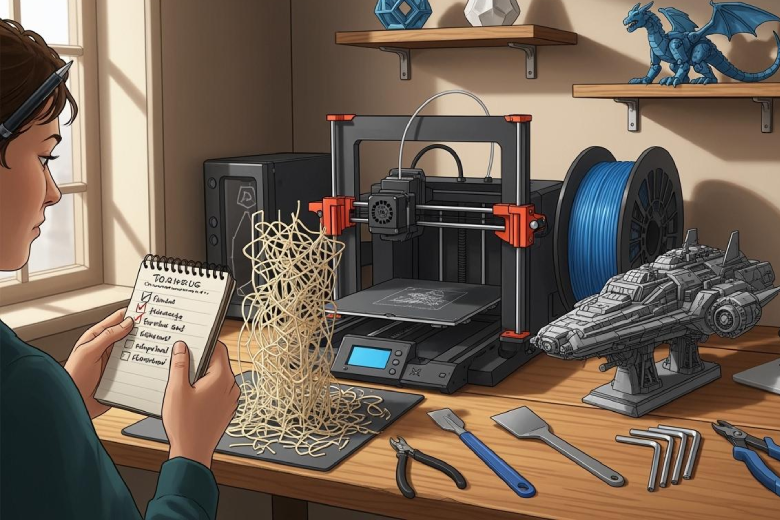
Most people new to 3d printing face similar challenges. Mistakes happen often, and they are a normal part of learning. Each failed print gives you a chance to get better. Studies show that when beginners use tools to identify and fix mistakes, their accuracy improves a lot. For example, one group saw their effectiveness scores rise from 3.92 to 6.31 out of 7 after using a specialized tool. > Every error you fix helps you move closer to great 3d results.
Key Takeaways
- Mistakes are part of learning 3D printing. Each error helps you improve your skills.
- Proper bed adhesion is crucial. Clean the print bed and level it before every print.
- Watch for first layer issues. A good first layer sets the stage for a successful print.
- Regular maintenance keeps your printer running smoothly. Clean nozzles and check parts often.
- Join a community for support. Sharing experiences can help you learn faster and stay motivated.
Biggest Challenges in 3D Printing
The biggest challenges in the 3d printing industry often surprise beginners. Many people expect quick results, but the process involves several obstacles. The table below shows the most common issues reported by new users in the 3d printing industry:
|
Challenge Type |
Description |
|---|---|
|
Material Limitations |
Limited choice of 3d printing materials and short lifespan of some options. |
|
Mechanical Properties |
Inconsistent strength and accuracy in finished parts. |
|
Surface Finish |
Rough textures and uneven colors. |
|
Build-Failure |
Problems with design fit, layer height, and failed prints. |
|
Management Challenges |
Lack of guidelines and need for more training. |
Limited Materials
Most entry-level 3d printers use a small range of 3d printing materials. PLA, ABS, and PETG are the most popular choices. These materials are easy to use and widely available, which helps beginners start prototyping quickly. However, some projects need special properties that these materials cannot provide. For example, nylon is common in the 3d printing industry, but it does not work for every application. This limits what beginners can create and affects the success of their 3d projects.
High Material Costs
The 3d printing industry often faces high costs for both machines and materials. Many beginners find that the price of a 3d printer and the required supplies can be a barrier. Some advanced 3d printing materials cost much more than basic options. This makes it hard for new users to experiment or try larger prototyping projects. High costs can slow down learning and reduce the number of successful prints.
Process Complexity
Learning to use a 3d printer involves many steps. Beginners must understand different printing methods, set up the machine, and handle post-processing. Each step in the 3d printing industry requires attention to detail. For example, removing supports or cleaning parts after printing can be tricky. The complexity of the process often leads to mistakes and failed prints, especially for those new to prototyping.
Time and Noise Issues
The 3d printing industry has made progress in reducing noise and dust. Most home 3d printers now run quietly, which is good for home use. However, printing still takes time. Some projects can take hours or even days to finish. Long print times can test the patience of beginners and slow down the prototyping process. Even with these challenges, the 3d printing industry continues to grow and improve.
Note: Overcoming these biggest challenges helps beginners gain confidence and achieve better results in the 3d printing industry.
Bed Adhesion Issues
Signs of Poor Adhesion
Bed adhesion problems are common in 3d printing. When the first layer does not stick well, the print may shift or peel off the bed. You might notice corners lifting or the entire print moving during the process. Sometimes, parts of the print look warped or have gaps. These signs often point to uneven adhesion. If the print sticks too much, it can be hard to remove and may break.
Poor bed adhesion can cause prints to fail completely or lead to damaged parts when removing them.
Causes of Adhesion Problems
Several factors can cause bed adhesion issues in 3d printing. A dirty or oily print bed often prevents the filament from sticking. If the bed is not level, the nozzle may be too close or too far from the surface. This can create thin or thick first layers. Incorrect bed temperature settings also affect how well the material bonds to the bed. Using the wrong type of surface for your filament can make the problem worse. These challenges can frustrate beginners and slow down progress.
- Insufficient adhesion leads to prints not sticking and failing.
- Too much adhesion makes removal difficult and can damage the print.
Fixing Bed Adhesion
Improving bed adhesion in 3d printing does not have to be difficult. Beginners can follow these steps to get better results:
- Clean the print bed before every print. Dust and oils reduce sticking power.
- Level the bed carefully. A flat surface helps the first layer stick evenly.
- Adjust the nozzle distance. The right Z-offset allows the filament to bond well.
- Set the correct bed temperature for your filament. This helps the material grip the bed.
Many 3d printers come with tools to help with leveling and cleaning. Taking time to prepare the bed can prevent most adhesion problems. Good preparation leads to more successful prints and less wasted material.
First Layer Problems
Identifying First Layer Issues
The first layer is the foundation of every 3d print. When problems appear here, the rest of the print often fails. Common signs of first layer issues include uneven lines, gaps, or the filament not sticking to the bed. Sometimes, the first layer looks smashed or too thin. Other times, the print lifts at the corners or slides across the bed. These problems can frustrate anyone learning 3d printing.
Common Causes
Several factors can lead to first layer problems in 3d printing. A bed that is not level is a frequent cause. If the nozzle sits too close or too far from the bed, the filament will not lay down correctly. Incorrect first layer height or extrusion rate can also create trouble. Using the wrong bed surface or temperature for your material may prevent the filament from sticking. Each of these challenges can stop a print before it even begins.
Here is a quick guide to common first layer issues and their causes:
|
Issue |
Cause |
|---|---|
|
Smashed first layer |
Bed not level, low first layer height |
|
Print not sticking to bed |
Bed not level, wrong nozzle offset |
|
Poor adhesion |
Improper bed surface or temperature |
Solutions
Solving first layer problems in 3d printing starts with careful setup. Always level the bed before printing. Adjust the nozzle height so the filament touches the bed without being squished. Increase the first layer height if the layer looks too thin. Lower the print speed for the first layer to help the filament stick. Try different bed surfaces, such as glass or tape, and use adhesives like glue or hairspray if needed. Adjust the bed and nozzle temperatures to match your filament. Adding a brim or raft can also improve adhesion for tricky prints.
Tip: Take time to check your first layer before leaving the printer. A good start leads to a successful 3d print.
Warping and Curling
Why Warping Happens
Warping and curling are common problems in 3d printing. These issues occur when the printed object cools unevenly. As the 3d part cools, the outer layers shrink faster than the inner layers. This difference causes the corners or edges to lift from the print bed. Warping can ruin the shape of a print and make it unusable. Many beginners face these challenges, especially when working with certain 3d printing materials. Temperature changes in the room or drafts can make warping worse. A print that warps often loses its strength and accuracy.
Materials Prone to Warping
Not all 3d printing materials react the same way during cooling. Some materials are much more likely to warp than others. The table below shows which materials are most susceptible to warping and curling:
|
Material |
Susceptibility to Warping |
Notes |
|---|---|---|
|
Nylon |
High |
High rate of shrinkage when cooling, requires proper temperature settings to reduce warping. |
|
Polycarbonate |
High |
Requires high print temperatures and an enclosed build chamber to prevent warping. |
|
Polypropylene |
High |
Semi-crystalline structure contracts significantly when cooled, needs heated bed. |
|
ABS |
High |
More prone to warping than PLA, affected by temperature differences during cooling. |
|
PLA |
Low |
Typically recognized as resistant to warping. |
|
PETG |
Low |
Generally more resistant to warping compared to high-temperature materials. |
Nylon, polycarbonate, polypropylene, and ABS are known for high warping risk. PLA and PETG are better choices for beginners because they resist warping.
Prevention Tips
You can take several steps to prevent warping and curling in your 3d prints:
- Use a heated bed to help the print stick and cool evenly.
- Choose filament materials like PLA or PETG, which are less likely to warp.
- Keep the print bed clean and level for better adhesion.
- Control the environment by avoiding drafts and keeping the temperature stable.
- Adjust slicer settings, such as print speed and first layer height, to improve results.
Stringing in 3D Printing
What is Stringing
Stringing is a common problem in 3d printing. It happens when thin strands of melted filament stretch between different parts of a print. These strands look like spider webs or hair. Stringing can make a finished 3d object look messy and unprofessional. Many beginners notice stringing when they print models with gaps or separate features. This issue can be frustrating, but it is easy to spot and fix.
Causes of Stringing
Stringing occurs when the nozzle leaks small amounts of melted filament while moving between print areas. The main causes include high print temperatures, slow travel speeds, and incorrect retraction settings. If the filament stays too hot, it becomes runny and oozes out of the nozzle. Slow movement gives the filament more time to drip. Poor retraction settings mean the printer does not pull the filament back enough before moving. These factors often lead to stringing in 3d printing.
Stringing is one of the most visible challenges for anyone learning 3d printing.
How to Prevent Stringing
You can reduce stringing by adjusting a few key settings in your slicer software. The table below shows recommended values for common slicer settings that help prevent stringing:
|
Setting Type |
Recommended Value |
Purpose |
|---|---|---|
|
Travel Speed |
190–200 mm/s |
Reduces time filament can ooze during travel moves. |
|
Retraction Settings |
Enable wipe and Z-hop |
Wipe moves back over printed areas; Z-hop lifts nozzle to avoid dragging. |
|
Print Temperature |
190–220°C for PLA |
Lowering temperature helps filament stay solid, reducing stringing. |
|
|
220–250°C for PETG |
|
|
|
210–230°C for TPU |
|
- Increase travel speed to limit oozing.
- Enable retraction, wipe, and Z-hop features.
- Lower the print temperature to keep the filament from becoming too runny.
Cleaning the nozzle before each print also helps. Try different settings to see what works best for your 3d projects. With practice, you can achieve clean prints without unwanted strings.
Extrusion Issues
Extrusion issues are a major cause of failed prints in 3d printing. These problems affect how much filament comes out of the nozzle. When extrusion is not correct, prints may look weak, messy, or incomplete. Understanding the difference between under-extrusion and over-extrusion helps beginners solve many 3d printing challenges.
Under-Extrusion
Under-extrusion happens when the printer does not push out enough filament. This can leave gaps, thin walls, or missing layers in your 3d models. Common causes of under-extrusion include:
- Excessive extrusion resistance
- Clogs in the extruder or nozzle
- Insufficient extrusion volume
- Inappropriate pressure advance value
You might notice rough surfaces or weak parts. Sometimes, the printer makes clicking noises as it struggles to feed filament. Under-extrusion can ruin the look and strength of your 3d prints.
Over-Extrusion
Over-extrusion means the printer pushes out too much filament. This causes blobs, stringing, and thick layers on your 3d objects. Over-extruded prints may have poor detail and uneven surfaces. The main reasons for over-extrusion are incorrect flow rate settings or a high extrusion multiplier. Too much material can also lead to jams and messy results.
Fixes for Extrusion
Fixing extrusion issues in 3d printing involves several steps. Start with regular maintenance to keep your printer running smoothly:
- Clean your printer often to remove dust and dirt.
- Lubricate moving parts like rods and bearings.
- Check for damaged or worn parts.
- Watch filament quality to prevent clogs and keep extrusion even.
- Calibrate your printer often to spot under-extrusion early.
If you still see problems, try these tips:
- Adjust the extrusion multiplier in small steps (2–5%) and test with a small print after each change.
- Keep the flow rate steady in your start G-code.
- Check for clogged or dirty nozzles.
- Inspect extruder gears for wear.
- Look for blockages in the Bowden tube.
Tip: Small changes in settings can make a big difference in your 3d printing results. Always test after making adjustments.
A simple table can help you remember what to check:
|
Problem |
What to Check |
|---|---|
|
Under-extrusion |
Nozzle, filament, gears |
|
Over-extrusion |
Flow rate, extrusion multiplier |
Solving extrusion issues leads to stronger, cleaner 3d prints and helps you enjoy the process more.
Clogged Nozzles
Symptoms
Clogged nozzles are a frequent problem in 3d printing. When a nozzle gets blocked, the printer cannot push out filament smoothly. You may notice missing layers in your 3d model. Sometimes, the printer makes clicking sounds as it tries to feed filament. Inconsistent extrusion patterns can appear on the surface of your print. Material stringing is another sign that something is wrong. If the nozzle is completely blocked, no filament will come out at all. Other symptoms include the nozzle picking up printed material, under-extrusion, over-extrusion, and incomplete prints. These issues can make 3d projects look messy or fail entirely.
Causes
Several factors can lead to clogged nozzles in 3d printing. Old or low-quality filament often leaves residue inside the nozzle. Dust and moisture can also build up and block the flow. Printing at the wrong temperature may cause the filament to burn or harden inside the nozzle. Rapid changes in temperature can make the material stick and form a clog. Using the wrong print settings for your filament increases the risk. Poor storage of filament allows it to absorb water, which can create blockages. These challenges can slow down your progress and reduce the quality of your 3d prints.
Clearing Clogs
Clearing a clogged nozzle is important for successful 3d printing. Here are some effective methods:
- Heat the nozzle to the last material's printing temperature. This softens the blockage and makes it easier to remove.
- Use a needle or thin wire to manually dislodge the clog if heating does not work.
- Try a ‘cold pull’ by heating the nozzle, inserting a thin wire or filament, letting it cool, and then pulling out the blockage.
- Clean the nozzle regularly, especially after each print, to prevent future clogs.
- Adjust temperature and print settings to match the filament specifications.
- Use high-quality filament and store it in a dry place to keep the nozzle healthy.
Tip: Routine cleaning and proper filament storage help prevent most nozzle clogs in 3d printing.
These steps can help you keep your 3d printer running smoothly and improve the results of your 3d projects.
Print Settings Mistakes
Common Setting Errors
Many beginners in 3d printing make mistakes with their print settings. These errors can affect the final result and reduce accuracy. Some of the most frequent mistakes include:
- Using the wrong resolution, which can make images look blurry. For 3d prints, a low layer height gives better detail, but takes more time.
- Forgetting to add a bleed or safety margin. This can cause parts of the design to be cut off or leave white edges after trimming.
- Overlooking typos or skipping proofreading. Small errors in text can make a print look unprofessional and lower its effectiveness.
These mistakes are common, but they can be fixed with careful planning and attention to detail.
Impact on Quality
Print setting mistakes can have a big impact on the quality of 3d projects. Blurry images from low resolution settings can make a model look unfinished. Not including a bleed or safety margin may lead to important details being trimmed away. Typos and grammar errors can hurt the credibility of your work. These problems reduce the accuracy of your prints and can make your 3d printing materials go to waste. Poor settings also make it harder to solve other challenges in 3d printing.
Tip: Always double-check your settings before starting a print to improve accuracy and avoid wasted time.
Setting Tips
You can improve your 3d printing results by adjusting key print settings. The table below shows important settings and how they affect accuracy and quality:
|
Print Setting |
Description |
|---|---|
|
Infill Density |
Changes the strength and weight of the print. Higher density means more strength but longer print time. |
|
Layer Height |
Lower heights give better accuracy and detail, but take more time to print. |
|
Print Speed |
Slower speeds often improve accuracy and surface finish. |
|
Retraction Settings |
Helps prevent stringing and improves the look of the print. |
|
Cooling |
Proper cooling prevents warping and keeps details sharp. |
|
Bed Adhesion Techniques |
Skirts, brims, and rafts help prints stick to the bed and reduce warping. |
Try different settings to see what works best for your 3d projects. Small changes can lead to big improvements in accuracy and overall print quality.
Equipment Maintenance
Importance of Maintenance
Regular maintenance is vital for anyone using 3d printing equipment. Keeping your printer in good condition helps it last longer and work more reliably. Preventive care, such as cleaning nozzles and checking cables, can catch small problems before they become big challenges. Planned maintenance, like replacing worn parts and cleaning electronics, addresses deeper issues that could stop your 3d projects. Combining both types of care ensures your 3d printing equipment stays available and reduces the risk of expensive repairs. When you maintain your printer, you also get better results with your 3d printing materials and avoid wasted time.
Consistent maintenance extends the lifespan of 3d printing equipment and improves print quality.
Routine Tasks
Beginners should follow a few simple routines to keep their 3d printing equipment running smoothly. These tasks help prevent breakdowns and keep your prints looking sharp:
- Clean the extruder nozzle to stop residue from building up.
- Inspect belts and pulleys for wear and proper alignment.
- Lubricate moving parts, such as belts and linear rods, to reduce friction.
- Calibrate the print bed to make sure the first layer sticks well.
- Check and tighten screws to keep the printer stable.
- Review firmware and software for updates that improve performance.
The table below shows how each task impacts the reliability of your 3d printing equipment:
|
Maintenance Task |
Impact on Reliability |
|---|---|
|
Lubricating Moving Parts |
Prevents friction and wear over time. |
|
Calibrating Print Bed Level |
Ensures successful prints by maintaining proper height. |
|
Checking and Tightening Screws |
Maintains stability by preventing loosening. |
Avoiding Failures
Taking care of your 3d printing equipment helps you avoid many common failures. Regular cleaning stops jams and keeps print quality high. Lubricating moving parts reduces wear, while checking calibration prevents uneven prints. Replacing worn or broken parts ensures your 3d projects run smoothly. Keeping software up to date adds new features and fixes bugs. These habits protect your investment in 3d printing equipment and make working with different materials easier. Good maintenance means fewer interruptions and more time creating with your 3d printer.
Learning Curve in 3D Printing
Required Skills
Mastering 3d printing requires a mix of technical and creative abilities. Students and beginners need to develop design skills and learn how to use 3d CAD software. They must understand the mechanics of 3d printers and know how to troubleshoot common issues. Problem-solving abilities are essential for overcoming unexpected errors. Many people use youtube tutorials and online community forums to learn new techniques and improve their results. Following design guidelines helps users create models that print successfully. High-resolution 3d printing demands attention to detail and patience during testing and trial.
Key skills for 3d printing include:
- Design and modeling with CAD tools
- Understanding printer mechanics
- Troubleshooting and problem-solving
- Following design guidelines for better results
Training Challenges
Beginners often face challenges when starting with 3d printing. Prints may not stick to the bed, or they might warp and curl. Over-extrusion and under-extrusion can affect the quality of the final object. Layer shifting or misalignment can ruin a print. Many learners turn to youtube tutorials and community support for help. The table below shows common challenges and solutions:
|
Challenge |
Solution |
|---|---|
|
Prints don’t stick to the plate |
Clean the bed, use adhesion aids, adjust first layer settings, and check bed temperature. |
|
Print sticking too much to the bed |
Use flexible build plates, let prints cool, and cycle bed temperature for easier removal. |
|
Print warping or curling |
Use adhesion aids, print in an enclosed space, and add brims or rafts to minimize warping. |
|
Over-extrusion, stringing |
Calibrate the printer, lower temperature, and adjust flow rate. |
|
Under-extrusion |
Check filament condition, adjust extruder tension, and increase flow rate. |
|
Layer shifting or misalignment |
Check for obstructions, reduce print speed, and ensure all parts are tightened. |
Educational Benefits
Learning 3d printing offers many benefits in schools and training programs. Students apply physics and engineering principles through hands-on projects. They learn to iterate and refine their designs, which builds critical thinking and innovation. 3d printing encourages creativity and real-world problem-solving. Visual learning improves as students see and touch their creations. Tutorials and community support help learners build confidence and persistence. 3d printing also prepares students for future careers in technology and engineering. The online community shares tips and guidelines, making it easier for everyone to succeed.
3d printing transforms passive learning into active participation, helping students develop teamwork, empathy, and innovative thinking.
Mistakes are a normal part of learning 3d printing. Each challenge helps you grow and improve your skills. Try these strategies to stay motivated:
- Choose projects that interest you.
- Learn at your own pace.
- Connect your 3d work to real-life goals.
- Join a community for support.
- Share your results to get feedback.
Keep practicing and revisit this guide when you need help. Every print brings you closer to mastery.
FAQ
What is the best way to start learning 3d printing?
Start with a beginner-friendly printer and simple models. Watch tutorials and read guides. Practice basic prints before moving to complex designs. Join online communities for support and advice.
How do I choose the right filament for my 3d projects?
Check your printer’s compatibility. PLA works well for most beginners. ABS and PETG offer more strength but need higher temperatures. Always store filament in a dry place to prevent moisture problems.
Why does my 3d print keep failing at the first layer?
A dirty or uneven bed often causes first layer failures. Level the bed, clean the surface, and set the correct nozzle height. Use adhesion aids like glue or tape for better results.
How often should I maintain my 3d printer?
Inspect and clean your printer after every few prints. Lubricate moving parts monthly. Replace worn parts as needed. Regular maintenance keeps your 3d printing experience smooth and reliable.
Can I use 3d printing for school projects?
Yes! 3d printing helps students create models for science, math, and art. It encourages creativity and problem-solving. Many schools now use 3d technology in classrooms to make learning more interactive.
