



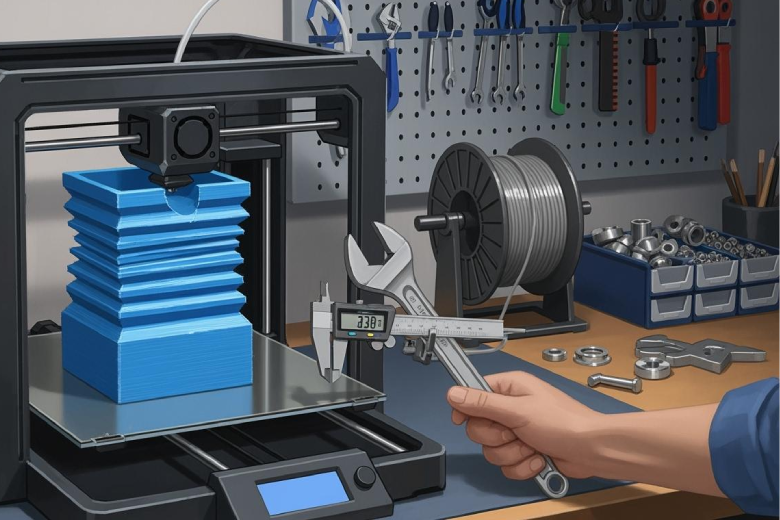
To fix a 3d printer problem like Z-wobble, users should check for bent lead screws, misaligned z-axis, or loose couplers, as these often cause uneven printing and poor print quality. Identifying the exact 3d printer problem ensures effective 3d printing repairs. This guide helps anyone restore their printer and improve 3d prints.
|
Cause |
Description |
|---|---|
|
Bent Lead Screws |
A bent lead screw prevents smooth z-axis movement, causing uneven layers and print marks. |
|
Misaligned Z-Axis |
Misalignment can lead to z wobble and visible ridges on prints due to improper z-axis movement. |
|
Loose or Improper Couplers |
Loose couplers can cause unintended z-axis movement, exacerbating wobble and other issues. |
|
Z Motor and Frame Issues |
A shaky z motor or unstable frame can lead to uneven layers and z banding during printing. |
|
Extruder and Filament Path |
Problems in the filament path can misalign the printhead, affecting layer height and print quality. |
Key Takeaways
- Inspect lead screws regularly. Bent lead screws cause uneven layers. Replace them if they wobble.
- Tighten couplers and check z motors. Loose components lead to z wobble. Ensure everything is secure for smooth movement.
- Lubricate the z-axis every few months. Proper lubrication reduces friction and helps maintain print quality.
3D Printer Problem: What Is Z Wobble
Z Wobble Effects on Prints
Z wobble describes a mechanical issue in a 3d printer that causes the print bed or extruder to move inconsistently along the z-axis. This movement leads to uneven layers and visible defects in 3d printing. Z banding appears as repeating ridges or patterns on the surface of printed objects. These patterns often match the pitch of the lead screw, revealing structural problems in the printer. Z wobble can reduce print quality by creating a rough, layered finish and causing dimensional inaccuracies. Many users notice that z banding repeats at regular intervals, making it easy to spot during printing. A rigid frame helps prevent z wobble, as industrial printers use strong materials like aluminum to avoid flexing. The table below compares frame materials and their impact on z wobble:
|
Frame Material |
Rigidity |
Z Wobble Risk |
Maintenance Tip |
|---|---|---|---|
|
Aluminum |
High |
Low |
Tighten screws regularly |
|
Acrylic |
Low |
High |
Check for flex and instability |
Identifying Z Wobble Sources
Identifying z wobble sources helps users diagnose z wobble and improve 3d printing results. Z banding often shows as wavy or zigzag lines running vertically along the sides of a print. These lines repeat at intervals that match the lead screw’s specifications. Layer shifting, another 3d printer problem, creates horizontal misaligned layers, while extrusion inconsistencies cause uneven layers or gaps. During troubleshooting, users should look for cyclical patterns and check the printer’s frame, lead screw, and couplers. Problems with extrusion can also affect print quality, but z wobble remains the main cause of vertical banding. Regular maintenance and careful inspection of the printer’s mechanical parts help prevent z wobble and other 3d printing problems.
Fixing Z Wobble and Misaligned Z-Axis
Step-by-Step Fixing Z Wobble
Z wobble remains one of the most common 3d printing problems. It causes z banding, which appears as repeating lines or ridges on printed objects. Fixing z wobble improves print quality and ensures smooth z-axis movement. Users should start by identifying mechanical causes. The most frequent sources include bent lead screws, loose or improper couplers, and unstable frames. Flexible couplers, if installed incorrectly, allow unintended movement and worsen z banding.
To begin fixing z wobble, users should follow these steps:
-
Inspect Lead Screws
Roll the lead screw on a flat surface. If it wobbles or bends, replace it with a straight one. Bent lead screws create uneven z-axis movement and lead to z banding. -
Check Couplers and Z Motors
Gently wiggle the z motor and coupler. They should not move. Loose couplers cause backlash and allow the z-axis to shift during printing. Tighten or replace couplers if needed. -
Lubricate the Z-Axis
Apply a small amount of BX-300/F series grease, silicone lubricating grease with PTFE, or white lithium grease to the lead screw. Lubrication reduces friction and helps prevent z wobble. Users should lubricate the z-axis every three months or after long printing sessions. -
Level the X-Axis
Measure from the base to the smooth rod on both sides. Adjust the z motors until the rods are parallel. Leveling the x-axis to the y-axis base ensures proper alignment and reduces z banding. -
Secure the Frame and Build Plate
Tighten all screws on the printer frame. A rigid frame prevents flexing and improves stability. Secure the build plate tightly to stop rattling during printing. -
Check Belts and Rods
Belts should feel springy, not loose. Inspect rods for bends or wobble. Upgrade to thicker leadscrews if necessary for better stability.
Addressing Misaligned Z-Axis
A misaligned z-axis can cause recurring z wobble, even after initial fixes. Proper alignment is essential for high-quality 3d printing and consistent z-axis movement. Users should listen for rattling or clicking noises during z-axis movement. These sounds often indicate misalignment or loose components.
To correct a misaligned z-axis, follow these steps:
- Loosen screws on the trapezoidal nut, z-motor, and z-top.
- Move the z-axis up and down or run a z-axis test before tightening.
- Tighten the trapezoidal nut and z-top while the heatbed is down.
- Tighten the z-motors when the heatbed is up.
- Check alignment by measuring both sides of the x-axis to ensure they are level with the y-axis base.
Friction in the z-axis can also cause uneven movement. Wipe down the z rods and bearings with a clean cloth, then apply the recommended lubricant. This step helps maintain smooth z-axis movement and prevents z banding.
Some printers benefit from dual z-axis lead screws. This upgrade eliminates the diving board effect, which causes instability during printing. Dual lead screws improve print quality, especially at higher speeds.
Note:
The z-axis frame must have adequate support. Instability in the frame can worsen z wobble and lead to more pronounced z banding.
Maintenance to Prevent Z Wobble
Regular maintenance helps prevent z wobble and keeps 3d printing consistent. Users should inspect and clean the z-axis every few months. Lubricate the lead screw with the appropriate grease and use oil for the linear rod. Do not mix lubricants.
The following table summarizes key maintenance tasks:
|
Maintenance Task |
Description |
|---|---|
|
Secure build plate |
Ensure it is tightly fastened to prevent rattling. |
|
Tighten belts |
Belts should feel springy and not loose. |
|
Inspect rods |
Check for bent or wobbly rods; upgrade if necessary. |
|
Lubricate rods |
Apply lubrication to guide rods and threaded rods. |
|
Test bed movement |
The bed should glide back and forth without friction. |
Community-recommended upgrades can also help prevent z wobble. Popular options include anti-wobble adapters, frame braces, and improved couplers. These upgrades increase stability and reduce z banding in many 3d printers.
Firmware updates and software calibration routines further minimize z wobble. They ensure mechanical components function correctly and improve motion control. Proper calibration keeps the z-axis constrained and prevents wobble during movement.
Tip:
During initial assembly, loosen screws on the trapezoidal nut, z-motor, and z-top. Move the z-axis up and down before tightening. This practice helps prevent z wobble from the start.
By following these steps and maintaining the printer regularly, users can prevent z wobble, reduce z banding, and achieve better print quality in all 3d printing projects.
Fixing Z-wobble involves checking lead screws, couplers, and frame alignment. Regular Z-axis inspection helps prevent future issues. Users should:
- Clean rods and lead screws.
- Keep screws snug.
- Watch for smooth movement.
- Adjust coupler screws.
- Check rod alignment.
Most users can restore print quality at home.
FAQ
What causes Z-wobble in 3D printers?
Z-wobble often results from bent lead screws, loose couplers, or a misaligned frame. These mechanical issues disrupt smooth Z-axis movement.
How can someone tell if their printer has Z-wobble?
Regular vertical lines or repeating ridges on prints usually indicate Z-wobble. Users should check for patterns that match the lead screw’s pitch.
Does upgrading to dual Z-axis lead screws help?
Yes. Dual Z-axis lead screws increase stability. They reduce the diving board effect and improve print quality, especially on taller prints.
