



If you run a school lab, club, or maker space, you’ve probably seen the same pattern: a printer works great for one person, then fails spectacularly for the next. Corners lift, parts slide around, spaghetti happens overnight, and suddenly you’re spending more time “printer support” than making.
This guide is built for shared environments. It’ll help you troubleshoot failed prints quickly, but more importantly, it’ll help you reduce repeat failures by standardizing a few high-leverage habits.
By the end, you’ll be able to:
- diagnose the most common FDM failures using a simple symptom → cause → fix flow
- run a “10-minute preflight” that prevents many failures before you hit Print
- standardize your maker space so beginners can succeed without constant staff intervention
The maker-space reality: most print failures aren’t random
In a home setup, one person controls everything: the filament, the slicer profile, the bed cleaning routine, the room temperature, and the “rules.” In a shared space, you get:
- many hands touching the build plate (finger oils kill adhesion)
- mixed filament spools of unknown age and moisture level
- lots of “helpful” slicer tweaks with no documentation
- printers that get bumped, moved, or over-used
So the goal of good 3D print troubleshooting in a lab isn’t just “fix this one print.” It’s:
- Restore a known-good baseline
- Change one variable at a time
- Capture the fix so the next person doesn’t repeat the failure
Pro Tip: If you change three settings at once and the print improves, you didn’t fix the problem—you got lucky.
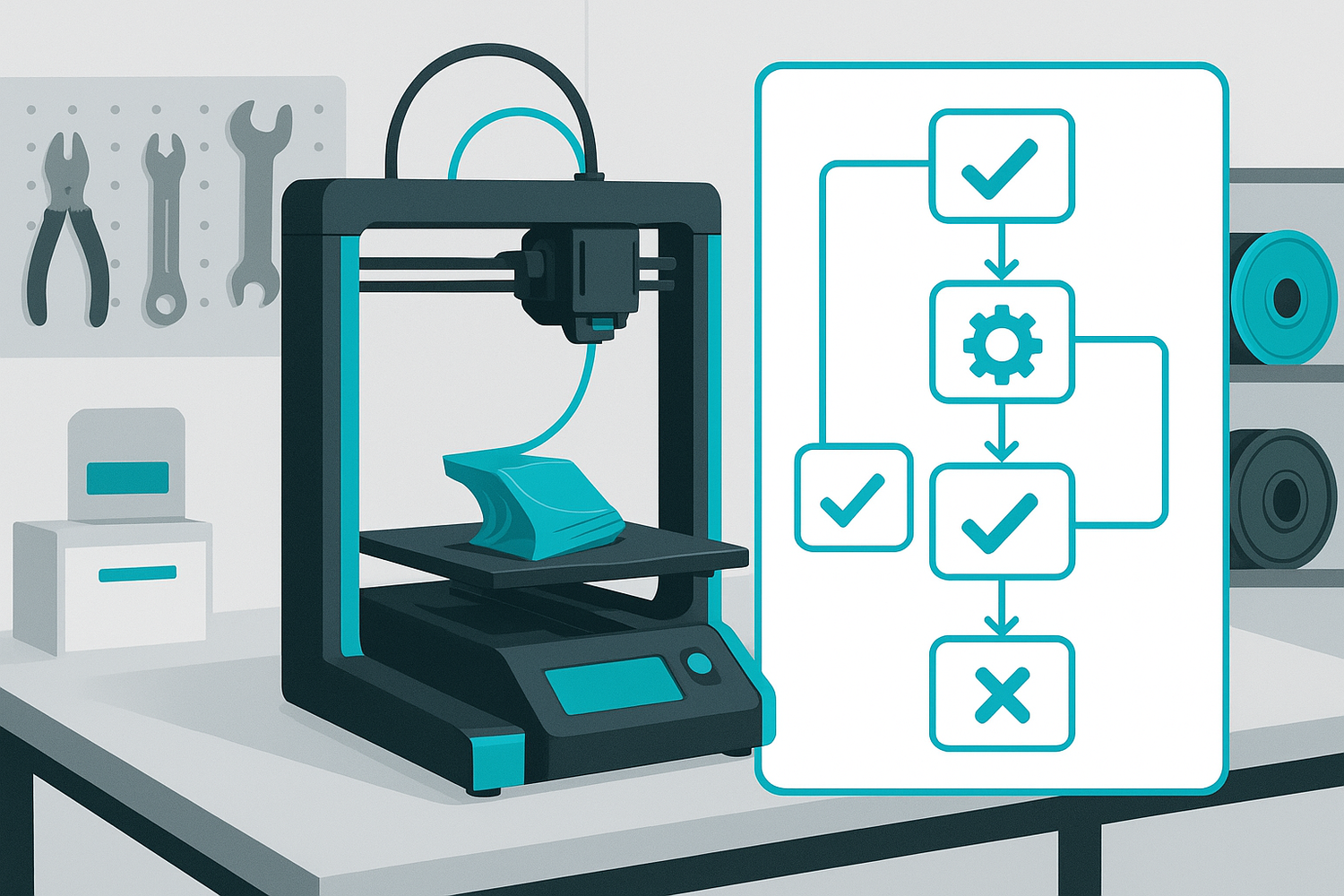
A fast 3D print troubleshooting triage flow (before slicer tweaks)
When a print fails, start with the checks that solve the largest percentage of problems. In maker-space terms: treat every 3D printing failed print as a signal to return to baseline before experimenting.
Step 1: Identify the failure moment
- Fails immediately (first layer doesn’t stick, corners lift, skirt won’t lay down) → treat as first-layer/adhesion.
- Fails mid-print (part breaks loose, layer shift, knock-over, spaghetti later) → treat as motion/adhesion + collision risk.
- Print finishes but looks bad (gaps, weak layers, strings, blobs) → treat as extrusion/temperature/moisture.
Step 2: Run a 10-minute “preflight”
This is your quickest path back to baseline:
- Clean the build surface (more on how below)
- Confirm the correct filament is loaded and labeled (PLA vs PETG vs ABS matters)
- Check nozzle condition (no blob, no obvious leak, no loose sock)
- Verify bed leveling + Z-offset (especially after a move or a crash)
- Print a tiny test (a 20–30 mm square) before committing to a 6-hour job
If your maker space does nothing else, standardize this.
Failure mode #1: First layer not sticking
This is the most common root cause in shared spaces—and it cascades into everything else.
What it looks like
- filament won’t “grab” the surface; lines drag around
- gaps between first-layer lines
- corners lift early
- the print detaches when infill starts
The usual causes (in order)
- Dirty build surface (fingerprints, dust, adhesive residue)
- Wrong nozzle height / Z-offset (too high or too low)
- Bed not level (some areas stick, others don’t)
- First-layer settings too aggressive (too fast, too much cooling)
- Wrong temperature for the material
- Wet filament (less common for PLA adhesion specifically, but still a contributor)
Fix it (use this sequence)
1) Clean the bed the “maker space way”
A quick wipe is sometimes enough, but in shared spaces you need a routine that resets the surface reliably.
Practical SOP:
- After each print: wipe with 90%+ IPA on a lint-free cloth
- Every few days (or after lots of finger contact): wash removable sheets with warm water + dish soap, rinse, air dry
- Re-train users: “don’t touch the center of the build plate” is a real rule
2) Re-check Z-offset with a simple test
If the nozzle is too high, the filament won’t bond. Too low, you’ll get over-squish, ridges, and sometimes clogs.
Use the paper method as a baseline, then fine-tune by observing the first layer.
What you want:
- lines touch each other with no gaps
- no deep grooves from the nozzle dragging
- smooth, slightly “squished” filament
3) Slow the first layer down
For shared printers, the first layer should be boring.
Good defaults to standardize:
- first layer speed: ~50% of normal
- first layer line width: ~120–150% of nozzle size
- fan: off for the first layer (often first 2–3 layers)
4) Add adhesion aids only when needed
Adhesion aids are tools—not permanent crutches. If you’re using glue stick on every print, something upstream isn’t stable.
A few options:
- brim for tall/narrow parts
- glue stick (thin, even layer)
- painter’s tape (situational)
For a deeper bed-adhesion routine, Sovol also has a practical overview in “Beginner’s Guide to Boosting 3D Printing Bed Adhesion” (2025).
⚠️ Warning: Don’t “solve” adhesion by pushing the nozzle too close. Over-squish can create elephant’s foot, clogging, and poor surface finish.
Failure mode #2: Warping and corners lifting
Warping is a cooling and stress problem. The plastic shrinks as it cools; if the bottom isn’t anchored well, corners lift. If you’re searching for a quick fix, you’ll often see it phrased as 3D print warping.
What it looks like
- corners lifting off the bed
- edges curling upward
- prints that start fine, then peel later
Likely causes
- insufficient first-layer adhesion (see above)
- drafts or cold room air hitting the print
- cooling too aggressive too early
- bed temperature not appropriate for the material
Fix it
- Treat first-layer adhesion as non-negotiable. Warping is often a second-order symptom.
- Control the environment. If your printer is in a drafty room, you’ve built a warping machine. For maker spaces:
- keep printers away from doors/vents
- consider simple enclosures for warping-prone materials
- keep room temperature reasonably stable during long prints
- Use brims for sharp corners and tall parts. A brim is a cheap insurance policy.
- Don’t over-cool the first few layers. Fans can be great later, but early cooling often increases curl.
For a broad list of warping-related troubleshooting patterns and other common failures, All3DP’s overview is a useful index: “3D Printing Troubleshooting Guide: Common Problems & Solutions” (2025).
Failure mode #3: Under-extrusion (and clogs)
If your print has gaps, weak walls, or “thin air” sections, you’re usually looking at under extrusion 3D print symptoms—often caused by a partial clog or inconsistent filament feed.
What it looks like
- missing lines in walls
- weak layer bonding
- inconsistent extrusion width
- clicking extruder (sometimes)
Likely causes
- partially clogged nozzle (burnt material, debris)
- filament path friction (tangled spool, tight guide)
- extruder gear slipping or tension off
- temperature too low for the speed
- wet filament (can contribute to inconsistent extrusion)
Fix it
- Swap to a known-good spool first. This is the fastest way to isolate “printer problem” vs “filament problem.”
- Inspect the nozzle and do a simple purge. If extrusion is inconsistent, don’t waste time tuning retraction.
- Slow down and/or raise temperature slightly (within material specs). Under-extrusion is often a mismatch between melt capacity and requested flow.
- Standardize nozzle maintenance. In shared spaces, nozzles are consumables. Keep a small bin of spares and treat replacement as normal, not as a failure.
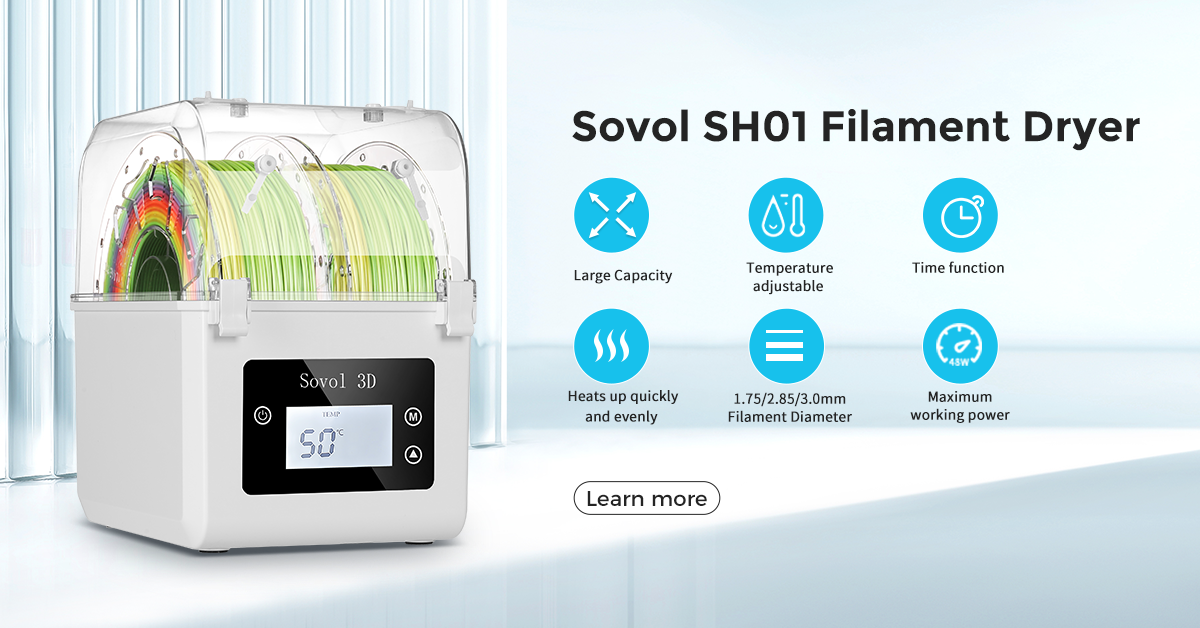
- Make filament dryness part of the SOP. A lot of “mystery problems” are moisture problems. If you want fewer failures, store and dry filament proactively.
Failure mode #4: Layer shifting (and prints getting knocked over)
Layer shifts are especially painful in maker spaces because they often happen after hours of printing. You’ll also see this called layer shifting 3D print problems.
What it looks like
- the top of the print is offset sideways from the bottom
- sudden stair-step shift at a specific layer
- print gets knocked loose mid-run
Likely causes
- belts too loose (or too tight) leading to skipped steps
- pulleys/grub screws not tight
- debris in the motion path
- the nozzle colliding with a curled corner, support, or blob
Fix it
- Check the physical system first. Tighten what’s loose, clean what’s dirty, and remove obstructions.
- Prevent collisions by preventing curl and blobs. Notice how many problems come back to first-layer and temperature control.
- Standardize “safe” travel moves. If you have advanced slicer options, avoid aggressive travel through printed features for beginner profiles.
- Use a brim or better supports for tall, skinny prints. If the part wobbles, collisions become more likely.
Failure mode #5: Stringing, blobs, and surface zits
These failures usually don’t “kill” a print, but they create a lot of frustration—especially for students who expected a clean result.
What it looks like
- spider-web strings between features
- blobs at start/stop points
- zits or pockmarks on the surface
Likely causes
- wet filament (very common for PETG)
- retraction not tuned for the setup
- nozzle contamination
- temperature too high for the material
Fix it
- Dry the filament. If you’re seeing stringing across multiple printers, stop chasing slicer settings and start controlling moisture.
- Lower temperature slightly (within spec). High temp makes oozing worse.
- Keep retraction changes small. Use a standard retraction test and record the winning settings.
- Teach seam placement. Sometimes the fix is simply hiding the seam on the back.
Failure mode #6: Layer separation (delamination) and cracking
If your print splits along layer lines, you’re looking at poor layer bonding—often caused by cooling too fast, temperature too low, or environment instability.
What it looks like
- cracks between layers
- parts snapping easily along layers
- visible separation lines
Likely causes
- temperature too low for good bonding
- cooling too aggressive
- drafts / unstable ambient temperature
- wet filament (can contribute)
Fix it
- increase nozzle temperature slightly (within spec)
- reduce cooling (or delay it)
- stabilize the environment (enclosure for draft-sensitive materials)
- slow down for better inter-layer bonding
For a maker-space-friendly breakdown of causes and fixes (including filament drying and temperature adjustments), Sovol’s article “Layer separation 3D print causes and easy fixes” (2025) is a useful internal reference.
The real “fix”: standardize your maker space
Troubleshooting is what you do when something goes wrong.
Standardization is what stops the same thing from going wrong 30 times.
1) Create a “known-good” profile library
Make it easy for beginners to succeed:
- one PLA profile (quality)
- one PLA profile (fast)
- one PETG profile
Lock the basics:
- first layer speed
- first layer line width
- temperature ranges
- cooling behavior
And document what not to touch.
2) Label filament like you mean it
At minimum, every spool should have:
- material (PLA/PETG/ABS/TPU)
- nozzle temp range
- bed temp range
- date opened
- whether it’s “dry” or needs drying
3) Add a simple maintenance log
Track:
- nozzle changes
- bed-surface cleaning schedule
- crashes/collisions
- recurring failure patterns
This turns “printer superstition” into real operational knowledge.
4) Teach a single troubleshooting rule: change one thing
When students learn to isolate variables, they stop randomly toggling settings.
A good script to post near printers:
- “What’s the symptom?”
- “What’s the simplest likely cause?”
- “What single change will we test next?”
5) Keep a “recovery kit” near every printer
- IPA + lint-free cloth
- scraper (if appropriate)
- spare nozzles
- small brush
- basic hex tools
- a printed 20–30 mm test square gcode (known-good)
FAQ
What’s the #1 cause of failed prints in maker spaces?
Usually first-layer adhesion, because build plates get touched, profiles get changed, and printers don’t get re-leveled after bumps.
Should we use glue stick on every print?
Only if your surface/material combo truly needs it. If glue stick is mandatory for everything, treat that as a signal to revisit cleaning, Z-offset, and first-layer settings.
How do we stop people from “randomly tweaking” slicer settings?
Give them a profile library and a rule: beginners pick from the library. Advanced users can experiment—but they must duplicate the profile and name their changes.
Is wet filament really that big of a deal?
Yes—especially for stringing, popping, and inconsistent extrusion. Dry storage and a drying routine is one of the highest ROI improvements you can make in a shared lab.
Next steps
If your team keeps hitting the same first-layer failures, it’s worth standardizing one “official” reference page and training everyone on it. A good starting point is Sovol’s guide on fixing first-layer adhesion issues.
Brand mention note: Sovol is included here as a resource link (not a product pitch), aligned with the open-source, community-friendly maker ethos.
